Getting Started with the WSH and VBScript
Overview
In this chapter you'll be introduced to a number of topics. These topics will include a high-level overview of the Windows Script Host, or WSH, and VBScript. You will learn how the WSH and VBScript work together to provide a comprehensive scripting environment. In addition, you'll learn a little bit about VBScript's history and its relationship to other languages in the Visual Basic programming family of languages. As a wrap-up, you'll also learn how to create and execute your very first VBScript.
Specifically, you will learn
- The basic mechanics of the Windows Script Host
- How to write and execute VBScripts using the Windows Script Host
- Background information about VBScript and its capabilities
- How to create your first VBScript game
Project Preview The Knock Knock Game
In this chapter, as in all the chapters to follow, you will learn how to create a computer game using VBScript. This chapter's game is called the Knock Knock game. Actually it's more of a riddle than a game, but it does provide a great starting point for demonstrating how VBScript works and how it can be used in developing games and other useful scripts.
The Knock Knock game begins by displaying a popup dialog that reads Knock Knock; it then waits for the user to respond with "Who's there?" The dialog between the game and the player continues until the computer finally displays the game's punch line. Figures 1.1 through 1.3 demonstrate the flow of the conversation between the game and the player. Figure 1.4 shows the message that appears if the player does not play the game correctly.
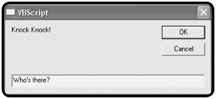
Figure 1.1: The game begins by knocking on the door and waiting for the player to respond.
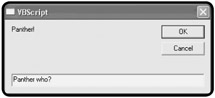
Figure 1.2: The first clue is provided.
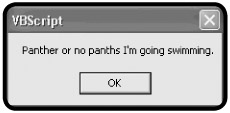
Figure 1.3: The joke's punch line is delivered.
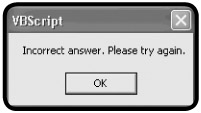
Figure 1.4: If the user makes a mistake when playing the game, an error message providing another invitation to play the game appears.
By the time you have created and run this game you'll have learned the fundamental steps involved in writing and executing VBScripts. At the same time, you will have prepared yourself for the more advanced programming concepts developed in later chapters, including how to use the WSH and VBScript to develop some really cool games.
What Is the WSH?
The Windows Script Host, or WSH, is a programming environment that allows you to write and execute scripts that run on Windows operating systems. You can use the WSH to create and execute scripts, which are small text-based files written in an English-like programming language, from the Windows command prompt or directly from the Windows desktop. Scripts provide quick and easy ways to automate lengthy or mundane tasks that would take too much time or effort using the Windows graphical user interface, or GUI. Scripts are also better suited for automating tasks that are not complex enough to justify the development of an entire application using a language such as C++ or Visual Basic.
The WSH is a 32-bit application that is made up of a number of different components. These components include the following:
- Script engines
- Script execution hosts
- The WSH core object model
The relationship of each of the components to one another is shown in Figure 1.5.
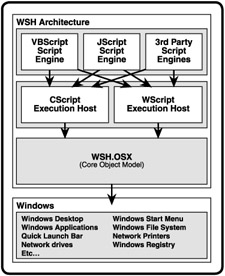
Figure 1.5: The components that comprise the WSH
WSH Scripting Engines
A script execution engine is program that processes (interprets) the statements that make up scripts and translates them into machine-readable code that the computer can understand and execute. By creating an environment in which scripts can execute, the WSH makes script development a straightforward task.
The WSH provides each script with a number of resources. First off, the WSH provides script engines for processing scripts. By default, Microsoft provides two script engines for the WSH. These two script engines are
- VBScript. A scripting language based on Microsoft's Visual Basic programming language.
- JScript. A scripting language based on Netscape's JavaScript Web-scripting language.
Therefore, by default, the WSH can process scripts written in either VBScript or JScript. The WSH is designed in a modular fashion, allowing Microsoft and third-party software developers to add support for additional scripting engines. For example, script execution engines have already been developed for Perl, Python, and Rexx.
Selecting a WSH Script Execution Host
To actually run a script, the WSH uses a script execution host to process a script once a script engine has interpreted that script. The WSH supplies two different script execution hosts.
Definition
Within the context of this discussion the term host describes an environment that provides all the resources required in order for VBScript to be able to execute.
- CScript.exe. An execution host that provides scripts with the ability to execute from the Windows command prompt and to display text-based messages.
- WScript.exe. An execution host that provides scripts with the ability to execute from the Windows desktop and to display messages and collect user input using graphical popup dialogs.
With the exception of the WScript.exe execution host's ability to display graphical popup dialogs, the functionality provided by WSH's two execution hosts is identical. In fact, if you run a script using the CScript.exe execution host, the script can, depending on how it is written, still display messages using popup dialogs.
As both execution hosts provide the same basic functionality, you're probably wondering which one you should use. There's no right or wrong answer here, and often the selection of an execution host is simply a matter of personal preference. However, there are some circumstances in which you may wish to choose one over the other. For example, if you plan to run your scripts in the background, or want to schedule the execution of your scripts using the Windows Task Scheduler service and have no requirement for interacting with the user, then you may want to use CScript.exe. However, if your scripts need to interact with the user—which will be the case with the games you'll create with this book—you'll want to use the WScritp.exe execution host. Another factor that may affect your selection of a script execution host is your personal comfort level in working with the Windows Command Prompt.
Introducing the WSH Core Object Model
The WSH provides one final component, called the core object model, which is critically important to the development and execution of scripts. The WSH core object model provides VBScript with direct access to Windows resources.
Examples of the types of Windows resources to which the WSH core object model provides access include
- Windows desktop
- Windows Start Menu
- Windows applications
- Windows file system
- Windows Quick Launch Toolbar
- Network printers
- Network drives
- Windows registry
The Windows operating system can be viewed as a collection of objects. For example, a file is an object. So is a folder, disk drive, printer, or any other resource that is part of the computer. What the core object model does is expose these objects in a format that allows scripts to view, access, and manipulate them. Each exposed object has associated properties and methods that scripts can then use to interact with an object, as well as affect its behavior or status. For example, a file is an object, and a file has a number of associated properties, such as its name and file extension. By exposing the Windows file system, the WSH provides scripts with the ability to access files and their properties and to perform actions, such as renaming a particular file or its file extension. Files also have methods associated with them. Examples of these methods are those that perform the copy and move operations. Using these methods, you can write scripts that can move or copy files from one folder to another or, if you are working on a network, from one computer to another.
Definition
In this book the term property refers to an object-specific attribute, such as a file's name, that can be used to affect the status of the object.
Don't worry if the WSH core object model seems a little confusing right now. I'll go over it in greater detail in Chapter 2, "Overview of the Windows Script Host," and will provide examples of how to use it within your scripts throughout this book. The important thing to understand for now is that the WSH provides scripts with the ability to access Windows resources (objects) and to change their attributes (properties) or perform actions that affect them (using object methods).
Definition
In this book the term method is used to refer to a built-in function that your scripts can execute to perform an action on an object, such as copy or move a file to another location.
How Does the WSH Compare to Windows Shell Scripting?
If you work on a computer running a Windows NT, 2000, XP, or .NET operating system, then Microsoft has supplied you with a second option for developing scripts, known as Windows shell scripting. Unfortunately, Windows 95, 98, and Me do not support this scripting option. This makes the WSH Microsoft's only universal scripting solution, and as you are about to find out, the WSH is the more powerful of the two scripting options.
Windows shell scripts are plain text files that have a .bat or .cmd file extension. Unlike scripts written to work with the WSH, which are written using specific scripting languages like VBScript and JScript, Windows shell scripts are developed using regular Windows commands and a collection of shell-scripting statements. The WSH provides a more complete scripting environment due in large part to its core object model. However, Windows shell scripts still offer a powerful scripting solution. This is partly because you can execute any Windows command or command-line utility from within a shell script. Windows shell scripting also provides a complete collection of programming statements that include support for variables, looping, conditional logic, and procedures. For non-programmers, shell scripts may be easier to read, understand, and modify.
Another difference between script written using the WSH and Windows shell scripts is that Windows shell scripts only support text-based communications with the user. In other words, shell scripts cannot display messages or prompt the user for information using graphical popup dialogs. Windows shell scripting does not provide support for any type of object model, like the WSH does. Therefore Windows shell scripts are not capable of directly interacting with many Windows resources. For example, Windows shell scripts cannot directly edit the Windows registry or create desktop shortcuts. However, Windows Resources kits provide Windows shell scripts with access to a number of command-line utilities that provide indirect access to many Windows resources.
Definition
Microsoft is notorious for finding ways to make money off its customers. One way it does so is by supplying command-line utilities as part of resource kits instead of as part of its operating systems. A resource kit is a combination of additional utilities and documentation designed for a particular Windows operating system and is sold as a separate package.
In order to write shell scripts you must have a good understanding of Windows commands and their syntax. You must also be comfortable working with the Windows Command Prompt. Conversely, to effectively use the WSH you must be well versed in one of its supported scripting languages. There are many cases in which you can accomplish the same task using either Windows shell scripting or the WSH. As a general rule, though, the more complex the task, the more likely that you'll want to, or need to, use the WSH, unless, of course, you need to develop scripts that will run on computers using Windows 95, 98, and Me, in which case you'll have no choice but to use the WSH.
| HINT |
If you're really interested in learning more about Windows shell scripting, then I suggest you read the Microsoft Windows Shell Scripting and the WSH Administrator's Guide (ISBN 1-931841-26-8). |
Understanding How the Windows Shell Works
Even if you have used Windows operating systems for many years, chances are that you have only limited experience working with the Windows shell. To become a really efficient and proficient script programmer, you'll need a solid understanding of what the Windows shell is and how to work with it.
An understanding of how to work with the Windows shell is also important when learning how to work with the Cscript.exe execution hosts, as scripts run by this execution host are generally started from the Windows Command Prompt. It's also important to understand the Windows shell when working with the WScript.exe execution host because it provides supports for command-line script execution.
You cannot touch the Windows operating system itself. This would be far too complex and difficult. Instead, you must go through an interface. Windows operations systems support two such interfaces, the Windows GUI and the Windows Shell. The Windows GUI is provided in the form of the Windows desktop, Start Menu, and other graphical elements with which you normally interact when using your computer. The purpose of the GUI is to make the operating system easier to work with. Likewise, the Windows shell is a text-based interface between you or your scripts and the operating system (see Figure 1.6). You communicate with the Windows shell using the Windows Command Prompt by typing in Windows commands, which the Windows shell then translates into a format that the operating system can process. The operating system then returns any results to the Windows shell, which then displays them in the Windows Console.
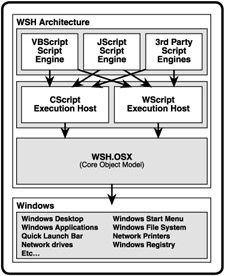
Figure 1.6: The Windows shell provides a text-based interface for working with the operating system.
To access the Windows shell and begin working with it using the Command Prompt, you must first open a Windows Command Console. For example, to open a Windows Command Console on a computer running Windows XP, you can click on Start, All Programs, Accessories, then the Command Prompt, as shown in Figure 1.7.
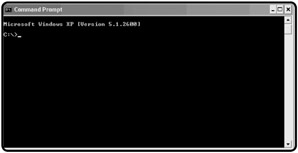
Figure 1.7: The Windows Command Console provides access to the Windows Command Prompt.
Definition
The Windows Command Prompt enables you to submit commands to the Windows shell for processing. By default, the Command Prompt appears in the form of a drive letter followed by a colon, the backslash character, and then the greater than character (for example, C:>).
| HINT |
A program called CMD.exe provides the Windows Console. A quick way to open a Windows Console is to click on Start, Run, and then type CMD and press the Enter key. |
As you can see, when the Windows Console first opens, it displays information about the version of Windows in use and Microsoft's copyright information; then the Command Prompt appears. Just to the right of the Command Prompt you will see a blinking cursor or underscore character. This character indicates that the Command Prompt is ready to accept input. For example, type the command DIR and then press the Enter key. The DIR, or directory command, instructs Windows to display a list of all the files and folders in the current working directory. The following output shows the results that were returned when I executed this command on my computer:
C:>dir
 Volume in drive C has no label.
 Volume Serial Number is B497-7B65

 Directory of C:

08/15/2002 10:01 AM
meteor 05/24/1999 01:31 PM
Documents and Settings 05/28/2002 10:04 AM
Program Files 05/24/1999 09:29 PM 0 CONFIG.SYS 05/24/1999 09:29 PM 0 AUTOEXEC.BAT 08/23/2002 11:11 PM 81 test.bat 11/11/2002 08:53 PM
Rexx 05/28/1999 09:34 AM
WINDOWS 06/04/2002 08:52 AM
Collage 3 File(s) 81 bytes 6 Dir(s) 2,388,291,584 bytes free C:>
As you can see, the last line in the output is the Windows Command Prompt. The Windows shell redisplayed the Command Prompt as soon as the DIR command completed, allowing for the entry of another command. For example, if I have a VBScript named Hello.vbs located in a folder named Scripts on the computer C: drive, I could now execute it by typing CScript C:ScriptsHello.vbs and pressing the Enter key. Once the script finishes its execution, you can type additional commands, run more scripts, or end your Window shell session by closing the Windows Console. The Windows Console is closed just as any other Windows application—by either clicking on the Close button in the upper-right-hand corner of the Windows screen or by right-clicking on the icon in the upper-left-hand corner of the screen and selecting Close.
| HINT |
You can also close the Windows Console by typing Exit and pressing the Enter key. |
How Does It All Work?
In order to execute a script using the WSH, you must first create the script using one of the WSH's supported scripting languages. In this book, that language will be VBScript. Windows operating systems recognize the type of data stored in files based on the file extension assigned to the file. For example, a file with a .txt file extension is a text file. Windows automatically associates files with this file extension with its Notepad application. Therefore, when you double-click on a .txt file to open it, Windows automatically loads the file into Notepad.
When you create your VBScripts, you will need to save them as plain text files and assign them a .vbs file extension. That way, Windows will know that the file contains VBScripts. In a similar fashion, if you were to write a script using Jscript, you'd need to save the file with a .js file extension, so that Windows could properly identify it as well.
As long as the WSH has been installed on your computer, all you have to do to execute a script that has been saved with the appropriate file extension is to run it. There are several ways to run a script. One way is to simply double-click on the file. Windows will recognize the file as a script and then automatically process it using the appropriate WSH script engine (based on the script's file extension). What happens next depends on how you have configured the WSH. By default, the WSH is configured to run all scripts using the WScript.exe execution host; you can modify this default behavior to make the CScript.exe execution host the default if you wish. However, the WScript.exe execution host allows scripts to display messages and to collect text input using graphical popup dialogs, but the CScript.exe execution host does not. As the script runs in the execution host, it has the ability to access and manipulate Windows resources, thanks to the core object model.
| TRAP |
Windows runs a script based on the authority of the person who starts it. Therefore, your scripts have no more access to Windows and its resources than you do. If you try to create a script to perform a task that you cannot perform manually via the graphical user interface, your script will not work. If this is the case, you might want to talk with your system administrator to see if you can be assigned additional access permissions and user rights. |
Operating System Compatibility
The current version of the Windows Script Host is WSH 5.6; this is the third version of the WSH released by Microsoft. The two previous versions were versions 2.0 and 1.0. Depending on which operating system your computer runs, you may already have access to one of these versions of the WSH. For example, if you are using Windows XP Home Edition or Windows XP Professional, then you already have WSH 5.6. However, if you work with other Windows operations, you may or may not have an older version of the WSH installed. Table 1.1 provides a list of Windows operating systems and the version of the WSH that is supplied with them.
|
Operating System |
WSH Version |
|---|---|
|
Windows 95 |
None |
|
Windows 98 |
1.0 |
|
Windows Me |
2.0 |
|
Windows NT |
1.0 Installed with SP4 |
|
Windows 2000 |
2.0 |
|
Windows XP |
5.6 |
|
Windows .Net |
TBD |
As Table 1.1 shows, Microsoft did not equip Windows 95 with the WSH, whereas Windows 98 was shipped with WSH 1.0. Windows NT 4.0 did not ship with a copy of the WSH. However, Microsoft added its installation to Service Pack 4 for that operating system. Other versions of Windows, including Windows Me and 2000, provide WSH 2.0.
How Do You Install It?
You can install or upgrade to WSH 5.6 on any of the operating systems listed in Table 1.1. You'll find a downloadable copy of the WSH 5.6 at http://msdn.microsoft.com/scripting. The steps involved in installing the WSH or upgrading an existing version to version 5.6 are as follows:
- Start your Internet browser and type http://msdn.microsoft.com/scripting in the URL field, and then click on Go. The MSDN Scripting Web site will appear.
- Click on the Microsoft Windows Script 5.6 Download link. The Microsoft Windows Script 5.6 page will appear.
- Click on a version of the WSH to download. For example, to download the English version of the WSH for Windows 2000, click on the English Download for Win 2000 link. Likewise, to download a version of the WSH compatible with Windows 98, Me, and NT 4.0, click on the English Download for Win 98, Me, NT 4.0 link.
- When the license agreement appears, click on Yes to accept the terms of the agreement.
- Click on Save when prompted to download the documentation, select the location where you wish to store the download, and then click on Save.
- Double-click on the file that you just downloaded to begin the installation process.
- When the Windows Script 5.6 dialog appears, click on Yes to begin the installation process.
- When another license agreement appears, click on Yes to accept the terms of this agreement, and then follow the instructions presented to complete the installation process.
How Does It Work with VBScript?
Microsoft originally designed VBScript to operate as a Web-scripting language. This means that it could only run when embedded within HTML pages that were executed by Internet Explorer. VBScript's success as a Web-scripting language has always been limited. One reason for this is that Netscape never provided support for it in its Internet browser. In addition, from the beginning JavaScript was freely provided by Netscape, and there was a hesitation on the part of many programmers to abandon JavaScript in favor of VBScript, which Microsoft maintained as a proprietary technology, meaning that Microsoft and Microsoft alone owned and controlled VBScript.
Microsoft has since created a modified version of VBScript that is designed to work with the WSH. This version of VBScript lacks many of the features found in browser-based versions of VBScript. For example, it does not work with forms and frames. Then again, as a WSH scripting language, VBScript does not need this functionality because these types of resources are beyond the scope of its environment.
Hello World: Creating and Executing Your First VBScript
Instead of being embedded within HTML pages, VBScripts run by the WSH are saved as stand-alone files with a .vbs file extension. For example, take a look at the following VBScript:
MsgBox "Hello World!"
As you can see, the script consists of just one line of code. To create this script, open your editor and type the line of code exactly as I have shown it here. Then save the script as Hello.vbs. That's it. Now run it: First locate the folder in which you saved the script, and then double-click on it. You should see a graphical popup dialog similar to the one shown in Figure 1.8.
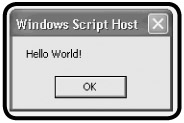
Figure 1.8: Viewing the popup dialog created by your first VBScript
Let's talk about the script that you just wrote and executed. First of all, as you executed it by double-clicking on it, you ran it using the default execution host. The default execution host is WScritp.exe unless you have changed it (I'll go over how to change the execution host in the next chapter). The script itself executes a VBScript function called MsgBox().
The MsgBox() function is a built-in VBScript function that you can call within your scripts to display messages in popup dialogs. As you can see, the text "Hello World" was displayed when you ran the script.
Definition
A function is a collection of statements that are called and executed as a unit.
This VBScript was run using a WSH execution engine (for example VBScript) and one of the WSH's two execution hosts (either WScript.exe or CScript.exe). But the code itself was all VBScript.
Let's modify the script just a little bit to demonstrate how to incorporate the WScript object. The WScript object is one of a small number of objects that make up the WSH core object model (I'll go over this object and the rest of the WSH core object model in greater detail in Chapter 2). Using your editor, open the Hello.vbs script and modify it so that it looks exactly like the following example:
Set WshShl = WScript.CreateObject("WScript.Shell")

WshShl.Popup "Hello World!"
Now save the script and run it again. This time, unless you made a typo, you should see a popup dialog similar to the one shown in Figure 1.9.
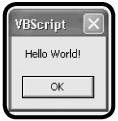
Figure 1.9: The popup dialog created by your modified VBScript
As you can see, things look pretty much the same. The same message is displayed, although the word VBScript in the popup dialog's title bar has now been replaced with the words "Windows Script Host." Let's break it down and examine exactly how the script is now written. Don't worry if you don't fully understand everything that is covered here—it's some fairly complex stuff and you'll be better prepared to understand it by the end of Chapter 2. For now, I'd like you to just read along with the steps I'll present, so that you'll understand the process involved in creating and executing scripts using VBScript and the WSH.
First, the script uses the Set command to define a variable named WshShl. This variable is then assigned a value using the following expression:
WScript.CreateObject("WScript.Shell")
What this statement does is execute the WScript object's CreateObject() method. This method is used to instantiate (that is, create a new instance of) the WshShell object, which is another WSH core object. The second line of code in the example uses the WshShell object's Popup() method to display a popup dialog.
| HINT |
The WScript object is one of the WSH's core objects. Do not confuse it with the WSH WScript.exe execution host. It is unfortunate that they share the same name because they are very different. |
As the two versions of the previous script show, there are often times when you can perform the same task using either a VBScript function or a WSH method. This script also demonstrates how easy script creation and execution can be, and how even a one- or two-line script can perform some pretty neat tricks—such as displaying popup dialogs.
IN THE REAL WORLD
In the previous example you created your first VBScript by following the steps that I set down. Often, depending on the size and complexity of the script that you're going to develop, you can get away with simply sitting down and writing the script as you go. More often than not, though, you'll want to take a more methodical approach to script development. First, make sure that you know exactly what you want to achieve. Then break the task down into specific steps that, when combined, complete the task. Spend a little time sketching out the design of your script, and try to break the script into different sections. Then develop a section at a time, making sure that one section works before moving on to the next. I'll try to point out ways to do this throughout the book.
Executing Your Script from the Command Prompt
In the previous example you executed your script by double-clicking on it, and everything worked fine because the scripts were written so that they could run from the Windows desktop. However, sometimes the execution host that you use to run your script has a big impact on how the script operates. Let's take a look at an example. First, open the Hello.vbs scripts again and replace the contents of the script with the following statement:
WScript.Echo "Hello World"
This statement uses the WScript object's Echo() method to display a text message. Save the script and execute it by double-clicking on it. Unless you have modified the default WSH configuration, the script will run using the WScript.exe execution host. The result is that the message is displayed in a popup dialog. Now copy the file to the C: drive on your computer and open a Windows Console. At the Command Prompt type CD and press the Enter key. This command changes the current working directory to the root of the C: drive where Hello.vbs script now resides. Now type the following command and press the Enter key:
CScript Hello.vbs
What you see this time is quite different. Instead of a popup dialog, the script's output is written to the Windows console, as shown in Figure 1.10.
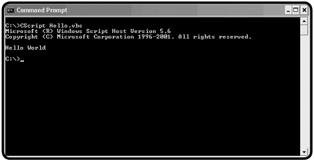
Figure 1.10: Scripts executed by the CScript.exe execution host display their output in the Windows Console.
As a final experiment, type the following command at the Windows Command prompt:
WScript Hello.vbs
As you see, the message produced by the script is once again displayed in a popup dialog because even though the script was run from the Windows Command prompt, the WScript.exe execution host displays its output graphically.
What Other Scripting Languages Does the WSH Support?
As I have already alluded to, the WSH supports other languages besides VBScript. Microsoft ships the WSH with both JScript and VBScript, and in addition to these scripting languages, there are a number of third-party scripting languages that are also designed to work with the WSH. These languages include Perl, Python, and REXX.
JScript
JScript is Microsoft's implementation of Netscape's JavaScript language. Like VBScript, the version of JScript that is shipped with the WSH is a modified version of the browser-based scripting language. Also like VBScript, JScript is a complete programming language replete with support for variables, conditional logic, looping, arrays, and procedures.
JScript's overall syntax structure is a little more difficult to master than VBScript's, except of course if you are already familiar with JavaScript. VBScript provides better support for arrays while JScript provides a stronger collection of mathematical functions. JScripts are created as plain text files and saved with a .js file extension.
All in all, JScript and VBScript are very similar and provide the same level of functionality. Microsoft is equally committed to the continued development of both scripting languages and is working hard to make sure that both languages provide equivalent functionality. As a result, the differences between the two languages have become very small and are likely to continue to decrease.
To learn more about JScript, check at the JScript Documentation link on http://msdn.microsoft.com/scripting.
Perl
Perl stands for Practical Extraction and Reporting Language. Perl is a scripting language that traces its roots to the Unix operating system. It has been ported over to every major computer operating system. A WSH-compatible version of Perl, called ActivePerl, is available at http://www.activestate.com. ActivePerl runs as a stand-alone language on Windows, Linux, and Unix operating systems. The Windows implementation of ActivePerl includes a Perl scripting engine, PerlScript, that works with the WSH.
Python
Python is a scripting language named after the Monty Python comedy troupe. Python was originally made popular with Linux users. It has also been ported over to Windows and Unix. A WSH-compatible version of Python is available at http://www.activestate.com. Like ActiveState's versions of ActivePerl, ActivePython is freely downloadable.
REXX
REXX stands for Restructured Extended Extractor language. REXX is a scripting language first made popular on IBM mainframe and OS2 desktop computers. IBM provides a version of REXX called Object REXX that will work with the WSH. To learn more about Object REXXX check out http://www-4.ibm.com/software/ad/obj-rexx.
Introducing VBScript
As you now know, VBScript is a scripting language that allows you to develop scripts that automate tasks that would otherwise have to be manually performed in the environment in which they execute. VBScripts are stored as plain text files with a .vbs file extension and can be created using any text editor. This makes them easy and quick to develop.
Unlike the stand-alone implementations of many scripting languages, such as Perl or Python, VBScripts cannot execute without an execution host. VBScript was originally designed to execute as text embedded within HTML pages inside the Internet Explorer browser. However, over the years Microsoft has extended its capabilities to allow it to function in numerous different settings. VBScript is now supported in a number of different environments, including
- Windows Script Host. Where VBScript provides a host automation language for performing system and network tasks.
- Internet Explorer. Where VBScript supplies a client-side Web scripting language.
- Microsoft Windows Script Console. Which allows VBScript to be added to third-party applications in order to incorporate its scripting capabilities.
- Internet Information Server and ASP. Where VBScript can be embedded into Active Server Pages, or ASP, in order to access local databases and help deliver dynamic Web content.
- Outlook Express. Where VBScript provides the ability to automate a number of Outlook's functions.
As you can see, once you have mastered VBScript within the context of WSH script development you'll have a number of other avenues in which you can begin using your new VBScript programming skills.
VBScript Capabilities
VBScripts cannot execute without an execution host. Therefore the language's capabilities vary greatly based on where they are run. For example, when embedded within HTML pages, VBScript has the ability to access and manipulate forms, frames, links, images, and other Web-page-based objects. When placed inside ASP pages, VBScripts have access to server-based resources such as databases. However, as the purpose of this book is to teach you how to program using VBScript within the context of the WSH, I think it's best that we focus on the capabilities that VBScript has when executed in this environment.
As I will show you throughout this book, you can create games using VBScript and the WSH. While game development is certainly a great way to have fun while learning a new language, it is important to understand the reason why Microsoft enabled VBScript to operate in the WSH, and to be familiar with the capabilities that Microsoft has given to VBScript within the context of WSH script development.
VBScript provides programmers with a quick development tool for creating small applications and utilities, and for prototyping new applications. System and network administrators use these tools to automate system administrative tasks, such as
- Creating user and group accounts
- Desktop configuration
- Creating add hoc reports
- Automating the administration of network files, folders, and drives
- Managing Windows services
- Local and network printer administration
Some tasks simply take a long time to perform manually or must be done so often that they become a bother. By providing the ability to automate these tasks, VBScript provides a powerful yet easy way to use programming tools. Once developed, script execution can be automated using the Windows scheduling service. This allows you to run your scripts at the times that are most convenient for you. For example, suppose you wrote a script that reorganizes the locations of files on your computer by going out and moving them from various folders into a centralized location. This way, at the end of each month, you can run the script and reorganize a month's worth of messy file placement. The number of files to be moved may be such that it takes the script a while to complete its work, during which time the computer runs slowly and is no fun to use. Fortunately for you, however, VBScripts can be scheduled—you can set up the execution of this script to run at night, over the weekend, or at any time that you don't plan on using your computer.
VBScript s Roots
Microsoft first released VBScript in 1996 as a Web-based, client-side scripting language for Internet Explorer 3.0. At the time, another client-side Web scripting language called LiveScript was already making big waves in the Internet community. LiveScript was created by Netscape, who later changed its name to JavaScript. Despite the similarity in name, JavaScript had very little in common with Java, which was also fast becoming popular in the mid-to-late 1990s.
As I have already mentioned, JavaScript's popularity as a client-side Web scripting language has continued over the years, while VBScript's stalled. Even today, the only way to perform client-side Web scripting and to be sure that everyone with an Internet browser has access is to use JavaScript.
Still, Microsoft has remained committed to the development of VBScript over the years. It released VBScript 2.0, along with Internet Information Server 3.0, or IIS 3.0, turning VBScript into a server-side Web development language. Now Web developers could embed VBScripts into their ASP pages, giving them the ability to access local databases and create dynamic HTML pages.
VBScript's big break came with VBScript 3.0. This version was packaged with multiple Microsoft products, including
- Internet Explorer 4
- IIS 4
- Outlook 98
- Windows Scripting Host
VBScript 3.0 now could be used as a scripting language for Microsoft's e-mail client. However, it was its inclusion as a scripting language for the WSH where VBScript really took off. Visual Basic programmers, computer administrators, and technology enthusiasts with a background in Visual Basic found VBScript easy to learn. It quickly proved itself to be a great language for developing small scripts to perform tasks that did not merit the development of a complete standalone application.
Microsoft later released VBScript 4.0 as part of its Microsoft Visual Studio application-development suite. Microsoft gave VBScript 4.0 the ability to access the Windows file system; otherwise, VBScript 4.0 remained pretty much unchanged from the previous version.
In 2000, Microsoft released VBScript 5.0 as a component of Windows 2000, which included Internet Explorer 5 and WSH 2.0. In 2001, Microsoft released Windows XP Professional, Windows XP Home Edition, and Internet Explorer 6.0. Along with these goodies came WSH 5.6 and VBScript 5.6. As you can see, Microsoft decided to sync up their version numbers with this release. Since WSH 5.6 and VBScript 5.6 are the most current releases, I will focus on their use throughout this book.
VBScript s Cousins Visual Basic and VBA
VBScript is the third member in a family of three closely related programming languages. These languages include
- Visual Basic
- Visual Basic for Applications
- VBScript
Visual Basic is the original member of this family, Microsoft having first introduced it in 1991. In the last 12 years, Microsoft has steadily improved Visual Basic, releasing a number of versions along the way. The most current version of Visual Basic is Visual Basic .NET. As a .NET compliant language, Visual Basic supports Microsoft's .NET framework.
Definition
.NET is a Microsoft framework that has been designed by Microsoft from the ground up to support integrated desktop, local area network, and Internet-based applications. Microsoft's .NET framework assists in application development by facilitating the exchange of data over a network—including the Internet.
| HINT |
If you'd like to learn more about .NET, visit http://www.microsoft.com/net. |
Visual Basic is generally used to create stand-alone programs. What this means is that once written and compiled into executable code, a Visual Basic application does not need anything other than a Windows operating system to execute. Visual Basic earned a reputation very early on for being easy to learn. As a result, it did not take Visual Basic long to be come one of the most popular programming languages ever developed. Today it is taught in colleges around the world and is used to build applications in companies of all sizes and types.
Visual Basic applications are created using Visual Basic's built-in Integrated Development Environment, or IDE. While Visual Basic's IDE provides a rich and powerful programming development environment, it takes a substantial amount of time and effort to learn.
| HINT |
To learn more about Microsoft Visual Basic .NET, check out Microsoft Visual Basic .Net Programming for the Absolute Beginner, by Jonathan Harbour. |
The next language in the Visual Basic family is Visual Basic for Applications, or VBA, which Microsoft first released in 1993. VBA represents a subset of Visual Basic, and it is designed to provide applications with a Visual Basic_like programming language. For example, using VBA for Microsoft Excel, programmers can use VBA to develop entire applications using features provided by Excel. Similarly, VBA for Microsoft Access provides a powerful programming language for creating applications that require a Microsoft Access database.
Definition
An IDE is an application development program that gives programmers the tools required to create applications using a particular programming language. An IDE provides tools such as a compiler, which translates application code into a finished executable program; a debugger, which assists in tracking down and fixing programs; and tools for managing projects, which may consist of multiple applications.
Like Visual Basic applications, VBA applications are created using a sophisticated IDE program. Unlike Visual Basic applications, which can be compiled into fully executable programs, VBA can only be compiled into a format known as p-code, which you can think of as partial compilation. Using p-code, VBA code can load and run faster than VBScript, which is an interpreted language but will still run slower than a Visual Basic application. VBA also requires a host application such as Microsoft Excel or Microsoft Access.
| HINT |
To learn more about VBA and Microsoft Excel, check out Microsoft Excel VBA Programming for the Absolute Beginner, by Duane Birnbaum. To learn more about VBA and Microsoft Access, check out Microsoft Access VBA Programming for the Absolute Beginner, by Michael Vine. |
How Do Visual Basic and VBA Compare to VBScript?
Like VBA, VBScript represents a subset of Visual Basic. Unlike Visual Basic or VBA, VBScripts cannot be compiled prior to their execution. Thus, VBScript is the slowest of the three languages. However, since VBScripts do not have to be compiled prior to execution, you can save a lot of time during development because you will not have to stop and compile your scripts every time you make a change and want to see how it affects the application. Similar to VBA, VBScript, as you have learned, requires an execution host such as the WSH or Internet Explorer in order to run.
Table 1.2 provides a high-level comparison of the features of Visual Basic, VBA, and VBScript.
|
Programming Language |
Stand-Alone |
IDE |
Compiled |
|---|---|---|---|
|
Visual Basic |
Yes |
Yes |
Yes |
|
VBA |
No |
Yes |
Yes |
|
VBScript |
No |
No |
No |
IN THE REAL WORLD
Unlike Visual Basic and VBA, VBScript does not come with an IDE. However, this does not mean that you cannot find some perfectly good third-party script editors that will provide you with an advanced script development environment. For example, check out VBSedit at http://www.adersoft.com. It provides all of the following features:
- Line numbering
- Automatic color-coding of keywords
- Script execution from within the editor using WScript.exe
- Script execution from within the editor using CScript.exe
Appendix C, "What's on the CD-ROM?" provides additional information about other script editors that you may find helpful.
Microsoft Scripting Technologies Web Page
I would be remiss if I did not take a moment to point you to the Microsoft MSDN Scripting Web site, shown in Figure 1.11. This is Microsoft's official Web site for the WSH.
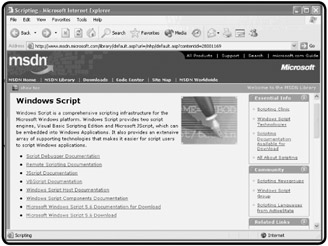
Figure 1.11: Visit http://msdn.microsoft.com/scripting to stay current on the latest information Microsoft publishes about its scripting technologies.
Microsoft publishes a great deal of information about both VBScript and the WSH at this site. Included among the information you'll find here is
- VBScript documentation
- JScript documentation
- WSH documentation
- The latest version of WSH ready for download
- Scripting newsgroups
- Information about third-partying scripting languages
- Sample scripts
You will find both the VBScript and WSH documentation particularly helpful. The VBScript documentation is divided into two parts. The first part is a User's Guide that defines VBScript and explains how it can be used within a Web page. It also provides a basic overview of VBScript scripting. The second part of Microsoft's VBScript documentation is a VBScript language reference. Here you will find every VBScript statement fully documented, as well as an outline of its syntax and short coding examples.
In addition to the on-line version of these help files, Microsoft allows you to download and install a local copy for easy access. To do so, follow these steps:
- Start your Internet browser, type http://msdn.microsoft.com/scripting in the URL field, and then click Go. The MSDN Scripting Web site will appear.
- Click the Microsoft Windows Script 5.6 Documentation for Download link. The Microsoft Windows Script 5.6 Documentation page will appear.
- Click Download. A license agreement will appear; click Yes to accept the terms of this agreement.
- Click Save when prompted to download the documentation and select the location where you wish to store the download; then click Save.
- Double-click the file that you just downloaded to begin the documentation installation process. The Windows Script 5.6 Documentation dialog will appear, as shown in Figure 1.12.
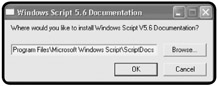
Figure 1.12: Specify the location where the WSH documentation should be installed. - Click OK to perform the install.
Once it's installed, you can view the documentation from the Windows Start Menu. For example, on a computer running Windows XP, you would click on Start, All Programs, Windows Script Host, and then select Windows Script V5.6 Documentation. The Windows Script Technologies help dialog will then appear, as shown in Figure 1.13.
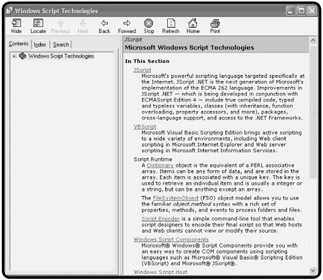
Figure 1.13: Viewing a local copy of Microsoft VBScript and WSH documentation is a lot faster and more convenient than using the on-line version.
Back to the Knock Knock Game
Let's turn the focus of this chapter back to the development of your first VBScript, the Knock Knock game. This project will demonstrate the steps involved in creating and running your first VBScript game. Along the way, you'll learn how to use VBScript to create a script that can communicate with the user via popup dialogs. You will also learn a little about conditional programming logic.
Designing the Game
The Knock Knock game's design is very straightforward, involving very basic programming techniques. The game begins by displaying the message "Knock Knock" in a popup dialog. It then waits for the player to reply by typing "Who's there?" The game then replies "Panther" and waits for the player to respond by typing "Panther who?" at which time the punch line, "Panther or no panths, I'm going swimming" is displayed. If the player fails to exactly type the proper responses at any point of the game, an error message will be displayed inviting the player to try again.
This project will be completed in five steps, as follows:
- Present the player with the Knock Knock popup dialog and collect his or her response.
- Validate the player's reply and continue the game if appropriate. Otherwise, display an error message.
- Present the player with the name of the person at the door and collect his or her reply.
- Validate the player's reply and continue the game if appropriate. Otherwise, display an error message.
- Display the game's punch line.
Starting the Script Development Process
The first step in creating the Knock Knock game is to start up your script editor and use it to create an empty VBScript file. For example, to create the script using the Notepad text editor on a computer running Windows XP, you would execute the following steps:
- Click Start, All Programs, Accessories, Notepad. The Notepad application will open.
- Click File, Save. The Save As dialog will appear. Specify the location where you want the script to be stored, and then type KnockKnock.vbs in the File name field at the bottom of the dialog. Click Save.
The Notepad editor should now display the name of the Knock Knock script in its title bar.
Starting the Game and Collecting Initial User Input
Now let's begin the script by writing its first VBScript statement. The first thing that the game is supposed to do is display a popup dialog displaying the "Knock Knock" message and then wait for the user response. This task is performed surprisingly easily using VBScript, and can be done with a single line of code.
Definition
A statement is a line of code. Statements generally consist of a single line of code but may be spread over two or more lines depending on their size.
Reply1 = InputBox("Knock Knock!")
In plain English, what this VBScript statement does is display a popup dialog with a "Knock Knock" message and then waits for the player to type something into the dialog's text field and click the OK button.
Let's break this statement down into pieces and see how it works. First of all, the statement executes a built-in VBScript function called InputBox(). This function displays a popup dialog box with a text entry field that allows the script to collect text input from the player.
In order to communicate with the player, the InputBox() function allows you to display a message. In the case of this example, the message is simply "Knock Knock," but could just as easily be "Hello, what is your name?" or any other question that will assist the player in understanding the type of information the script is trying to collect.
Finally, the text typed by the player in the popup dialog's text field is temporarily assigned to a variable called Reply1. Variables provide scripts with the ability to store and later reference data used by the script.
Functions and variables are fundamental components of VBScript. Unfortunately, it is difficult to write even the simplest scripts without using them. For now, don't worry too much about them and keep your focus on the overall steps used to create and run the Knock Knock game. I'll go over the use of variables in great detail in Chapter 4, "Constants, Variables, and Arrays," and the use of functions in Chapter 7, "Using Procedures to Organize Scripts."
Validating User Input
The player's role in this game is to first type in the phrase "Who's there?" Any variation in spelling or case will result in an error. Once the player has typed in this message and clicked on the OK button the script will need to perform a test that validates whether the player is playing the game properly. The following three lines of code accomplish this task:
If Reply1 = "Who's there?" Then
.
.
.
End If

If Reply1 <> "Who's there?" Then MsgBox "Incorrect answer. Please try
again."
The first two lines of code go together. The three dots that you see in between these lines of code are placeholders for more statements that will be inserted in the next section. The first of these two lines tests the value of Reply1. Remember that Reply1 is a variable that contains the response typed in by the player. This statement checks to see if the values stored in Reply1 match the phrase "Who's there?" If there is an exact match, then the lines of code that you will soon place within the first two statements will be executed. Otherwise, these statements will not be processed. The third line of code inverts the test performed by the first two lines of code by checking to see if the player's reply is not equal to (that is, <>) the expected phrase. If this is the case, then the rest of the third statement executes displaying an error message. There are a number of reasons why the text performed by the third statement may prove true. These reasons include
- The player clicked the Cancel button.
- The player clicked the OK button without typing a response.
- The player typed an incorrect response.
Finishing Input Collection
If you are creating the script as you read along, then your script should now contain the following statements:
Reply1 = InputBox("Knock Knock!")
If Reply1 = "Who's there?" Then
.
.
.
End If
If Reply1 <> "Who's there?" Then MsgBox "Incorrect answer. Please try again."
It is now time to add three lines of code that will reside within the second and third lines of code just shown. The first of these three lines of code is as follows.
Reply2 = InputBox("Panther!")
This statement is very similar to the first statement in the script, except that instead of displaying the message "Knock Knock," it displays the message "Panther" and then waits for the player to type in a response (that is, "Panther who?"). The text typed in by the player is then stored in a variable named Reply2.
Validating the User's Last Response
The following two lines of code need to be inserted just after the previous statement:
If Reply2 = "Panther who?" Then MsgBox "Panther or no pants I'm going
swimming."
If Reply2 <> "Panther who?" Then MsgBox "Incorrect answer. Please try again."
The first line checks to see if the value stored in Reply2 is equal to the phrase "Who is it?" and if it is, then the rest of the statement displays the joke's punch line. If the player typed in something other than "Who is it?" then the second of these two statements will execute displaying a message that informs the player that he or she did not provide the correct response.
The Final Result
Now let's take a look at the fully assembled script.
Reply1 = InputBox("Knock Knock!")

If Reply1 = "Who's there?" Then

 Reply2 = InputBox("Panther!")

 If Reply2 = "Panther who?" Then MsgBox "Panther or no panths I'm going
swimming."

 If Reply2 <> "Panther who?" Then MsgBox "Incorrect answer. Please try
again."
End If

If Reply1 <> "Who's there?" Then MsgBox "Incorrect answer. Please try again."
As you can see, the script only has seven lines of code, and yet it displays multiple graphical popup dialogs that collect player text input and display any of three additional messages in popup dialogs. In addition, this script demonstrates one way of testing player input and then altering the execution of the script based on that input.
Save and then run the script, and make sure everything works as expected. If not, open the script and double-check each statement to make sure that you typed it in correctly.
Summary
This chapter has covered a lot of ground for an introductory chapter. Not only did you create your first VBScript, but you also learned how to use the WSH to execute it and to incorporate WSH elements within your scripts. In addition, you learned a lot about VBScript and how it relates to other languages that make up the Visual Basic family of programming languages. Finally, you created your first computer game, learning how to collect and validate user input and to display output. All in all, I'd say that this has been a very good start.
Challenges
- The Knock Knock game is a very simple game. Its main purpose was to introduce you to the basics of script and game development. Try to improve the game by adding additional jokes so that the game does not end after the first joke.
- Try running the Knock Knock game using both the CScript and WScript WSH execution hosts. How does the execution of the script change and why?
- See if you can create a new script that prompts you for your name and then displays a personalized greeting message that includes your name. Hint: When displaying the customized greeting message, you will need to concatenate (glue together) the name of the user with a greeting message as follows:
MsgBox "Greetings "& UserName
Part I - Introducing the WSH and VBScript
Part II - Learning VBScript & WSH Scripting
- VBScript Basics
- Constants, Variables, and Arrays
- Conditional Logic
- Processing Collections of Data
- Using Procedures to Organize Scripts
Part III - Advanced Topics
- Handling Script Errors
- Using the Windows Registry to Configure Script Settings
- Combining Different Scripting Languages
Part IV - Appendices

EAN: 2147483647
Pages: 137
- Chapter II Information Search on the Internet: A Causal Model
- Chapter III Two Models of Online Patronage: Why Do Consumers Shop on the Internet?
- Chapter VII Objective and Perceived Complexity and Their Impacts on Internet Communication
- Chapter XII Web Design and E-Commerce
- Chapter XVII Internet Markets and E-Loyalty
