iMovie is built on QuickTime, Apple's technology for playing and creating all sorts of digital audio and video. iMovie 3 gains the capability to drag and drop QuickTime movies onto the Shelf or Timeline.
To import a QuickTime movie into iMovie:
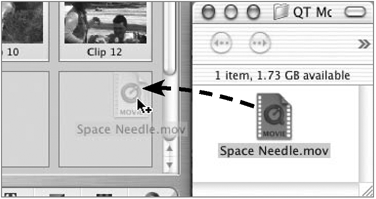
Drag a QuickTime movie file from the Finder to iMovie's window (Figure 7.7).
Figure 7.7. In iMovie 3, add a QuickTime movie to your project by dragging it to the iMovie window.
or
In iMovie, choose Import from the File menu, or press Command-Shift-I.
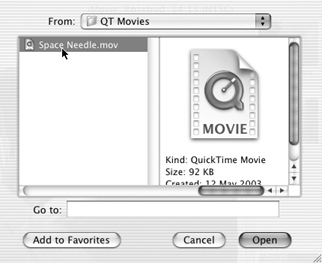
Locate the file in the Import dialog box, then click the Open button (Figure 7.8). The clip appears on the Shelf.
Figure 7.8. Instead of dragging a file into iMovie, use the Import command to locate a QuickTime movie.
Tips
Most QuickTime movies are small in size and compressed, which is great for viewing on the Web but not so good-looking compared to a DV clip taken from a video camcorder (Figure 7.9). So don't be surprised if the clip looks highly pixelated or blocky.
Figure 7.9. To compare image resolution, I exported some DV footage (top) as a QuickTime file, then imported the file back into iMovie (bottom).
You can import media files from other iMovie projects, which are in the DV format and feature full resolution.