Flylib.com

Books Software


Chapter 11. Explore iDVD


Chapter 11. Explore iDVD

Now that you've created an iDVD project (thanks to the tight relationship between iMovie and iDVD), let's look at what you'll be working with.

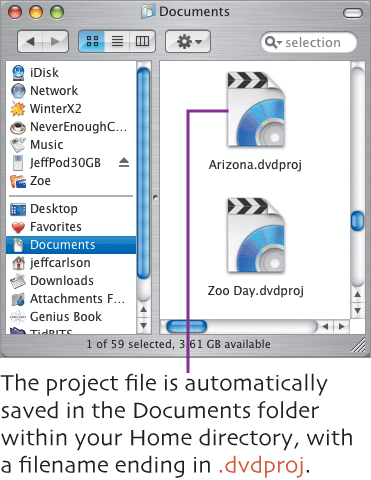
In Chapter 10, iDVD launched when you created the project in the iDVD pane. I should point out that you can also launch iDVD by double-clicking its application icon or the project file. Like iMovie, iDVD opens the last project that was active.


The iDVD Interface

Click the Map button to switch to iDVD's Map view (below) which displays your project's structure; click it again to return to the menu. Double-clicking an icon takes you to that menu or movie (except for the AutoPlay well, which works differently; see Chapter 13).


Extra Bits

Explore iDVD p. 71

  • If you should happen to rename the iDVD project file, be sure to keep the . dvdproj extension; if you don't, iDVD won't recognize the file, and the Finder displays it as a folder.

  • iDVD 5 offers a new feature, OneStep DVD, that automatically imports video from a camcorder and burns it to a DVD disc. This is good if you need a plain DVD copy of your footage, but it won't give you a menu or interface of any kindthe video just begins to play immediately after you insert the disc into a DVD player. Since we're creating a DVD with menus and other elements, we don't need to use OneStep DVD.

The iDVD Interface p. 72

  • You cannot resize the iDVD window.

  • In the Map view, clicking the triangles on each menu icon hides objects farther down in the hierarchy. This is useful if you're navigating a complicated project and don't need to see all of the branches on screen at once. Clicking the triangle again reveals objects that were hidden.

  • iDVD uses a lot of your computer's processing power to display motion elements, so unless you're actively working on motion (or you have a wicked -fast Power Mac G5), I recommend turning Motion off while editing your iDVD menus.


Chapter 12. Choose and Customize a Theme

Instead of starting off with a blank slate, iDVD offers a selection of professionally designed themes to enhance your DVD menus . You can stick with one of Apple's creations, or customize the look by changing elements of the interface. Either way, you end up with a DVD that looks good, no matter how talented you are in the design department.


Apply a Theme

iDVD includes 73 pre-designed themes, ranging from specific topics such as Anime Pop to general imagery like Portfolio. I'll choose Travel 1 to match my vacation theme and express a world- traveler feel.


Edit the Title

You can have only one title in a menu, and it behaves a bit differently than other text, depending on the theme. You don't need to select the title to edit its formatting.

2.

Customize the text's appearance by choosing Font, Color , and Size, and whether it should include a drop shadow.

3.

Choose a position for the title. The Left , Center , and Right options align the title to a specific area based on the theme. Choose Custom to drag the title anywhere onscreen.

Before changing formatting settings

After changing formatting settings

4.

If you want to change the title's wording, double-click it to make the text field editable.

5.

Type your new title, and then click outside the box to apply the change.


Edit the Buttons

Formatting buttons involves two components : the buttons' text (if there is any), and the buttons' shape. When editing buttons, the settings apply to all buttons and submenus on the page. These controls are also found in the Settings pane.

2.

Customize the text's appearance by choosing Font, Color, and Size, and whether it should include a drop shadow.

3.

Choose an alignment for the button's text. For buttons that are just text, the alignment dictates how the buttons line up in relation to one another.

Aligned left

Aligned right

4.

To use a different shape (or in this case, to use a button shape in addition to the text), click the Style popup menu.

The buttons are currently snapped to the underlying grid, which is why they're overlapping.

6.

Click the Free Position button to liberate the buttons, then drag them into your preferred locations.