Flylib.com

Books Software


Chapter 3. Worms in Windows and Applets


Chapter 3. Worms in Windows and Applets

In this chapter, I test the threaded animation loop of Chapter 2 inside a windowed application and an applet. To simplify comparisons between the approaches, the programs are all variants of the same WormChase game. In Chapter 4, I will continue the comparisons, concentrating on several kinds of full-screen applications.

Figure 3-1 shows the windowed WormChase application on the left and the applet version on the right.

Figure 3-1. WormChase in a JFrame and JApplet
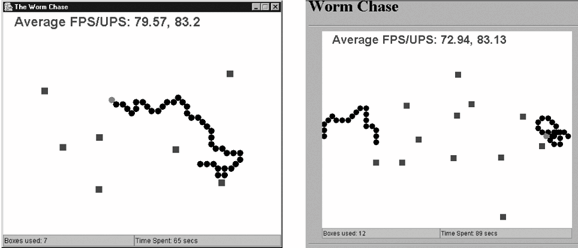
The aim of the game is to click the cursor on the red head of the rapidly moving worm. If the player misses the worm's head, then a blue box is added to the canvas (unless the worm's black body was clicked upon).

The worm must go around the boxes in its path , so the boxes may make the worm easier to catch. When the worm moves off the top edge of the window it appears at the bottom, and vice versa. When it travels past the left or right edge, it appears at the opposite side. The worm gradually gets longer until it reaches a maximum length, which it maintains for the rest of the game.

When the game finishes, a score is displayed in the center of the window, calculated from the number of boxes used and the time taken to catch the worm. Fewer boxes and less time will produce a higher score. The current time and the number of boxes are displayed below the game canvas in two text fields.


Preliminary Considerations

This chapter and the next are concerned with several variants of WormChase , and a few issues apply to all the versions which need to be considered before we begin.

The Choice of Timer

The main drawback of the animation loop in Chapter 2 is the need to install Java 3D so its timer is available. Consequently, two versions of the windowed WormChase application are investigated here: one using the Java 3D timer and the other using the System timer . A comparison of the two will show when the Java 3D timer is beneficial.

As mentioned in the last chapter, programmers using J2SE 5.0 may choose to do a global search and replace on the Java 3D timer version of WormChase , changing every J3DTimer.getValue( ) call to System.nanoTime( ) .


Class Reuse

All the WormChase versions in this chapter and the next use the same game-specific classes (i.e., Worm and Obstacles , shown throughout this chapter). They employ a similar WormPanel class, which corresponds to the GamePanel animation class in Chapter 2.

The main differences between the programs lie in their top-level classes. For example, in this chapter, the windowed application uses a subclass of JFrame while the applet utilizes JApplet . This requires changes to how game pausing and resumption are triggered, and the way of specifying the required FPS.

Testing for Speed

Testing is done via the gathering of statistics using a version of the reportStats( ) method detailed in the section "Swing Timer Animation" in Chapter 2. The main change to that method is that the average UPS are calculated alongside the average FPS. The overall aim of the testing is to see if the animation loop can deliver 80 to 85 FPS. Failing this, the programs should produce 80 to 85 updates per second without an excessive number of frames being skipped .


Class Diagrams for the WormChase Application

Figure 3-2 shows the class diagrams for the WormChase application. The class names and public methods are shown.

Figure 3-2. Class diagrams for the WormChase application

The code for this version of WormChase is in the directory Worm/WormP/ .


WormChase is the top-level JFrame , managing the GUI, and processing window events. WormPanel is the game panel holding the threaded animation loop.

The Worm class maintains the data structures and methods for the on-screen worm. The Obstacles class handles the blue boxes. Worm and Obstacles have their own draw( ) method, which is called by WormPanel to render the worm and boxes.