Messaging Operations
Overview
This chapter covers general e-mail-related tasks, such as logging into, sending, receiving, and processing e-mail, as well as more complicated processing of e-mail messages, filtering, maintenance, and address book management.
In Windows 95, Microsoft included a mail client called Exchange. It was a general-purpose mail client. After Exchange Server 4.0 was introduced, Microsoft informally changed the name to Windows Messaging to avoid confusion. This client has now evolved into the mother of all e-mail clients (and a pile of other capabilities): Outlook.
However, regardless of what the underlying application is called, Windows Messaging strives to serve a noble cause: the Universal Inbox.
Before Windows 95 and Windows Messaging, you generally required one e-mail client for each mailbox you used. So if you had MS Mail you'd need the MS Mail client. If you had a separate Internet mail account, you'd need an Internet mail client such as Eudora. And if you had a CompuServe mail account, you'd need to have yet another client—all with different interfaces and access mechanisms.
Windows 95 introduced the concepts of Messaging Services and the Universal Inbox. You would have one mail client, such as the Windows Messaging/Exchange or Outlook client, and a number of mail services installed. Each mail service would provide support for a certain mail type—for example, MS Mail server, Internet mail, and CompuServe mail.
Each service configuration and underlying functionality would generally be different. An Internet mail account has different setup values than, say, an MS Mail account, but they perform the same options: They deliver e-mail to and receive e-mail from one inbox.
So when you access your mail inbox, you may be processing messages received from a variety of different mail systems. The beauty is that there is no additional programming required to process messages from different mail platforms.
The concept of the Universal Inbox is not limited to only mail messages—fax and even voice mail services can be integrated into it.
Messaging API (MAPI) has long been the foundation of messaging standards for Microsoft. Usually they were only accessible by directly calling the MAPI DLL's libraries from a programming language such as C or C++.
The advent of Windows Messaging changed the way these services were accessed. The messaging services became implemented as a COM object, making it easier to access from any environment that could host COM objects, such as WSH.
You can use this technology to perform e-mail-related operations, such as logging onto a mail system, creating and sending e-mail messages, processing e-mail messages and attachments, and manipulating recipient addresses and distribution lists.
There are a number of different versions of the messaging library. Initially it was called OLE Messaging, then Active Messaging, and now Collaborative Data Objects (CDO). The versions were introduced in different client versions, as listed in Table 12-1.
|
VERSION |
APPLICATIONS |
|---|---|
|
OLE Messaging 1.0 |
Exchange 4.0 client, Exchange Server 4.0, Outlook 97 client installed with Office 97 (version 8.0) |
|
CDO 1.1/Active Messaging 1.1 |
Exchange Server 5.0, Exchange Server 5.0, Outlook client Outlook 97 (version 8.x) |
|
CDO 1.x |
Exchange Server 5.5 and 2000, Outlook 98, Outlook 2000, Outlook 2002 |
Apart from the naming differences, there are functional differences between the versions. These differences are covered in this chapter where required.
You do not need to rush out and install new mail clients if you don't have the latest versions, because even the original OLE Messaging contained a functional set of routines to send and receive mail. The more recent libraries include methods to access new features, such as appointment information in Outlook. In addition, more recent versions of the libraries can be installed on the older e-mail clients.
| Note |
Many of the topics covered in this chapter may be limited due to the Outlook security patch. This applies to Outlook 98, 2000, and 2002. Operations that are related to sending messages or accessing address book information will result in dialog boxes that appear to prompt the user to accept or reject the operations. Operations that are related to extracting files from attachments may fail for certain attachments. |
| Note |
For more information, read the articles "Where to Acquire the CDO Libraries" (http://support.microsoft.com/support/kb/articles/q171/4/40.asp?LN=EN-US&SD=gn&FR=0), "Active Messaging and Collaboration Data Objects (1.x)" (http://support.microsoft.com/support/kb/articles/Q176/9/16.ASP?LN=EN-US&SD=gn&FR=0), "Information About the CDO E-mail Security Update" (http://support.microsoft.com/support/kb/articles/Q268/2/79.ASP), "Developer Information About the CDO E-mail Security Update" (http://support.microsoft.com/support/kb/articles/Q273/8/82.ASP), and "Developer Information About E-mail Security Features" (http://support.microsoft.com/support/kb/articles/Q290/5/00.ASP). |
Logging On
Problem
You need to log onto a mail session to send mail.
Solution
You can create a Session object and invoke the Logon method:
Dim objSession ' Session object
' create a MAPI session, then log on
Set objSession = CreateObject("MAPI.Session")
'attempt to logon. Since parameters are omitted, you will be prompted
'for a valid mail profile
objSession.Logon
Discussion
Before you can even think about sending or receiving messages, you need to log onto your mail system. To do this, you need a valid Windows Messaging profile.
First, create a MAPI Session object using the ProgID MAPI.Session. Once the Session object is created, you can log on and perform messaging operations, such as sending mail.
Windows Messaging stores mail services configuration information in mail profiles. A profile can contain one or more mail services. Each mail service provides the support for transport of different mail types, such as an Exchange server or Internet mail connection. While the mail service (e.g., Internet, Exchange mail server, CompuServe) processing a message is transparent when you receive the message, you need to know what addressing method your service will employ when sending a message, because the format does vary.
You can see what profiles are available on your system by selecting the Control Panel's Mail (or Mail and Fax) applet and clicking the Show Profiles button, as shown in Figure 12-1. You may have as many profiles as you want—Figure 12-1 shows a system with multiple mail profiles. If there are multiple users on the same machine, there may be one profile for each user. A valid profile is required to use CDO.
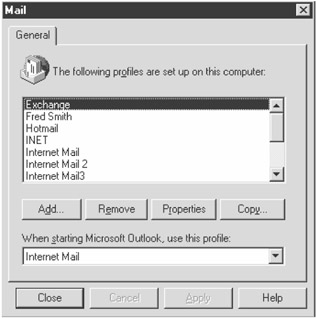
Figure 12-1: Profile configuration
You log on using the Logon method of the Session object. Its syntax is as follows:
objSession.Logon [ProfileName], [Password], [ShowDialog], [NewSession], _
 [ParentWindow], [NoMail], [ProfileInfo]
The Logon method can take a number of optional parameters. If you omit the parameters, you will be prompted to select a valid profile, as in the sample Solution. If you know what profile you are using, you can specify it. You can optionally supply a password if required.
| Note |
The password supplied in the Logon method is not guaranteed to apply to all providers. |
Table 12-2 lists the parameters available for the Logon method.
|
NAME |
TYPE |
DESCRIPTION |
|---|---|---|
|
ProfileName |
String |
Name of a valid profile. For example, if present, ProfileName must correspond exactly to the name of a profile on the current system. If this parameter refers to a nonexistent profile or is left empty, you will be prompted to select from an existing profile. If the ProfileInfo parameter is also included, the ProfileName parameter is ignored. |
|
Password |
String |
Password for the profile (if any). If a password is set for the profile and you want to be prompted for the password, omit this parameter. |
|
ShowDialog |
Boolean |
If True, displays a Choose Profile dialog box. The default value is False. |
|
NewSession |
Boolean |
If True, a new MAPI session is started. If there is an existing MAPI session in progress and this property is set to False, the existing MAPI session is used. Its default value is False. |
|
ParentWindow |
Long |
Does not apply under WSH. |
|
NoMail |
Boolean |
If set to True, messages cannot be sent or received. Its default is False. |
|
ProfileInfo |
String |
Provides a method of logging onto a session without specifying a profile. This method only works for Microsoft Exchange Server-based mail sessions. When using ProfileInfo, you specify the mail server and user ID you want to connect to. The user ID is not the display name or mail name of the user—it is the mail alias. The mail alias is usually the same as your NT logon ID, but it can be different; it is the alias configured under the Exchange administrator program. You do not need to supply a password; you are validated against your current network logon. When you connect using ProfileInfo, a temporary profile that is discarded after use is created. Also, you cannot access any local mail-related files, such as Personal Address Books or Personal Mail folders—you can only access information stored on the server. The ProfileInfo parameter is specified in the format Exchange Server + Linefeed + Alias. The linefeed character is ASCII character 10. To log on Fred Smith, whose alias is freds, to the server ODIN: objSession.Logon , , , , , , "Odin" & chr(10) & "freds" The ProfileName parameter is ignored if ProfileInfo is supplied. |
Logon functionality might be determined by the different mail services stored in the profile. For example, you might have an Exchange profile configured for a remote NT service that requires NT authentication credentials that cannot be set through the CDO/MAPI interface. Workarounds here include storing the appropriate authentication credentials or other required information under the service as required.
Once you have completed your mail operations, you can log off. To log off from a mail session, use the Logoff method. The following example attempts to log onto a MAPI session, lists information for the session, and logs off:
Dim objSession
Dim sMsg
' create a session then log on, supplying username and password
Set objSession = CreateObject("MAPI.Session")
' change the parameters to valid values for your configuration
objSession.Logon
'retrieve some Session properties available after a valid logon
sMsg = "OS: "& objSession.OperatingSystem & vbCr ' use vbCr
sMsg = sMsg & "User Name:" & objSession.CurrentUser & vbCr
sMsg = sMsg & "MAPI Version:" & objSession.Version & vbCr
sMsg = sMsg & "Profile Name:" & objSession.Name
Wscript.Echo sMsg
objSession.Logoff
See Also
For more information, read the MSDN Library articles "Starting a CDO Session" (http://msdn.microsoft.com/library/en-us/cdo/html/_olemsg_starting_a_cdo_session.asp) and "Using the Logon Method" (http://msdn.microsoft.com/library/en-us/modcore/html/deconUsingLogonMethod.asp).
Determining the Default Profile
Problem
You want to add code to a logon script to log on automatically and then send a message for the current client.
Solution
You can use the MAPI Session object's OperatingSystem property to determine the client operating system and read the default profile from the registry depending on the version of the OS:
Dim objSession, objShell, strProf
Set objShell = CreateObject("WScript.Shell")
' create a MAPI session
Set objSession = CreateObject("MAPI.Session")
If InStr(objSession.OperatingSystem, "NT") > 0 Then
 strProf = "HKCUSoftwareMicrosoftWindows NTCurrentVersion" & _
 "Windows Messaging SubsystemProfilesDefaultProfile"
Else
 strProf = "HKCUSoftwareMicrosoftWindows Messaging Subsystem" & _
 "ProfilesDefaultProfile"
End If
'logon using the default profile name
objSession.Logon objShell.RegRead(strProf)
Discussion
Automating the logon process is straightforward enough if you know the name of the profile you need to use. But what if you don't know the profile name?
If the Messaging service is installed on a machine and has been configured, there will be a default profile for the user. Profile information is stored in the registry, along with information on the default profile for the current user.
To make things a bit more difficult, Windows 9x/ME and Windows NT/2000 store profiles in slightly different locations, so you must first determine what version of Windows you are running before you can retrieve the default profile. Use the CDO Session object's OperatingSystem property to determine what the current operating system is and then read the profile name from the appropriate registry setting. Windows NT/2000/XP stores the default profile name in the DefaultProfile value of the HKCUSoftwareMicrosoftWindows NTCurrentVersionWindows Messaging SubsystemProfilesDefaultProfile key, while Windows 9x/ME stores it in the DefaultProfile value of HKCUSoftwareMicrosoftWindows Messaging SubsystemProfiles.
See Also
For more information, read "Logging on CDO (1.x) to Active Messaging Session with Default Profile" (http://support.microsoft.com/support/kb/articles/Q171/4/22.ASP?LN=EN-US&SD=gn&FR=0).
Sending Anonymous Mail
Problem
You want to be able to send mail from clients using an anonymous account, regardless of if they have any profiles configured (although they must have Windows Messaging).
Solution
You can create an Anonymous group on your Exchange server that authenticates all users:
' create a session then log on
Set objSession = CreateObject("MAPI.Session")
' logon using the Anonymous account on server Odin
objSession.Logon , , , , , , "Odin" & vbLF & "Anonymous"
Discussion
Another way of sending a message for a user without necessarily knowing the user profile for the current machine is using an Anonymous account. The Anonymous account is an account anyone can send a message from. This method, however, only works for clients using an Exchange e-mail server.
To create an anonymous user, follow these steps:
- On your Exchange server, add a new mail user.
- Call the user Anonymous, or whatever makes the most sense for you (see Figure 12-2). The most important piece of information is the account alias that is used when logging on.
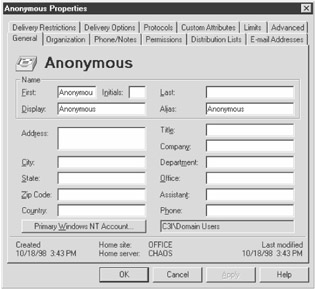
Figure 12-2: Anonymous user configuration - Set the Primary Windows NT Account to Domain Users. This will allow any logged-on user in the domain to send mail via this account. If you want to limit it to a smaller group of users, select or create another NT group.
When logging on, you need to specify the Exchange server name, followed by a linefeed and then the name of the account:
objSession.Logon , , , , , , "Servername" vbLF & "Accountname"
There are limitations on using this type of logon: You can only access server-based mail, and you cannot access any local messages files or address books, such as Personal Message Stores (PST) or Personal Address Book (PAB) files.
See Also
For more information, read "Configure an Exchange Mailbox for Anonymous Access" (http://support.microsoft.com/support/kb/articles/Q195/6/81.ASP).
Running Message Scripts Using NT Scheduler Service
Problem
You want to schedule a script to run while logged off (noninteractive).
Solution
Because CDO configuration is stored in user profiles, the scheduled task must log on as a user that has a valid Windows Messaging profile. If you are worried about security, you may want to create a user that has limited access to resources. The steps needed to do this are as follows:
- Log on as the user and create the Windows Messaging profile (if not already created). You may want to create a special low-security account for this purpose.
- Create all scripts to use the profile.
- Under Task Scheduler (see Figure 12-3), create the scheduled item.
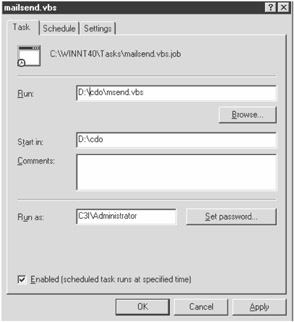
Figure 12-3: Scheduled task - In the "Run as" field, enter the account under which the messaging pro-files were created.
- Click the "Set password" button. The Set Password dialog box appears, as shown in Figure 12-4.
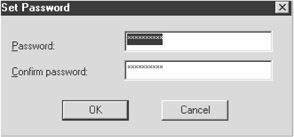
Figure 12-4: Scheduled task run as user password - Enter the password and click OK.
When the scheduled script is executed, it will log on as the specified user.
Discussion
Messaging scripts run as noninteractive scheduled items under NT. Scripts should not perform any UI actions such as displaying a message box before sending. Even the DeliverNow method, which displays the animated mail sequence when delivering and sending mail, should not be used.
This limits the types of mail services you can use. Any mail service that requires forcing the delivery of messages cannot be used to send and receive messages noninteractively. This includes Internet mail services that you would use to connect to your ISP (it doesn't affect Internet mail sent through an Exchange server).
Messaging profiles depend upon a user's logon. So when running under NT scheduler services, make sure the service has access to a user account or is permitted to connect anonymously to an Exchange server.
The other option for running scheduled scripts is creating an Anonymous user. The advantage of doing so is that no profile is required to access messaging services. The disadvantage is that you are limited to Exchange server-based resources, so any locally configured services such as PSTs and PABs are not available.
See Also
Solution 3.2.
Creating a Mail Message
Problem
You want to create a message and put it in the Outbox for sending.
Solution
You can add a Message object to the Messages collection of the Outbox folder object:
Dim objMessage
Dim objSession Set objSession = CreateObject("MAPI.Session")
objSession.Logon
'create a new message, setting the subject to Hello There
Set objMessage = objSession.Outbox.Messages.Add("Hello There")
objMessage.Text = "this is the body of the message"
' perform operations and log off. . .
Discussion
Creating a message is a relatively straightforward process. The Message object is added to the Outbox folder of the current MAPI session. Properties for the message, such as recipients, subject, and message body are then set.
In addition to the normal message properties, such as message body and subject, one or more file attachments can be included with the message.
The Message object contains all information that can be stored in a message from an e-mail package, such as the message subject, recipients, and body.
The Message object allows the inspection of existing messages in a folder and is required when creating a new message. You will see later how to process existing messages using the Message object.
To create a new message to send, you need to add a Message object to the Messages collection of the Outbox folder. Outbox is a Folder object and is where new mail items are created and sent. The Messages collection and Folder object are discussed in more detail later in this chapter.
When a new message has been successfully added to the Messages collection, a reference to the Message object is returned. The syntax is as follows:
Set objMessage = objMsgCollection.Add([Subject, Text, Type, Importance])
Table 12-3 lists the Add method's parameters.
|
NAME |
TYPE |
DESCRIPTION |
||
|---|---|---|---|---|
|
Subject |
String |
Sets the subject for the message. |
||
|
Importance |
Long |
|||
|
MsgLow |
0 |
Low importance. |
||
|
MsgNormal |
1 |
Normal importance (default). |
||
|
MsgHigh |
2 |
High importance. |
||
|
Text |
String |
The actual body of the message. |
||
|
Type |
String |
Identifies the message class. This can be used in a custom application to identify the message. Changing the message type will not affect how the message is processed or handled at the destination, unless it is being processed by a custom application. The default is IPM.Note. |
||
Each property for Add is optional but can be set using the dot method and setting the property against the Message object returned by the Add method.
See Also
For more information, read the MSDN Library article "Add Method (Messages Collection)" (http://msdn.microsoft.com/library/en-us/cdo/html/_olemsg_add_method_messages_collection.asp).
Setting Message Properties
Problem
You want to determine if the message was transmitted successfully and read by the recipient, as you would using an Outlook mail client.
Solution
You can set the ReadReceipt and DeliveryReceipt properties of the Message object before sending the message:
Const MsgHigh = 2

Dim objSession, objMessage Set objSession = CreateObject("MAPI.Session")
objSession.Logon
Set objMessage = objSession.Outbox.Messages.Add

objMessage.Subject = "Test message"
objMessage.Importance = MsgHighobjMessage.Sensitivity = True
objMessage.ReadReceipt = True
objMessage.DeliveryReceipt = True objMessage.Type = "IPM.SCBSpecialMessage"
objMessage.Text= "Testing"
Discussion
Once you have created a Message object to manipulate, you can set or get a number of properties for the message.
Table 12-4 lists properties that are available when sending a new message.
|
NAME |
TYPE |
DESCRIPTION |
|
|---|---|---|---|
|
ReadReceipt |
Boolean |
Set the ReadReceipt property to True to obtain a notification message when the recipient(s) has read your message. The default setting for the CDO is False. |
|
|
Sensitivity |
Long |
This property is only available in CDO 1.2 and greater. It sets the sensitivity level of the message. |
|
|
NoSensitivity |
0 |
||
|
Personal |
1 |
||
|
Private |
2 |
||
|
Confidential |
3 |
||
|
Setting the Sensitivity property does not prevent anyone from reading the message-it is merely intended to identify the sensitivity of the message. Setting the property to Confidential doesn't make it any easier to access. The default setting is 0, NoSensitivity. |
|||
|
DeliveryReceipt |
Boolean |
Set the DeliveryReceipt property to True to obtain a notification message when the recipient(s) receives your message. The default setting for the CDO is False. |
|
See Also
For more information, read the MSDN Library article "Viewing MAPI Properties" (http://msdn.microsoft.com/library/en-us/cdo/html/_olemsg_viewing_mapi_properties.asp).
Creating Message Recipients
Problem
You want to send a message to Fred Smith and a carbon copy to Joe Blow. Fred Smith is set up in your e-mail application's address book, while Joe Blow isn't, but you know Joe Blow's e-mail address.
Solution
You can create new recipients by invoking the Recipients object's Add method:
Const MsgTo = 1
Const MsgCC = 2
Const MsgBCC = 3
Dim objSession, objMessage, objRecipient
Set objSession = CreateObject("MAPI.Session")
objSession.Logon "Valid Profile"
Set objMessage = objSession.Outbox.Messages.Add

objMessage.Subject = "Test message"
objMessage.Text= "This is the body of the message"
Set objRecipient = objMessage.Recipients.Add("Fred Smith",, MsgTo)
objRecipient.Resolve
'carbon copy Joe Blow
Set objRecipient =objMessage.Recipients.Add("Joe B"," SMTP:joeb@abc.com", MsgCC)
objRecipient.Resolve objMessage.Send
objSession.Logoff
Discussion
The Message object contains a reference to the Recipients collection. The Recipients collection for each message represents one or more recipients of the message.
The Recipient object contains details relating to a specific recipient in the mail message.
To add a new recipient to a message, invoke the Add method for the Recipients collection on the Message object you want to add a new recipient to. The Add method can take a number of optional parameters, but these can be set after the recipient has been added to the message. The syntax is as follows:
Set objOneRecip = objMessage.Recipients.Add([Name,Address,Type])
Table 12-5 lists the parameters for the Recipients collection's Add method.
|
NAME |
DESCRIPTION |
||
|---|---|---|---|
|
Name |
The Name property identifies the display name for the recipient-this would be the "proper" name of the recipient (e.g., Fred Smith). This can also be the name of a distribution list. |
||
|
Address |
Sets the value of the Recipient object's Address property to specify a custom address. The recipient address uses the following syntax: AddressType:AddressValue. The AddressType and Value are discussed in the following section. |
||
|
Type |
The recipient type is either To, Carbon Copy (CC), or Blind Carbon Copy (BCC). The following are valid values for the Type property: |
||
|
To |
1 |
The recipient(s) on the To line (default). |
|
|
Cc |
2 |
The recipient(s) on the Cc line. |
|
|
Bcc |
3 |
The recipient(s) on the Bcc line. |
|
When you create a new message to be sent, the recipient can be identified in one of two ways: either by his or her display name (Name property) or by his or her address (Address property). The display name would be the name listed in the address book when using the e-mail application. This would be the recipient's "real" name (e.g., Fred Smith).
Note that when using the display name, you need to enter the exact match of the name as it appears in your address book.
Once the Name property is set, you must invoke the Resolve method to set the Recipient's e-mail address:
Set objRecipient = objMessage.Recipients.Add("Fred Smith")
objRecipient.Resolve
If there is an entry for Fred Smith in your address book, the e-mail address is assigned to the Address property. This assumes that there is an address entry for a Fred Smith in your address book.
If there isn't an entry for Fred Smith in your address book, or there are multiple entries for Fred Smith, a Check Names dialog box appears (see Figure 12-5) that attempts to list names closest to the one that you specified.
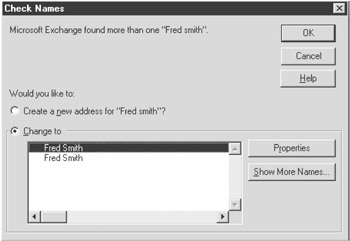
Figure 12-5: Check Names dialog box
The appearance of a dialog box is not desirable during the execution of a noninteractive script. The Resolve method supports an additional ShowDialog parameter, which takes a Boolean argument value. If set to False, a dialog box will not appear to resolve ambiguous names. The default is True.
On Error Resume Next
Set objRecipient = objMessage.Recipients.Add("Fred Smith")
' attempt to resolve name from Address book- don't display dialog box
'if name doesn't resolve
objRecipient.Resolve False
If Err Then ' check if Recipient was successfully resolved
 ' Perform error checking. . .
End If
The other option for addressing is to use the full e-mail address-that is, the address used by the mail system to determine where to deliver the message. This address is split into two parts: the Type and Address properties.
The Type property identifies what messaging type the address is associated with. Because the underlying transport mechanisms used for your mail system might be MS Mail, Internet, CompuServe, or even your fax modem, you need to specify what type it is. For example, Internet mail would be identified as SMTP.
The Address part is the actual address used by the particular transport mechanism. An example for Internet mail would be fsmith@acompany.com, while for a fax address it could be the phone number and recipient name.
If you set the address Address and the name Name properties and invoke the Resolve method, the name will not be checked in your address book.
'set the recipient address to an Internet Mail address
Set objRecipient = objMessage.Recipients.Add("Fred Smith"," fsmith@acompany.com")
objRecipient.Resolve
'Windows Fax message
objOneRecip.Address = "FAX:Fred Smith@555-1234"

'Exchange Server address
objOneRecip.Address = "EX:/o=Company/ou=Office/cn=Recipients/cn=FredS"
See Also
For more information, read the MSDN Library articles "Using Addresses" (http://msdn.microsoft.com/library/en-us/cdo/html/_olemsg_using_addresses.asp) and "Add Method (Recipients Collection)" (http://msdn.microsoft.com/library/en-us/off2000/html/olmthAddRecipientsObj.asp).
Sending the Message
Problem
You want to send the message that has been created.
Solution
You can create a message and set the appropriate properties to call the Send method:
Const MsgTo = 1
Dim objSession, objSession, objRecipient

Set objSession = CreateObject("MAPI.Session")
objSession.Logon "Valid Profile"
Set objMessage = objSession.Outbox.Messages.Add
objMessage.Subject = "Test message"
objMessage.Text= "This is the body of the message"
'add Fred Smith as a recipient - resolve e-mail address from Address book
Set objRecipient = objMessage.Recipients.Add("Fred Smith",, MsgTo)
objRecipient.Resolve
objMessage.Send
objSession.Logoff
Discussion
Once the Recipients and Message properties have been set, you can send the message. This simply involves invoking the Send method for the Message object. The syntax is as follows:
objMessage.Send([SaveCopy, ShowDialog, ParentWindow])
The Send method can take any of the parameters listed in Table 12-6.
|
NAME |
TYPE |
DESCRIPTION |
|---|---|---|
|
SaveCopy |
Boolean |
If True, saves a copy of the message in a user-specified folder, which is defined by the e-mail application. This folder is usually the Sent Items folder. The default value is True. |
|
ShowDialog |
Boolean |
If True, displays a Send Message dialog box where the user can change the message contents or recipients. The default value is False. |
|
ParentWindow |
Long |
The parent window handle for the Send Message dialog box. Does not apply to WSH. |
If you are sending and receiving mail in a server-based environment such as Exchange server, your mail will be delivered and sent automatically during your sessions.
If you are using a machine that stores mail locally and does not have a dedicated connection to an e-mail server, such as an Internet POP3 mail account, you may have to manually force the transmission of messages. If you create and send an e-mail message in this type of environment, the message will not automatically be sent.
The Session object has a method called DeliverNow that forces the delivery and retrieval of mail messages. If your mail client is configured to send and receive mail on demand, invoking the DeliverNow method will connect and send any messages in the Outbox and retrieve any new messages.
To use, simply add the DeliverNow method when you have sent a message or want to retrieve new messages. DeliverNow has no optional parameters.
objSession.DeliverNow
| Note |
Some providers may require additional authentication or connection steps that cannot be controlled through the MAPI interface. |
See Also
For more information, read the MSDN Library article "Send Method (Message Object)" (http://msdn.microsoft.com/library/en-us/cdo/html/_olemsg_send_method_message.asp).
Using a Command Line Script to Send E mail
Problem
You require a command-line script to send e-mail messages.
Solution
You can use the following script:
'Script: MailSend.VBS
'Description
'Sends a mail message to specified recipient
Option Explicit
Dim sExchangeProfile 'exchange profile
Dim sRecipient, sSubject, sMessage, objOneRecip, objShell
Dim objSession, objMessage
If WScript.Arguments.Count <> 4 Then ShowUsage
 sExchangeProfile = WScript.Arguments(0)
 sRecipient = WScript.Arguments(1)
 sSubject = WScript.Arguments(2)
 sMessage = WScript.Arguments(3)
 On Error Resume Next
 Set objSession = CreateObject("MAPI.Session")
 CheckError Err," Unable to create mail session"

 ' logon using specified profile.
 objSession.Logon sExchangeProfile, , False
 CheckError Err," Unable to logon using profile: "& sExchangeProfile
 ' create a message and fill in its properties
 Set objMessage = objSession.Outbox.Messages.Add
 objMessage.Subject = sSubject
 objMessage.Text = sMessage

 ' create the recipient
 Set objOneRecip = objMessage.Recipients.Add(,sRecipient)
 objOneRecip.Resolve
 CheckError Err," Unable to add recipient: "& sRecipient

 ' send the message and log off
 objMessage.Send
 CheckError Err," Unable to send message "'check for error
 objSession.DeliverNow
 objSession.Logoff

Sub ShowUsage()
WScript.Echo "Syntax of this script is:" & vbCrLf & _
 "mailsend exchangeprofile, recipient, subject, message "& vbCrLf & _
 "Mailsend sends a message to a specified recipient." & vbCrLf & _
 "exchangeprofile Valid messaging profile" & vbCrLf & _
 "recipient Address of recipient in format AddressType:Address. "_
 & vbCrLf & _
 "subject Message subject. "& vbCrLf & _
 "text Message text. "& vbCrLf & vbCrLf & _
 "Example:" & vbCrLf & _
 "mailsend "" My Profile"" "" SMTP:fred@x.com"" "" message subject"" "& _
 """ message text """
 WScript.Quit -1
End Sub
'Procedure: CheckError
'Description
'Checks if error has occurred and if so, displays error information
'and quits.
'Parameters objErr Err object
' sMsg Message to display if error occurs
Sub CheckError(objErr, sMsg)
 If objErr Then
 WScript.Echo "A fatal error has occurred: "& vbLf & sMsg & _
 vbCrLf & "Err #:" & Err _
 & vbCrLf & "Description: "& Err.Description & vbCrLf
 WScript.Quit
 End If
End Sub
Discussion
Execute mailsend.vbs with four parameters: mail profile, recipient address, subject, and message.
The recipient address must be in Type:Address format—that is, the e-mail type (SMTP, X400, EX, or FAX) followed by a valid address for the format. For example:
Mailsend "My Profile" "SMTP:freds@x.com" "subject" "message body"
The following solution is a reusable COM script component that provides send mail functionality. It's used in other examples to send messages.
The CDO.Send object provides the ability to create and send messages. Table 12-7 lists the CDO.Send object's properties.
|
PROPERTY |
DESCRIPTION |
|---|---|
|
Profile |
Profile string used to log on |
|
Message |
Message to send |
|
Subject |
Message subject |
|
Session |
Returns the Session object of current MAPI session |
|
Error |
Returns a string describing the last error that occurred |
Table 12-8 lists the CDO.Send object's methods.
|
METHOD |
DESCRIPTION |
|---|---|
|
Logon |
Attempts to create a MAPI session and log on using the profile specified by the Profile property. Returns True if the logon was successful; otherwise, it returns False. |
|
NewMessage |
Creates a new message to send. |
|
AddRecipient |
Attempts to add a new recipient to the current message. Requires a recipient address parameter. The recipient address must be in Type:Address format—that is, the e-mail type (SMTP, X400, EX, or FAX) followed by a valid address for the format. Returns True if successful; otherwise, it returns False. For example: objMail.AddRecipient ("SMTP:fred@abc.com") You can add as many recipients as required. |
|
Send |
Attempts to send the current message. Returns True if successful; otherwise, it returns False. |
|
LogOff |
Logs off the current MAPI session. |
The following example creates an instance of the CDO.Send object and sends a message:
Dim objMail
Set objMail = CreateObject("CDO.Send")
objMail.Profile = "My Profile" 'set the profile you want to use
If objMail.Logon() Then
 objMail.NewMessage
 objMail.AddRecipient ("SMTP:fred@abc.com")
 objMail.Message = "Hello Fred"
 objMail.Subject = "Message to Fred"
 objMail.Send objMail.Logoff
End If
Checking the Event Log
Problem
You want to check the event log on the current machine for the last hour for any failed logon attempts.
Solution
You can use the following script:
Dim objWebems, objWeb, objWebem, sMsg, st, objMail
Set objWebem = GetObject("winmgmts:\")
Set objWebems = objWebem.ExecQuery("SELECT TimeWritten, EventIdentifier "& _
 ", Message FROM Win32_NTLogEvent WHERE EventIdentifier=529 "& _
 "AND SourceName='Security' AND TimeWritten > '"& _
 Convert2DMTFDate(Date - 1, "630") & "' ")

sMsg=""
For Each objWeb In objWebems
 st = objWeb.Properties_("TimeWritten")

 st = Mid(st, 5, 2) & "/" & Mid(st, 7, 2) & "/" & Mid(st, 1, 4) & _
 " "& Mid(st, 9, 2) & ":" & Mid(st, 11, 2) & ":" & Mid(st, 13, 2)

sMsg = sMsg & "Time Logged "& st & vbCrLf
sMsg = sMsg & Replace(objWeb.Properties_("Message"),_
 vbCrLf & vbCrLf, vbCrLf)
Next
If Not sMsg=""
Set objMail = CreateObject("CDO.Send")
 objMail.Profile = "My Profile"
 objMail.NewMessage
 objMail.AddRecipient ("SMTP:administrator@abc.com")
 objMail.Message = sMsg
 objMail.Subject = "Logon failures detected"
 objMail.Send objMail.Logoff
End If

'convert date to DMTF date required by WMI
Function Convert2DMTFDate(dDate, sTimeZone)
Dim sTemp
sTemp = Year(Now) & Pad(Month(dDate), 2, "0") & Pad(Day(dDate), 2, "0")
sTemp = sTemp & Pad(Hour(dDate), 2, "0") & Pad(Minute(dDate), 2, "0")
sTemp = sTemp & "00.000000+" & sTimeZone
Convert2DMTFDate = sTemp
End Function

'pad a string
Function Pad(sPadString, nWidth, sPadChar)
 If Len(sPadString) < nWidth Then
 Pad = String(nWidth - Len(sPadString), sPadChar) & sPadString
 Else
 Pad = sPadString
 End If
End Function
Discussion
You must have NT auditing set to log Logon and Logoff failures in order for the event log to record logon attempts. A recent version of WMI must be installed to access the events.
See Also
Solution 10.14.
Getting Computer Status Notification
Problem
You want to be notified if a machine becomes unavailable on your network.
Solution
Using the System Scripting Runtime component discussed in Chapter 11, you can ping machines. If you get no response from a machine, there might be a problem, so notify a specified user via e-mail.
This example e-mails a digital mobile phone using a mobile phone connectivity service. You could alternatively get a page e-mail service and have a message sent to your pager. Check your local communications provider for service details.
'Script: ISAlive.VBS
'Description
'Checks if machines are unavailable and e-mails a specified user

'if can't reach machines (machines might be down)
Dim objPing, strResult, objMail
Set objPing = CreateObject("SScripting.IPNetwork")
strResult = ""
Ping "Mars", strResult
Ping "Jupiter", strResult
Ping "Thor", strResult

'check if the return result is not empty - if not empty, then unable to ping
'one or more machines
If strResult <> "" Then
 sResult = "Unable to contact following machines:" & vbCrLf & sResult
 Set objMail = CreateObject("CDO.Send")
 objMail.Profile = "SCB"
 objMail.Logon
 objMail.NewMessage
 objMail.AddRecipient "SMTP:administrator@c3i.com"
 objMail.Message = "Machine(s) Not Available "
 objMail.Subject = strResult
 objMail.Send
 objMail.Logoff
End If

Sub Ping(strHost, ByRef strMsg)
 If Not objPing.Ping(strHost) = 0 Then strMsg = strMsg & strHost & vbCrLf
End Sub
Using the Process Monitor Event
Problem
You are using Windows NT's Process Monitor program to monitor for problems on a machine. You want to be notified if a monitored threshold is exceeded.
Solution
Process Monitor can have alerts set when a certain threshold is exceeded. A program can be run at this time. To do so, follow these steps:
- Start Process Monitor.
- Click the View the Alerts
 icon.
icon. - Select the Add to Alert
 icon to add a new Alert. The Add to Alert dialog box appears, as shown in Figure 12-6.
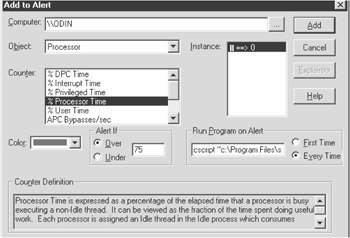
Figure 12-6: Add to Alert dialog box - Now set the counter and threshold you want to monitor.
- In the Run Program on Alert box, enter the path of the program you want to run. For WSH scripts, you cannot just enter the path of the script (e.g., c:scriptsscript.vbs). You must execute the script with cscript or wscript (cscript is the logical choice).
Any parameters you want to pass that contain spaces must be surrounded in quotes. For example, the following command line would execute the MailSend script, passing the profile, e-mail address, subject, and mail message:
cscript d:scriptsMailSend.vbs "Profile" "SMTP:freds@x.com" "Subject" "message"
| Note |
You have the option to run the script only once with the First Time option button, and this may be desirable if you only want to be notified of the first instance; otherwise, you might be overwhelmed by messages. |
Attaching Files to a Message
Problem
You need to attach files to a message.
Solution
You can attach files to a message by referencing the Message object's Attachment collection and invoking the Add method:
'sendattach.vbs
Const MsgFileData =1
Const MsgFileLink = 2
Const MsgOLE = 3
Dim objSession, objMessage, objRecipient '
Set objSession = CreateObject("MAPI.Session")
objSession.Logon "SCB"
Set objMessage = objSession.Outbox.Messages.Add("Attachment Test")

objMessage.Text= "This is the body of the message"
Set objRecipient = _
 objMessage.Recipients.Add("Joe Blow ",
" SMTP:administrator@acme.com")
objRecipient.Resolve
Set objAttachment = objMessage.Attachments.Add("Attached File", , _
 MsgFileData," c:dataWeekly.xls")

Set objAttachment = objMessage.Attachments.Add("Linked File", , _
 MsgFileLink, "\odinxldataWeekly.xls")
Set objAttachment = objMessage.Attachments.Add("Embedded File", , _
 MsgOLE, "c:dataWeekly.xls")
objMessage.Update
objMessage.Send
objSession.Logoff
Discussion
Messages can also include file attachments. Sending file attachments embeds a specified file in the message, which can then be extracted at the destination. Mail messages can contain one or more file attachments.
Attachments can be included by calling the Add method for the Attachments collection for the current message. The syntax is as follows:
Set objAttachment = objAttachColl.Add([Name, Position, Type, Source])
Upon successful execution, it returns a new Attachment object. The Add method can take any of the parameters listed in Table 12-9.
|
NAME |
TYPE |
DESCRIPTION |
|---|---|---|
|
Name |
String |
Descriptive name that appears in the actual message. This is not the file path. |
|
Position |
Long |
Determines the order in which the attachment will appear in the message. |
|
Type |
Long |
The type of attachment: MsgFileData, MsgFileLink, MsgOLE, or MsgEmbeddedMessage. The default value is MsgFileData. |
|
Source |
String |
Specifies the source of the attachment. This varies depending on the attachment type. See the Table 12-10 to determine the source format. |
|
VALUE |
DESCRIPTION |
|---|---|
|
MsgFileData = 1 |
Specifies that the full contents of a file are included in the message. |
|
MsgFileLink = 2 |
A file link only sends a pointer to the file. This pointer is the location of the file on disk. This is only practical on internal networks where the recipient(s) has access to the specified disk location. The file link should be specified using the Universal Naming Convention (UNC) format-for example, \ServerShareFileName.DOC. No file data is actually included in the message-only a reference to the file location. |
|
MsgOLE = 3 |
Specifies the contents of the document are embedded in the message as an OLE document. The contents of the document appear inside the message, so if an Excel file is included, you actually see the whole spreadsheet or part of the spreadsheet in the message. Specify the full path and file name to a valid OLE document file-for example, C:DOCUMENTSALES.XLS. |
|
MsgEmbeddedMessage = 4 |
Indicates an existing e-mail message is to be included as the attachment. The attachment source is identified using the message ID property of the message you want to attach. |
The attachment types listed in Table 12-10 determine how the attachment is included in the message.
The attachment is saved in the message when you call the update or send method on the parent Message object.
See Also
For more information, read the MSDN Library article "Adding Attachments to a Message" (http://msdn.microsoft.com/library/en-us/cdo/html/_olemsg_adding_attachments_to_a_message.asp).
Processing Messages
Problem
You want to list the subject of each message in the Inbox.
Solution
You can reference the InBox Folder object and iterate through the object's Messages collection:
Dim objSession, objMessage
Set objSession = CreateObject("MAPI.Session")
objSession.Logon "Profile Name"
' loop through all messages in the InBox folder, displaying the subject
For Each objMessage In objSession.Inbox.Messages
 WScript.Echo objMessage.Subject
Next
objSession.Logoff
Discussion
To get messages, you first need to get a Folder object for the folder that contains the messages. Start with the Inbox folder-the default folder where messages are received.
Each MAPI Session keeps track of the InBox as well as the OutBox. While you may have a profile that contains several InBox folders, there is only one that is considered to be your default InBox. This InBox is the default folder for message delivery where all new messages are delivered.
To get access to the InBox, simply reference the InBox property of the Session object. This returns a reference to the InBox Folder object.
The Folder object doesn't contain a huge selection of properties or methods. The main information you get from it is a reference to a Messages collection-the reference to all of the messages contained in the folder.
Dim objFolder, objSession, objMessage, objMessages
Set objSession = CreateObject("MAPI.Session")
objSession.Logon "Profile Name"
Set objFolder = Session.InBox 'get the Messages collection for the InBox
Set objMessages = objFolder.Messages
Apart from the obvious reason that the InBox is where you are likely to find new messages to process, it is very easy to get a reference to the InBox using the Session object's InBox property. As you'll see later, getting references to any other folder apart from the InBox requires a bit more work.
Now that you have a reference to a folder, you can start processing the messages in it. The logic that applies to the InBox folder also applies to any other folder.
The Messages collection contains references to a set of messages for a specific folder. Once the Messages collection for a folder has been retrieved, all messages in the folder can be iterated through and processed.
While you can process all Message objects within a Messages collection using the usual For - Each sequence, the Messages collection provides Get methods that can offer you more control over what messages are processed. These methods are listed in Table 12-11.
|
METHOD |
DESCRIPTION |
|---|---|
|
GetFirst |
Gets the first message in the Messages collection. An optional Type parameter can be passed, which will filter on that message type. |
|
GetLast |
Gets the last message in the Messages collection. An optional Type parameter can be passed, which will filter on that message type. |
|
GetNext |
Gets the next message to be processed. If there are no more messages to process, a reference to Nothing is returned. |
|
GetPrevious |
Gets the previous message to be processed. If there are no more messages to process, a reference to Nothing is returned. |
The following script example displays the subject of each message in the Inbox:
Dim objFolder, objSession, objMessage, objMessages
Set objSession = CreateObject("MAPI.Session")
objSession.Logon "Profile Name "
Set objFolder = objSession.InBox ' get a reference to the InBox Folder object
' return the Messages collection for the InBox
Set objMessages = objFolder.Messages
'get the first message in the folder that is of message type IPM.Note.
Set objMessage = objMessages.GetFirst("IPM.Note")
' loop through all messages in the InBox folder, displaying the subject
Do While Not objMessage Is Nothing
 WScript.Echo objMessage.Subject 'display the subject of the message
 'get the next message
 Set objMessage = objMessages.GetNext
Loop
objSession.Logoff
See Also
For more information, read the MSDN Library article "Reading a Message from the Inbox" (http://msdn.microsoft.com/library/en-us/cdo/html/_olemsg_reading_a_message_from_the_inbox.asp).
Filtering Mail
Problem
You want to filter out all unread messages of type IPM.NOTE that are less than 6 months old.
Solution
You can set the Messages collection's Filter object's properties:
'filter.vbs
Set objSession = CreateObject("MAPI.Session")
objSession.Logon "SCB"
Set objMsgColl = objSession.InBox.Messages
Set objFilter = objMsgColl.Filter

'set the filter properties to filter all messages that are unread, of
'type IPM.Note and were received over 6 months a go
objFilter.Type = "IPM.Note"
objFilter.Unread = True
objFilter.TimeLast = DateAdd("d", -180, Date)

' loop through the Messages collection and display the subject
' for any messages that meet the filter criteria
Set objMessage = objMsgColl.GetFirst()
Do While Not objMessage Is Nothing
 'display the subject for the current message..
 WScript.Echo objMessage.Subject
 'get the next message
 Set objMessage = objMsgColl.GetNext()
Loop
objSession.Logoff
Discussion
You have seen how you can traverse each message in the InBox folder. If you want to process messages that meet a certain criteria, you can use If Then conditional statements to check the properties of each message. Using the GetFirst/GetNext method combination in a Messages collection, you can specify that only certain message types be processed.
What if your folder contains hundreds, or even thousands, of messages and you only want to process the latest unread messages, or maybe only messages since a certain date?
You can apply a Filter object to the Messages collection for a particular folder to drill down on more specific data. The Filter object is only available in Active Messaging 1.1 and later.
To set a filter, simply reference the Filter object for the Messages collection you want to Filter on:
Set objMsgFilter = objSession.Inbox.Messages.Filter
Table 12-12 lists the Filter object properties that can be used to query messages.
|
NAME |
TYPE |
DESCRIPTION |
|---|---|---|
|
Recipients |
String |
Returns any messages where any part of the message recipient's name matches part of the string (e.g., if Fred was specified, filter out messages with recipients named Fred Smith and Fred Jones). |
|
Sender |
String |
Returns any messages where any part of the message recipient's name matches part of the string (e.g., if Fred was specified, filter out messages with recipients named Fred Smith and Fred Jones). |
|
Size |
Long |
Returns only messages where the message size is greater than the value of Size. The Size property represents the sum of all the message's properties, including Subject, Text, Attachments, and Recipients. |
|
Subject |
String |
Returns any messages where any of the message Subject matches part of the string. |
|
Text |
String |
Returns any messages where any of the message Text body matches part of the string. |
|
TimeFirst |
Variant |
If the TimeFirst property is not set, the message filter passes all messages received at or before the date and time in the TimeLast property. If neither property is set, the filter passes messages regardless of their date and time of reception. The TimeFirst and TimeLast properties represent local time. The TimeFirst property corresponds to the MAPI property PR_MESSAGE_DELIVERY_TIME. |
|
TimeLast |
Variant |
If the TimeLast property is not set, the message filter passes all messages received at or since the date and time in the TimeFirst property. If neither property is set, the filter passes messages regardless of their date and time of reception. The TimeFirst and TimeLast properties represent local time. |
|
Type |
String |
Filters on messages of specified type. |
|
Not |
Boolean |
Read/write. |
|
Or |
Boolean |
Read/write. |
|
Unread |
Boolean |
If set to True, filters all messages that are unread; if False, filters all read messages. |
Once the filter is set, you can iterate through the Messages collection.
You can use either the Messages GetFirst/GetLast and GetNext/GetPrevious combination or a For - Next combination to reference each element in the filtered Messages collection.
To reset the filter, set the Filter property to Nothing.
See Also
For more information, read the MSDN Library article "Filtering Messages in a Folder" (http://msdn.microsoft.com/library/en-us/cdo/html/_olemsg_filtering_messages_in_a_folder.asp).
Extracting Attachments
Problem
You want to extract the file attachments from all unread messages.
Solution
You can filter all unread messages and enumerate each attachment, extracting the files by using the Attachment collection's WriteToFile method:
'extract.vbs
Dim objSession, objMsgColl, objMessage, strFile
Set objSession = CreateObject("MAPI.Session")
' supply a valid profile
objSession.Logon "Valid Profile"

'get a reference to the InBox messages
Set objMsgColl = objSession.InBox.Messages
'filter all unread messages
objMsgColl.Filter.Unread = True

'loop through the Messages collection and extract attachment for any messages
'that meet the filter criteria
Set objMessage = objMsgColl.GetFirst()

Do While Not objMessage Is Nothing
 WScript.Echo objMessage.Subject, objMessage.Attachments.Count
 For Each objAttachment In objMessage.Attachments
 strFile = objAttachment.Source
 If strFile <> "" Then
 strFile = Mid(strFile,InstrRev(strFile,"") + 1)
 objAttachment.WriteToFile "d:data" & strFile
 End If
 Next
 objMessage.Unread = False ' flag message as read
 objMessage.Update 'update message
 'get the next message
 Set objMessage = objMsgColl.GetNext()
Loop
objSession.Logoff
Discussion
Adding attachments manually or automatically through code in the e-mail application can be extracted to a file on disk.
To extract file attachments from a Message object, invoke the WriteToFile method for the Attachment object you want to extract the file from. The syntax is as follows:
objAttachment.WriteToFile(FileName)
The FileName parameter specifies the full file path the attachment should be written to (e.g., c:DataDataFile.Doc). If a file already exists with the same name it will be overwritten.
See Also
For more information, read the MSDN Library article "WriteToFile Method (Attachment Object)" (http://msdn.microsoft.com/library/en-us/cdo/html/_olemsg_writetofile_method_attachment.asp).
Using a WSH Script Mail Agent
Problem
Users' machines require new files to perform basic maintenance. While this could be automated through logon scripts in a small environment with no remote clients, it is more difficult when some clients are remotely based and do not log into the system on a frequent basis. You could use e-mail to distribute files and automate processes, but you don't want any end-user intervention.
Solution
The following script uses a Microsoft launch agent together with an Exchange or Outlook client to execute the following script, which processes the contents of the message:
'extractor.vbs
Dim objMessage, objSession, objMessages, objFilter
Dim objFolder, sline, sBody
Dim nLast, nPos, nF

Set objSession = CreateObject("MAPI.Session")

'logon using an existing session..
objSession.Logon , , False, False
Set objShell = CreateObject("WScript.Shell")
'get the command line arguments
On Error Resume Next
nLast = 1
'get the message..
If WScript.Arguments.Count = 0 Then
 WScript.Echo "Requires MAPI message ID"
 WScript.Quit
End If

Set objMessage = objSession.GetMessage(WScript.Arguments(0))

'check if valid message
If objMessage Is Nothing Then WScript.Quit

 'get the body of the message
 sBody = objMessage.Text

 'check body is not empty..
 If Len(sBody)=0 Then WScript.Quit
 'loop through and process each line of the message
 Do
 'get the end of the current line
 nPos = InStr(nLast, sBody, vbCrLf)
 If nPos = 0 Then nPos = Len(sBody)
 sline = Trim(Mid(sBody, nLast, nPos - nLast))
 'check the first 4 characters of each line
 Select Case UCase(Left(sline, 4))
 Case "XTR:" 'extract command
 'get the position of a comma in the line -
 ' the text after the comma is the directory to extract to
 nF = InStr(sline, ",")
 If Not nF Then
 ProcessAttachments objMessage, "XTR", _
 Trim(Mid(sline, 5, nF - 5)), Trim(Mid(sline, nF + 1))
 End If

 Case "EXE:" 'execute command
 ProcessAttachments objMessage, "EXE", Trim(Mid(sline, 5)), ""

 Case "DEL:" 'delete command
 ProcessAttachments objMessage, "DEL", Mid(sline, 5), ""

 End Select
 nLast = nPos + 2
 Loop While nLast < Len(sBody)
objSession.Logoff

Function ProcessAttachments(objMessage, sType, sFile, sPath)
Dim objAttachment, objFS, objFolder, objShell, sTemp
 For Each objAttachment In objMessage.Attachments
 'check if the current attachment name is equal to the one you
 'want to process
 If StrComp(objAttachment.Name, sFile, vbTextCompare) = 0 Then
 Select Case sType
 Case "EXE"
 Set objShell =CreateObject("WScript.Shell")
 sTemp = objShell.ExpandEnvironmentStrings("%TEMP%")
 objAttachment.WriteToFile sTemp & "" & sFile
 objShell.Run sTemp & "" & sFile, 1, True
 Set objFS = CreateObject("Scripting.FileSystemObject")
 Set objFile = objFS.GetFile(sTemp & "" & sFile)
 objFile.Delete
 Case "XTR"
 'create a file system object
 Set objFS = CreateObject("Scripting.FileSystemObject")
 Set objShell =CreateObject("WScript.Shell")
 sPath = objShell.ExpandEnvironmentStrings(sPath)
 'if folder doesn't exist, exit function
 If Not objFS.FolderExists(sPath)Then
 Exit Function
 End If
 'if folder exists, then extract attachment into folder
 objAttachment.WriteToFile sPath & "" & sFile

 Case "DEL"
 Set objShell = CreateObject("WScript.Shell")
 sPath = objShell.ExpandEnvironmentStrings(sPath)
 'create a file system object
 Set objFS = CreateObject("Scripting.FileSystemObject")
 Set objFile = objFS.GetFile(sPath)
 objFile.Delete
 End Select
 Exit For
 End If
 Next
End Function
Discussion
Microsoft has created a simple launcher extension for Exchange client and Outlook users. This program is a custom Rules Wizard/InBox Assistant extension. It allows the execution of a specified program based on Rules Wizard/InBox Assistant rules.
| Note |
To get the launcher and install it, visit http://support.microsoft.com/support/kb/articles/q173/9/15.asp. |
Once the launcher is installed, you need to create a rule to launch the scripts when a message arrives. The rule needs to be unambiguous so that unintended messages do not fire the rule.
Figure 12-7 shows an Outlook Rules Wizard that launches the extractor script if a message contains the phrase "WSHEXTRACTOR."
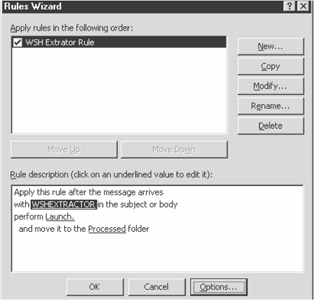
Figure 12-7: Outlook Rules Wizard
Figure 12-8 shows the setting for the Rules Wizard custom action.
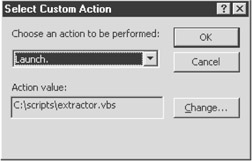
Figure 12-8: Rules Wizard Select Custom Action dialog box
The launcher will launch the extractor script when the criteria are met on a message. Then it will process the message and its attachments.
The script will process "commands" in the text body of the message. These commands allow for the extraction of attachments, execution of message attachments, or deletion of a specified file.
The command statement starts with a three-letter instruction followed by a colon (:). The instruction can be xtr (extract), exe (execute), or del (delete).
After the instruction parameters are delimited by commas. Each instruction has a different set of parameters.
To use the extractor script, create a message containing the attachments and commands you want to process. The commands can appear anywhere in the message and are executed in the order they appear.
XTR
XTR extracts a specified attachment to a specified path and requires two parameters, which are listed in Table 12-13.
|
PROPERTY |
DESCRIPTION |
|---|---|
|
Attachment Name |
Name of attachment in current message to extract |
|
Path |
Path to extract attachment to |
The following example extracts the hello.vbs attachment from the message into the c:scripts directory:
xtr:hello.vbs,c:scripts
EXE
EXE executes the specified attachment. You cannot execute a file on the local system, but you could create a script that executed local programs. The EXE command requires the name of an attachment you want to execute.
The following example executes the hello.vbs script attachment:
exe:hello.vbs
DEL
DEL deletes a specified system file.
The following example extracts the newocx.ocx attachment from the current message into c:windowssystem directory and then executes the registerocx.vbs script, which registers the OCX.
xtr:newocx.ocx,c:windowssystem
exe:registerocx.vbs
| Note |
The use of such a mail processing agent can be extremely dangerous because malicious code could be executed upon arrival in the Inbox. Caution should be taken upon implementing any such script and the appropriate security procedures should be implemented to ensure rogue code is not executed inadvertently. |
Retrieving a Folder
Problem
You want a function that will return the Folder object reference to a folder specified by a full path. The function recursively processes the folder path until the end of the path is found.
Solution
The following GetFolderObj function returns a Folder object based on a specified folder path. The function traverses a folder path until the destination folder is retrieved.
'Procedure GetFolderObj
'Description
'Returns a reference to a Folder object for the specified folder path
'the folder path is specified with the full Exchange folder path
'delimited with backslashes.
'Parameters objSession reference to MAPI session object
' sFolderSearch Folder path delimited with backslashes
'Returns reference to Folder object if folder found. If folder not
' found, returns Nothing
Function GetFolderObj(objSession, sFolderSearch)
Dim objFolder, objInfoStore
On Error Resume Next
'get a reference to the Infostore object for the path
Set objInfoStore = objSession.InfoStores.Item(StripPath(sFolderSearch))

'check if problem getting reference Infostore.
If Err Then
 Set GetFolderObj = Nothing
 Exit Function
End If

'get a reference to the root folder for the Infostore
Set objFolder = objInfoStore.RootFolder
'loop through path searching for the specified folder
Do While Len(sFolderSearch) > 0
 'get next folder in hierarchy
 Set objFolder = objFolder.Folders.Item(StripPath(sFolderSearch))

 'check if error - folder not found
 If Err Then
 Set GetFolderObj = Nothing
 Exit Function
 Exit Function
End If
Loop
'return reference to folder
Set GetFolderObj = objFolder
End Function

'Procedure: StripPath
'Description
'Returns the next level from a folder path
'Parameters sPath Folder path delimited with backslashes
'Returns next level in path.
Function StripPath(sPath)
Dim nF
'look for the next level
nF = InStr(sPath, "")
'if more levels in path, return name of level
If nF > 0 Then
 StripPath = Left(sPath, nF - 1)
 sPath = Trim(Mid(sPath & "", nF + 1))
Else
 StripPath = Trim(sPath)
 sPath = ""

End If
End Function
Discussion
There is no quick method to find a folder, other than the InBox or OutBox. You have to traverse the folder structure until the folder you are looking for is found.
But before you can traverse the folder structure, you must find the Infostore for that folder structure.
The InfoStore object provides access to the folder hierarchy of a message store. In your mail application, Infostores are represented by the different root objects. For example, under Exchange server, your personal messages would be considered an Infostore, as would the Public Folders.
Each PST file you use is also considered to be an Infostore.
In Figure 12-9, Mailbox - Fred Smith, Personal Mail, and Public Folders are separate Infostores.
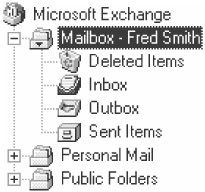
Figure 12-9: Infostore structure
You can reference InfoStore objects from the InfoStores collection of the Session object. You can iterate through the InfoStores collection or reference via the Item method:
Set objSession = CreateObject("MAPI.Session")
objSession.Logon
'loop through an
For Each objInfoStore In objSession.Infostores
 WScript.Echo objInfoStore.Name
Next

'reference the Personal Folder Infostore by name..
Set objInfoStore = objSession.InfoStores.Item("Personal Folder")

'reference the first Infostore object in the InfoStores collection
Set objInfoStore = objSession.InfoStores.Item(1)
Once you have retrieved the InfoStore object, you can reference the RootFolder object. From the RootFolder you can reference all of the folders. You can now work your way to the folder you want to use.The RootFolder object contains a reference to a Folders collection of folders contained in it. From this, you can find a folder on the next level.
If you need to find a folder further down, you repeat the process: Get the Folders collection of the folder and then find the Folder in the collection for the next level.
The following example gets a reference to the Junk Mail folder under the Misc. folder in the Personal Mail Infostore:
'reference the Personal Folder Infostore by name..
Set objInfoStore = objSession.InfoStores.Item("Personal Mail")
'get the Misc folder
Set objFolder = objInfoStore.Folders.Item("Misc.")

'get the Junk Mail folder..
Set objFolder = objInfoStore.Folders.Item("Junk Mail")
Another way of accessing a specific Infostore is using the InfoStore property of an existing Message or Folder object.
Getting references to mail folders can require a lot of repetitive coding. The Solution code's GetFolderObj function returns a reference to a folder object based on its mail path.
Set objFolder = GetFolderObj (objSession, "Personal FolderArchiveJunk Mail")
The full folder path is specified by the name of the Infostore, followed by the folder path. Each folder in the path is separated by backslashes ().
The GetFolderObj function is used in the following example to get a reference to the folder Mail Storage under the Personal Mail Infostore:
Set objFolder = GetFolderObj(objSession," Personal MailMail Storage")
The GetFolderObj function is used in later problems and is part of a maillib.vbs file of commonly used mail routines.
If you use Outlook, you can use the CDO GetDefaultFolder method to return a Folder object for specific folders. Along with the InBox and OutBox, you can get references to the default Deleted Items, Journal, Calendar, Notes, Tasks, and Sent Items folders.
The GetDefaultFolder method is executed via a valid Session object:
Set objFolder = objSession.GetDefaultFolder(FolderType)
Call the method and specify what folder you want to reference with the FolderType parameter. The method will return a Folder object with a reference to the specified folder. Table 12-14 contains valid constant values for FolderType.
|
FOLDERTYPE |
VALUE |
DEFAULT FOLDER RETRIEVED |
|---|---|---|
|
CdoDefaultFolderCalendar |
0 |
Calendar |
|
CdoDefaultFolderContacts |
5 |
Contacts |
|
CdoDefaultFolderDeletedItems |
4 |
Deleted Items |
|
CdoDefaultFolderInbox |
1 |
Inbox |
|
CdoDefaultFolderJournal |
6 |
Journal |
|
CdoDefaultFolderNotes |
7 |
Notes |
|
CdoDefaultFolderOutbox |
2 |
Outbox |
|
CdoDefaultFolderSentItems |
3 |
Sent Items |
|
CdoDefaultFolderTasks |
8 |
Tasks |
The following example gets a reference to the Calendar folder:
Const CdoDefaultFolderCalendar = 0

' create a MAPI session,then log on
Set objSession = CreateObject("MAPI.Session")
objSession.Logon "My profile"
'get a reference to the Calendar folder
Set objFolder = objSession.GetDefaultFolder(CdoDefaultFolderCalendar)
The GetDefaultMethod only works with CDO 1.2 or greater.
See Also
For more information, read the MSDN Library article "Accessing Folders" (http://msdn.microsoft.com/library/en-us/cdo/html/_olemsg_accessing_folders.asp).
Posting Messages to an Exchange Server Public Folder
Problem
You want to post a message to an Exchanger server folder.
Solution
You can add a message to an Exchange server public folder, set the appropriate properties, and update the message. The message does not get sent.
Discussion
To post a message to a public folder, create a message within the public folder by adding it to the folder's Messages collection. Then add your subject and message text as you would for other messages.
Note that for messages in public folders, you must also set a few more message properties than you would when sending a message to a recipient. When you post a message to a public folder, the components of the MAPI architecture that usually handle a message and set its properties do not manage the message. Your application must set the Sent and Unread properties to True, the Submitted property to False, and the TimeReceived and TimeSent properties to the current time.
When you are ready to make the message available, call the Update method. The message is not accessible by any other messaging user until you call Update method.
See Also
For more information, read the MSDN Library article "Posting Messages to a Public Folder" (http://msdn.microsoft.com/library/en-us/cdo/html/_olemsg_posting_messages_to_a_public_folder.asp).
Creating Folders
Problem
You need a function to create folders for a specified folder path. You can't assume the parent folders for the folder you are creating exist, so the routine must create any folders in the path that are missing.
Solution
The following CreateFolder function creates a folder for the specified folder path and any parent folders if they do not already exist:
'Procedure: CreateFolder
'Description
'Creates a new message folder.
'Parameters objSession reference to MAPI session object
' sFolderSearch Folder path for new folder, delimited with
' backslashes
'Returns Reference to folder object if successful, otherwise Nothing.
Function CreateFolder(objSession, ByVal sFolderSearch)

Dim objfolder, objInfoStore, objfldr, sFindFolder
On Error Resume Next
'get a reference to the Infostore object for the path
Set objInfoStore = objSession.InfoStores.Item(StripPath(sFolderSearch))
'check if problem getting reference Infostore.
If Err Then
 Set CreateFolder = Nothing
 Exit Function
End If
'get a reference to the root folder for the Infostore
Set objfolder = objInfoStore.RootFolder
'loop through path searching for the specified folder
Do While Len(sFolderSearch) > 0
 sFindFolder = StripPath(sFolderSearch)
 For Each objfldr In objfolder.Folders
 If UCase(objfldr.Name) = UCase(sFindFolder) Then
 Exit For
 End If
 Next

 If objfldr Is Nothing Then
 Set objfolder = objfolder.Folders.Add(sFindFolder)
 Else
 Set objfolder = objfldr
 End If
Loop
Set CreateFolder = objfolder
End Function
Discussion
To create additional folders, invoke the Add method for the Folders collection where you want to add the new folder.
If you want to create a folder under the root of the current InfoStore, invoke the Add method for the Folders collection of the RootFolder.
To create a new folder called "Old Messages" under the root folder, use the following code:
'get the RootFolder reference the Personal Folder Infostore by name..
Set objRootFolder = objSession.InfoStores.Item("Personal Folder").RootObject
'add a new folder under the root folder
Set objFolder = objFolder.Folders.Add("Old Messages")
CreateFolder requires you specify a messaging Session object followed by the path you want to create. The full folder path is specified by the name of the InfoStore followed by the folder path. Each folder in the path is separated by backslashes ().
Set objFolder = CreateFolder(objSession," Personal MailArchiveFredS")
The previous sample returns a reference to the newly created Folder object if successful; otherwise, it returns Nothing. It will create multiple folders in a folder path if required.
CreateFolder uses the StripPath function from the GetFolderObj function from Solution 12.18, which is included in the maillib.vbs mail function library.
See Also
For more information, read the MSDN Library article "Add Method (Folders Collection)" (http://msdn.microsoft.com/library/en-us/off2000/html/olmthAddFoldersObj.asp).
Copying or Moving Messages
Problem
You want to copy or move a message.
Solution
For any operation that requires folder references, such as copy and moving folders or messages, the folder ID of the Folder objects(s) involved must be retrieved.
The folder ID uniquely identifies a folder and doesn't change from one session to another. It is hexadecimal string value and is referenced using the ID property of the Folder object.
The Folder object has two ID properties: FolderID and ID. The ID property identifies the Folder, and FolderID is the ID property for the Parent folder. Therefore, when performing a Folder-related operation, make sure you use the correct property. Call the CopyTo or MoveTo method of the message you want to move, specifying the destination Folder object and optionally the InfoStore ID of the destination Folder.
The following example copies and then moves a message from the Inbox to a public folder:
Discussion
To copy a message, invoke the CopyTo message on the Message object you want to copy. You need to specify the Folder ID for the destination folder, and if the destination Folder object resides in a different Infostore, you must also supply the InfoStore ID.
The CopyTo method returns a reference to the new Message copy. You must invoke the Update method on this Folder object in order to access the new copy. If the Update method is not invoked on the new copy, it will not appear.
If the destination folder resides in a different Infostore, a reference to the InfoStore ID for the destination Infostore must be passed.
The steps required to move a message are almost the same as those to copy a message. Invoke the MoveTo method on the message you want to move. The MoveTo method returns a reference to the Moved message object. However, unlike the CopyTo method, you do not have to invoke the Update method on the moved method.
Set objCopiedMessage = objMessage.CopyTo(FolderID [, StoreID] )
Set objMovedMessage = objMessage.MoveTo(FolderID [, StoreID] )
Table 12-15 lists the arguments for the MoveTo and CopyTo methods.
|
NAME |
TYPE |
DESCRIPTION |
|---|---|---|
|
FolderID |
String |
Unique identifier of the destination Folder object. |
|
StoreID |
String |
Optional parameter. Unique InfoStore identifier. If the destination folder resides in a different InfoStore than the source, the InfoStore ID must be provided. |
See Also
For more information, read the MSDN Library article "Copying a Message to Another Folder" (http://msdn.microsoft.com/library/en-us/cdo/html/_olemsg_copying_a_message_to_another_folder.asp).
Copying and Moving Folders
Problem
You want to copy an existing folder to a new folder.
Solution
The following example uses the GetFolderObj function from Solution 12.18 to get a reference to the source and destination Folder objects for folders Store MailProcessed and Personal MailBackup. The Processed folder is copied by calling the CopyTo method on the Folder object:
Discussion
To copy a folder, invoke the CopyTo method on the Folder object you want to copy. You need to specify the Folder ID for the destination folder, and if the destination Folder object resides in a different InfoStore, you must also supply the InfoStore ID.
All messages stored in the source folder are also copied to the destination folder. The CopyTo method returns a reference to the new folder copy.
There is also the option of renaming the folder in the destination folder and copying all subfolders.
If the destination folder resides in a different InfoStore, a reference to the InfoStore ID for the InfoStore must be passed. The syntax for the CopyTo method is as follows:
Set objFolder = objFolder.CopyTo(FolderID [,StoreID] [, Name] [,CopySubfolders ])
Table 12-16 lists the CopyTo method's parameters.
|
NAME |
TYPE |
DESCRIPTION |
|---|---|---|
|
FolderID |
String |
Unique identifier of the destination Folder object. |
|
StoreID |
String |
Optional parameter. Unique InfoStore identifier. If the destination folder resides in a different InfoStore than the source, the InfoStore ID must be provided. |
|
Name |
String |
Optional parameter. Name of the destination folder. |
|
CopySubfolders |
Boolean |
If True, copies all subfolders from source folder to destination. |
Upon the successful completion of the folder copy, a reference to the copied folder is returned.
Use the MoveTo method to move the contents of a folder:
Set objMovedMessage = objMessage.MoveTo(folderID [, storeID ])
The two parameters applicable to the MoveTo method are the same as those provided to the CopyTo method. All messages and subfolders stored in the source Folder are also copied to the destination folder.
The MoveTo method returns a reference to the new moved Folder.
If the destination folder resides in a different InfoStore, a reference to the InfoStore ID for the InfoStore must be passed.
See Also
For more information, read the MSDN Library article "MoveTo Method (Folder Object)" (http://msdn.microsoft.com/library/en-us/cdo/html/_olemsg_moveto_method_folder_object_.asp).
Deleting Messages and Folders
Problem
You want to delete a message or folder.
Solution
You can reference the Folder or Message object that you want to delete and then invoke the Delete method:
Discussion
To delete a folder or message, simply execute the Delete method on the Folder or Message object you want to remove. Deleting a folder removes the folder and all messages and subfolders within that folder.
Folder and Message object deletion cannot be undone-the contents are not put into the Undeleted folder.
Creating New Message Fields
Problem
You want to display the values for all fields in a message.
Solution
You can reference the Message object's Fields collection and then count all the fields in the collection:
'get the Fields collection from a message
Set objFields = objMessage.Fields
'continue if error occurs - certain field types cannot be outputted and will
'generate an error if attempted to display
On Error Resume Next
'loop through all of the fields in the objFields collection
For Each objField In objFields
'display the Field value and ID.
 WScript.Echo objField.Values & ""& objField.ID
Next
Discussion
Messages often have data fields containing information supplied via the e-mail application. This might be information such as message and formatting types. Custom Forms created in Outlook and Exchange also store fields in the message.
These fields are not directly visible in the message itself, except in the case of forms where they are displayed in the form. They can be referenced programmatically via the Message object's Fields collection.
If you look at the properties of other objects, such as Attachments, Folders, Recipients, and Infostores, you will notice they also contain a Fields collection.
These collections contain references to specific fields associated with the object-for example, the Attachment object contains fields identifying the original path name and the long filename for the attachment.
While there may be a constant for a particular property, the property may not actually be set for the object.
The Field object contains a reference to a specific field in a Fields collection.
Each Field has a unique numeric ID property that is associated with it; a field can be directly referenced using the ID.
The Field object can store different types of data, which are identified by using the Type property. Table 12-17 lists the different Type data type values.
|
DESCRIPTION |
FIELD TYPE DESCRIPTION |
DECIMAL VALUE |
|---|---|---|
|
VbEmpty |
Not initialized |
0 |
|
VbNull |
Null (no valid data) |
1 |
|
VbInteger |
2-byte integer |
2 |
|
VbLong |
4-byte integer |
3 |
|
VbSingle |
4-byte real (floating point) |
4 |
|
VbDouble |
8-byte real (floating point) |
5 |
|
VbCurrency |
8-byte integer (scaled by 10000) |
6 |
|
VbDate |
8-byte real (date in integer, time in fraction) |
7 |
|
VbString |
String |
8 |
|
VbBoolean |
Boolean |
11 |
|
VbDataObject |
Data object |
13 |
|
VbBlob |
Binary (unknown format) |
65 |
|
VbArray |
Multivalued type |
8192 |
The Value property returns the value stored in the Field object.
You can add your own custom fields to messages. Additional fields can be added to an application, sent, and then processed at the destination. Setting message fields for extraction can be an alternative to storing values as text in the body of the message, which saves having to parse the message.
To add a new field to a message, invoke the Add method on the Fields collection for the Message object you want to add the field to. The following code sample adds two fields, SCBWeeklySales and SCBWeeklyWages, to a message:
Const vbSingle = 4
objSession.Logon "Valid Profile"
Set objMessage = objSession.Outbox.Messages.Add 'create a new message

objMessage.Subject = "Weekly Sales"
objMessage.Text = "Weekly Sales Message"
objMessage.Type = "IPM.Note.SCBWeeklySales" 'set the message type
Set objField = objMessage.Fields.Add("SCBWeeklySales", vbSingle,143545.50)
Set objField = objMessage.Fields.Add("SCBWeeklyWages", vbSingle, 2333.50)
Processing the message fields requires access to the Fields collection for the message object you are manipulating.
Reference the field using the property ID for the property. If the property is not set for the message, an error will occur, so make sure you have error trapping enabled when attempting to reference any fields.
If you have added your own fields to a message, the field may be referenced by its actual field name:
'get all messages that contain sales data and extract custom sales fields
'create a MAPI session,then log on
Set objSession = CreateObject("MAPI.Session")
' supply a valid profile
objSession.Logon "Valid Profile"
'get a reference to the InBox messages
Set objMsgColl = objSession.InBox.Messages
'get a reference to the filter for the InBox messages
Set objFilter = objMsgColl.Filter
'set the filter properties to filter all messages that are unread, of type
'IPM.Note.SCBWeeklySales
objFilter.Type = "IPM.Note.SCBWeeklySales"
objFilter.Unread = True ' filter only messages that haven't been read
objFilter.Subject = "Weekly Sales"

'loop through the Messages collection and display the SCBWeeklySales
'and SCBWeeklyWages for any 'messages that meet the filter criteria
Set objMessage = objMsgColl.GetFirst()

Do While Not objMessage Is Nothing
'display the subject for the current message
 WScript.Echo objMessage.Fields("SCBWeeklySales")
 WScript.Echo objMessage.Fields("SCBWeeklyWages")
 'get the next message
 Set objMessage = objMsgColl.GetNext()
Loop
objSession.Logoff
See Also
For more information, read the MSDN Library article "Fields Property (Message Object)" (http://msdn.microsoft.com/library/en-us/cdo/html/_olemsg_fields_property_message.asp).
Retrieving an Address Book Recipient
Problem
You want to get a reference to an AddressEntry by specifying the recipient name.
Solution
The following Solution returns a reference to the specified AddressEntry object if found; otherwise, it returns Nothing:
'Procedure GetAddressObj
'Description
'Returns a reference to an AddressEntry object for the specified
'recipient display name
'Parameters objSession reference to MAPI session object
' sAddressList Address list to search. E.g. Recipients
' sAddress display name of recipient you are searching for
'Returns reference to AddressEntry object if recipient is found.
If recipient not found, returns Nothing
Function GetAddressObj(objSession, sAddressList, sAddress)
Dim objAddressList, objAddressEntry
On Error Resume Next
'get a reference to the specified address list
Set objAddressList = objSession.AddressLists(sAddressList)
'if error, then unable to get specified address list
If Err Then
 Set GetAddressObj = Nothing
 Exit Function
End If
Set GetAddressObj = Nothing
'loop through all addresses and search for name
For Each objAddressEntry In objAddressList.AddressEntries
 If UCase(sAddress) = Ucase(objAddressEntry.Name) Then
 Set GetAddressObj = objAddressEntry
 Exit For
 End If
Next
End Function
Pass a valid MAPI Session object, address list, and recipient display name:
Set objAddressEntry = GetAddressObj(objSession, "Recipients", "Fred Smith")
Discussion
The MAPI application provides the maintenance of the address book(s), and new recipients and related data can be entered through the application.
Depending on your configuration, there may be one or many address book entries. If you are using the Exchange/Windows Message client and you're not connected to an Exchange server, you probably only have one copy of addresses in a Personal Address Book (PAB). A PAB is a file that stores recipient details.
If you are using Outlook as your client, you also have a Contacts folder. The Outlook Contacts folder is a general contact-management application that provides storage of recipient details and a number of other pieces of information.
If you are using Exchange server, you have access to the Global Address List (GAL), which is a list of all recipients on the server and individual recipient "containers." Containers are created on the Exchange server and are used to logically segment groups of recipients. The GAL contains a list of all recipients from all containers.
To CDO, however, it is transparent as to what version or application you are using—you can access all of the address lists. Address lists may vary in the information they provide—for example, Outlook Contacts provides detailed contact information, such address, phone number, and personal information, while Personal Address Books store a more limited set of data.
Application address lists are exposed through the Session object's AddressLists collection object and provides access to all address books available for the current session.
Set objAddressLists = objSession.AdressLists
References to AddressList objects can be retrieved from the AddressLists collection by specifying the AddressList name or element index you want to reference:
'get a reference to the Recipients address list
Set objAddressList = objSession.AddressLists("Recipients")

'get a reference to the first address list.
Set objAddressList = objSession.AddressLists(1)
Address list names are case-sensitive. As a result, objSession.AddressLists("RECIPIENTS") would not return a reference to the Recipients AddressList object.
The following code snippet lists the names of available AddressList objects in the current session:
'get a reference to the Session's AddressLists collection
Set objAddressLists = objSession.AddressLists
'go through each AddressList and display the name for each of the
'individual
' AddressList objects also identify if the AddressList can be modified.
For Each objAddressList In objAddressLists
 WScript.Echo objAddressList.Name & ""& objAddressList.IsReadOnly
Next

'get a reference to the Personal Address Book Address List object
Set objAddressList = objAddressLists.Item("Personal Address Book")
You cannot create new AddressList objects from CDO/Active Messaging code. They must be created from your e-mail application, such as Outlook or Exchange client.
Once you have a reference to the AddressList you want to use, you can access the individual address stored in it. The addresses are stored in the AddressEntries collection.
The AddressEntry object contains the actual recipient data.
The object contains the bare minimum of properties to describe a mail recipient: the e-mail address, type of recipient (distribution list, single recipient), and display name. Other details, such as mailing address, phone numbers, and professional information are stored in the Fields collection.
Table 12-18 lists some AddressEntry object properties.
|
NAME |
TYPE |
DESCRIPTION |
|---|---|---|
|
Address |
String |
The mail system address, such as fred@company.com. |
|
DisplayType |
Long |
Type of address. See Table 12-19 for a description of the address types. |
|
Name |
String |
Display name of recipient (e.g., Fred Smith). |
|
Type |
String |
Identifies the messaging type for the address (e.g., SMTP for Internet mail, EX for Exchange server, or FAX for fax number). |
|
NAME |
VALUE |
DESCRIPTION |
|---|---|---|
|
User |
0 |
A local messaging user |
|
DistList |
1 |
A public distribution list |
|
Forum |
2 |
A forum, such as a bulletin board or a public folder |
|
Agent |
3 |
An automated agent |
|
Organization |
4 |
A special address entry defined for large groups |
|
PrivateDistList |
5 |
A private administered distribution list |
|
RemoteUser |
6 |
A user in a remote messaging system |
Table 12-19 lists address types.
The following example displays the AddressEntry Type and Address of a resolved address for a new message:
'add a new recipient to the message
Set objRecipient = objMessage.Recipients.Add

'set the display name to resolve from the Address book
objRecipient.Name = "Fred Smith"
objRecipient.Resolve ' resolve the name
'show the AddressEntry type of the resolved address.
WScript.Echo objRecipient.AddressEntry.Type & vbCrLf & objRecipient.Address
To get access to a specific AddressEntry object, you must traverse the AddressEntries collection until you find the specified AddressEntry object, or specify the index value for the AddressEntry object you want to access from the AddressEntries collection. You cannot directly get an AddressEntry by specifying the address display name or address.
'this will work, returns a reference to the first AddressEntry in
'the AddressEntries collection
Set objAddressEntry = objAddressList.AddressEntries(1)
'this WILL NOT work, you cannot reference an AddressEntry object
'using the display name
Set objAddressEntry = objAddressList.AddressEntries("Fred Smith")
The functionality to reference address book information has been available since CDO/Active Messaging 1.0.
See Also
For more information, read the MSDN Library article "Selecting Recipients from the Address Book" (http://msdn.microsoft.com/library/en-us/cdo/html/_olemsg_selecting_recipients_from_the_address_book.asp).
Creating Recipient Entries
Problem
You want to add a new recipient to your address book.
Solution
You can reference the AddressEntries collection for the address list to which you want to add a new recipient and then call the Add method:
' create a session then log on
Set objSession = CreateObject("MAPI.Session")
' change the parameters to valid values for your configuration
objSession.Logon "Valid Profile"

'get a reference to the Recipient
Set objList = objSession.AddressLists("Personal Address Book")
Set objAddressEntries = objList.AddressEntries
'add an Internet mail address
 Set objAddressEntry = objAddressEntries.Add("SMTP", "Fred Smith", "freds@x.com")
Discussion
You cannot add new AddressEntries to certain AddressLists objects. Server-based AddressLists, such as the Global Address List (GAL) and recipient containers stored on Exchange servers, cannot have new addresses added to them via CDO.
Local AddressLists, such as Personal Address Books (PAB) and Outlook Contacts folders, can have new AddressEntries added to them.
To add a new AddressEntry, invoke the Add method for the AddressEntries collection of the AddressList you want to add the entry to. The syntax is as follows:
Set objAddressEntry = objAddrEntriesColl.Add(EmailType [, Name] ,Address])
The parameters are listed in Table 12-20. They are all string values.
|
NAME |
DESCRIPTION |
|---|---|
|
EmailType |
The address type. This may be SMTP for an Internet type address, FAX for a fax number, or EX for an Exchange address. |
|
Name |
Optional. Display name for the e-mail address. |
|
Address |
The actual e-mail address (e.g., freds@x.com). |
The Add method returns the new AddressEntry object upon the successful addition of a new address.
See Also
For more information, read the MSDN Library article "Creating a New Address Book Entry" (http://msdn.microsoft.com/library/en-us/cdo/html/_olemsg_creating_a_new_address_book_entry.asp).
Adding a Distribution List
Problem
You want to add a new distribution list.
Solution
You can reference the AddressEntries collection for the address list for which you want to create a distribution list and then add an AddressEntry entry of type MAPIPDL. Add members to the Members property of the newly created AddressEntry object. The following example creates a new distribution list called New List and adds three recipients to it:
Set objAddresslist = objSession.AddressLists("Personal Address Book")
Set objAddressEntries = objAddresslist.AddressEntries
'add a new address entry called New List. Make it a distribution list
Set objAddressDLEntry = objAddressEntries.Add("MAPIPDL", "New List", _
"dist@x.com")
objAddressDLEntry.Update 'update AddressEntry so changes are saved

'add user Fred Smith to distribution list
Set objAddressEntry = objAddressDLEntry.Members.Add("SMTP", "Fred Smith", _
"freds@x.com")
objAddressEntry.Update 'update AddressEntry so changes are saved

'add user Joe Blow to distribution list
Set objAddressEntry = objAddressDLEntry.Members.Add("SMTP", "Joe Blow", _
"joeb@x.com")
objAddressEntry.Update 'update AddressEntry so changes are saved

'add user Sally Jones to distribution list
Set objAddressEntry = objAddressDLEntry.Members.Add("SMTP", "Sally Jones", _
"sallyj@x.com")
objAddressEntry.Update 'update AddressEntry so changes are saved
Discussion
A distribution list is a collection of multiple recipients represented as a single address entry.
Distribution lists appear as normal AddressEntry objects. They contain the same properties as a single recipient, such as Name and Address.
The multiple recipients are represented by the Members property. The Members property is an AddressEntries collection that contains AddressEntry objects for all recipients listed in the distribution list.
The following example gets a reference to the distribution list Project Group from the Personal Address Book and lists all of the recipients:
Set objAddressDistEntry = GetAddressObj(objSession, _
 "Personal Address Book", "Project Group")

For Each objAdress In objAddressDistEntry.AddressEntries
 WScript.Echo objAddress.Name
Next
To create a new distribution list, add a new AddressEntry and set the type to MAPIPDL (MAPI Personal Distribution List). You can only create a distribution list in your local address books (e.g., PAB files). You cannot create or modify distribution lists on Exchange servers. See Chapter 16 for information on manipulating Exchange server distribution lists.
See Also
For more information, read the MSDN Library article "Add Method (AddressEntries Collection)" (http://msdn.microsoft.com/library/en-us/off2000/html/olmthAddAddressEntriesObj.asp).
Foreword
- Introduction
- Shell Operations
- Logon Scripts and Scheduling
- Networking Resources
- File Operations
- Input/Output Streams
- Registry Operations
- Regular Expressions
- Application Automation
- Network Administration/WMI
- Internet Applications
- Messaging Operations
- Data Access
- System Administration
- Internet Information Server
- Exchange Server
- Security

EAN: 2147483647
Pages: 242
