CENTRAL PROCESSING UNITS (CPUS, PROCESSORS)
Often called the brains of the computer, the CPU is the device that performs the calculations that make computing possible. Although there are several CPU manufacturers, Intel and Advanced Micro Devices (AMD) make the vast majority of processors used in Windows-based PCs, so we will limit our discussion mostly to Intel Celeron and Pentium II, III, and 4 processors, and AMD K6-2, K6-3, Athlon, and Duron processors. For more information, go to intel.com or amd.com. One other processor family worth mentioning is the very inexpensive VIA C3 family from VIA Technologies (via.com.tw), which has started to show up in some similarly inexpensive systems. Time will tell if the quality will match that of Intel or AMD.
Selecting an Appropriate Processor
When selecting a processor, the first consideration is compatibility with the motherboard.
Motherboard-CPU Compatibility
A given motherboard can accept certain CPUs. The most obvious limitation is whether the motherboard has a CPU socket or slot, and which type of either it has (we discuss sockets and slots later in this chapter). Of the two most popular CPU brands, Intel and AMD, some boards can accept one and some can accept both. CPU compatibility is further limited by design elements of the board that require certain models and speed (gigahertz, or GHz) ratings. The motherboard manual will specify the processors that are compatible with it. However, you should check the board manufacturer’s Web site for updated information. Sometimes a motherboard will accept a processor version that didn’t exist when the manual was printed.
CPU Terminology
For you to be able to select the most appropriate CPU, it will be helpful to understand some terminology:
Front Side Bus (FSB): Measured in megahertz (MHz), the FSB is the channel that connects the processor with main memory. The faster this is, the better the performance will be. This number will range, as of this writing, between 33 and 800 MHz.
Cache (pronounced “cash”): All new CPUs have cache memory. Cache, as it pertains to CPUs, is expensive high-speed memory used for storing frequently used instructions. This saves the time needed for the CPU to get all of its instructions from slower main memory. All other things being equal, the more cache a CPU has, the better its performance will be. The less expensive CPU lines, Intel, Celeron, and AMD Duron, have less cache than their otherwise equivalent Pentium and Athlon cousins. L2 Cache, the most variable number, ranges from 128 to 512 KB on relatively recent processor models.
Sockets and slots: As discussed in the motherboard section, processors either fit in a socket or slot, depending on their construction. There are quite a few different socket and slot types.
For more information on slots and sockets, see itp-journals.com/ sasample/T1053.pdf. There is also a very helpful presentation available at ccc. commnet.edu/DL/~moriber/pc_3e_03b.ppt.
Pins: Within the categories of sockets and slots, there are different types of each. The types vary by size, and number and configuration of pins.
Fans and heat sinks: All processors made in the recent past require heat sinks and fans. Heat sinks are little radiators used to radiate the heat away from the processor. Heat sinks are crucial; remove the heat sink from some processors while they’re running and they will melt, or even catch fire almost immediately. Some Intel processors have built-in temperature protection; they will shut down if the temperature gets too high, but they could still sustain damage. The heat sink and fan work together to keep the processor’s temperature within a safe range. It is necessary to use a thermal pad, thermal grease, or silver thermal compound between a processor and the heat sink, which not only helps to transfer heat from the processor but also evens out the surface to reduce the possibility of cracking the processor. Use the compound sparingly. The silver thermal compound has the highest heat transfer capacity of all of these. Figure 3.18 shows the thermal pad on the bottom of the heat sink.
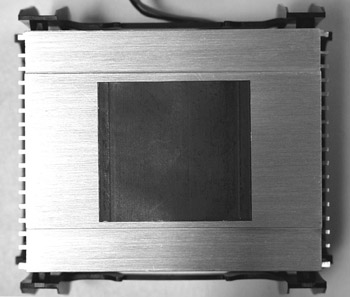
Figure 3.18: The thermal pad goes on the bottom of the heat sink.
| Note | A very helpful article on these heat-transfer materials appears at antec-inc. com/info_DIYArticle2.html. We highly recommend that you read it. |
CPU families: CPU manufacturers create families of processors for both technical and marketing purposes. Examples of family names are Intel’s Pentium 4 and Celeron, and AMD’s Athlon and Duron. Generally, each member of a family has the same internal design with the only differences being speed and perhaps some less-publicized specifications. Celerons don’t fit that definition exactly, however; all of Intel’s lower priced processors since Pentium IIs were current have been called Celerons. Therefore, Celerons have the same general internal design as other Celerons of the same particular generation and form (socket, slot, etc.). Celerons and Durons are less expensive than Pentiums and Athlons of the same speed and form. The differences are in such specifications as cache memory and front side bus speed. They are suitable for basic computing.
Selecting a Replacement CPU
When building or buying a new computer, it might make more sense to select the CPU first, and then select a motherboard to accommodate it. However, in the context of repair, you’ll usually have to find a CPU that matches an existing motherboard. Therefore, the first consideration is to review the motherboard documentation to see which processors are compatible with it, as discussed earlier in the chapter. You’ll then want to select the best of the compatible processors you can afford. “Best” is usually defined as fastest with the most cache. However, you should also consider the usage of the computer. A computer used primarily for e-mail, to read news on the Web, and to write letters does not need as good a processor as one used for heavy-duty number crunching or video production, for example.
CPU Removal and Replacement
CPUs are often very easy to remove and replace. Currently used sockets are called zero insertion force (ZIF) sockets. The processor can be gently placed in the socket, and then a lever is lowered and locked to hold the CPU in place. Slot processors should be gently inserted in their slots. Make sure to use proper grounding protection and be careful not to touch the pins.
On the CD See the “Installing CPUs” video on the accompanying CD-ROM to see examples of installing a slot-type and a socket-type CPU.
There are three ways to set motherboards for the processor in use: automatically, manually with jumpers or micro DIP switches, or in the BIOS setup program. Some motherboards offer more than one of these methods. With the boards with jumpers to set processor parameters, the manuals have charts to show the jumper settings for the processors it takes.
Diagnosing CPU Problems
CPUs are generally trouble-free. The most likely problem is heat damage that can happen when the fan wears out. The most common symptom of heat damage is a computer that starts out working normally, but after awhile performs erratically. Eventually, the computer will lock up. When hearing a report like this, with the power disconnected, open the case and check to make sure that the fan and heat sink are in place—put them in place if they aren’t. Attempt to spin the processor fan by hand. The fan should spin freely and continue spinning when you let go, and not make any noise. If you encounter resistance and/or hear noise, replace the fan.
If the fan blades spin freely, the next step is to power on the computer and see if the fan actually spins. Some BIOS setup programs have CPU temperature gauges, and some motherboard manufacturers provide Windows programs to monitor the CPU temperature, among other things. If the fan does spin, you can check these gauges, if present, to determine if the processor’s temperature is in the safe zone, which will be indicated on the gauge. Another way to measure the processor temperature is to use a laser temperature gauge. While the computer is running, aim the laser at the space between the processor and heat sink. Compare your result to the processor documentation’s temperature specifications. If the temperature is too high, the processor isn’t being cooled properly.
If there is any problem with the fan spinning, shut down the computer immediately and replace the fan. Then, start up the computer and let it run for at least two hours. Next, open some programs and try to use them. If the computer works normally, you can be reasonably sure that the processor didn’t sustain any major damage. If you still have problems, it is possible that the processor has been damaged, or that the computer has other problems. If you have a used replacement available, and you are sure that the CPU is now being properly cooled, temporarily replace the CPU. If the problems go away, there’s a very good chance that the old CPU has sustained damage and will need to be replaced. Products such as Micro-Scope and its POST card can give you accurate diagnoses.
If the power supply fan spins, but the computer won’t otherwise power on, the problem could be a dead or disconnected CPU or motherboard. If everything is connected, the only way to diagnose the problem, after ruling out a bad power supply (see Chapter 4), is to swap a known good CPU or motherboard, one at a time, with the original items. If the replacement device causes the system to work, then you have found the problem.
CPU Fan Replacement Tips
When replacing a fan on a socket processor, you might need to press hard on the retaining clip. Make sure you don’t slip and damage the motherboard. Figure 3.19 shows the steps for installing a processor, fan, and heat sink.
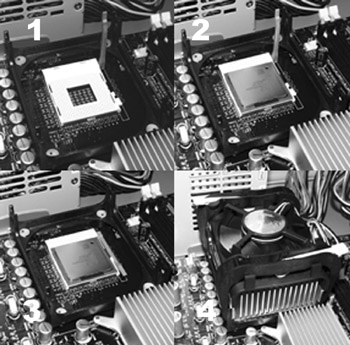
Figure 3.19: Installing a processor, fan, and heat sink.
Fans can have 2-, 3-, or 4-pin power connectors. Figure 3.20 shows the 3-pin connector. The two basic types are the 3-pin that connects to a connector on the motherboard, and the 4-pin type that connects to any of the 4-pin connectors from the power supply. Adapters are available to connect one to the other.
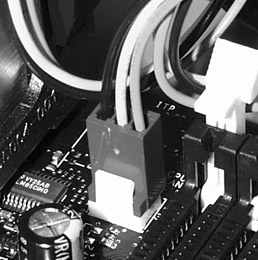
Figure 3.20: 3-pin processor fan connectors.
Socket to Slot Adapters
There are adapters available that allow you to use a Socket 370 processor in a motherboard that otherwise would accept only a slot processor. These can work well when they are first installed, but we have found that they are often the cause of lockups as time goes on. If you are troubleshooting lockups on a machine with one of these adapters, it is a good idea to reseat the adapter in the slot, making sure the slot processor retention mechanism is properly secured and holding the assembly securely in place. If the problem persists, the solution is to get a compatible slot-type processor and install it in place of the socket processor with the adapter.

EAN: 2147483647
Pages: 390