Stored, Unstored, and Global Fields
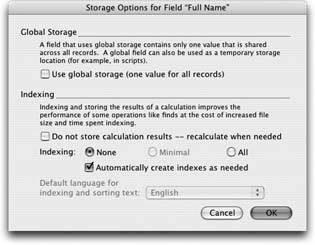
When you defined calculation fields in Chapters 9 and 10, you may have wondered about the Specify Calculation dialog box's Storage Options button (Figure 11-1). You learned about indexing and other storage options back in Chapter 3 (Section 3.3.4.2). When you use similar options in your calculations, you exercise more control over the information your functions work with.
|
11.1.1. Stored and Unstored Calculation Fields
Normally, a calculation field holds a value just like any other field. You can't edit the value, because FileMaker creates it for you from the calculation. When you use this field on a layout, for example, FileMaker simply displays its results. Depending on whether you turn on the "Do not store calculation result" option in Figure 11-1, FileMaker either grabs saved (stored) results from a table or calculates the value on the fly whenever necessary. For example, when you have an unstored calculation field on a layout, FileMaker recalculates the value as soon as you switch to the layout. In fact, whenever an unstored field is showing onscreen, FileMaker updates it automatically any time something causes its value to change.
At the same time, whenever the data in a field changes, FileMaker also works behind the scenes, finding all the stored calculation fields that depend on the changed field and recalculates them, storing the new value in the field. Whether it's stored or unstored, a calculation field usually changes because a field used in the calculation has changed, as you'll see next. Understanding when fields recalculate and how dependencies work can help you avoid future mistakes.
Note: When you use a field in a calculation, you can say the calculation depends on the field (or in other words, that it has a dependency on the field).
11.1.1.1. Field dependencies
Take a look at the example in Figure 11-2 to see how FileMaker knows when to recalculate fields. It's very common for calculation fields to use other calculation fields in complex arrangements, as this hierarchy of field dependencies illustrates.
First Name and Last Name are the only editable fields in Figure 11-2. When someone edits one of these fields, FileMaker looks at the field dependencies to see if it needs to do any extra work. The program sees that it needs to recalculate Full Name and then store that Full Name value, which in turn triggers more work. FileMaker must recalculate and store the Full Address value as well. In a sense, that one change trickles down through all the dependent fields as FileMaker calculates and stores, calculates and stores. All this recalculating happens as soon as the user exits the First Name field after making the change.
|
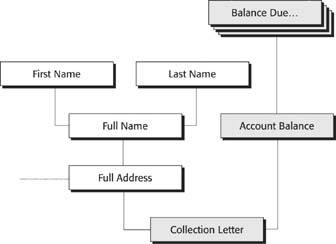
By contrast, since Collection Letter is an unstored field, FileMaker doesn't recalculate it right away. (If it did, it would have no place to store the result.) Instead, the program waits until someone brings up the field onscreen, then it runs the calculation on the current data and displays the result.
Again, more things change. To calculate the Collection Letter value, FileMaker grabs the stored value for the Full Address field. But it also needs the Account Balance, which is not stored. As such, it has to first calculate that field. Doing so requires calculating the Balance Due on each invoice in turn, then adding them up to get an Account Balance. Finally, it has the values it needs to show you the Collection Letter. Thus, when you use unstored calculations, FileMaker pulls the data it needs down through the hierarchy of dependencies on an as-needed basis.
11.1.1.2. Deciding when to store
When you first create a calculation field, FileMaker makes it a stored field automatically, if possible. Some field values aren't eligible for storage. These are the situations when a calculation field must be unstored:
- If it depends on any other unstored fields.
- If it depends on any global fields.
- If it depends on any related fields.
- If it depends on any summary fields.
If your calculation meets any of these criteria, FileMaker automatically turns on the "Do not store calculation resultsrecalculate when needed" option on for you, and it doesn't let you turn it off. Otherwise, FileMaker automatically stores the field.
- An unstored field has to be recalculated every time it appears onscreen, in a layout, or in a report. All that recalculation can slow your database down, especially if the unstored field is part of a summary field or a calculation that aggregates many records. So it's best to store a field unless you need and expect a freshly calculated value every time.
- If you perform a find based on an unstored calculation field, FileMaker has to go through all your records one-by-one, calculating each one as it goes. The result is a slow search process. If you plan on searching a field, store it. (For more detail, see the box on Section 11.1.2.)
Even if FileMaker can store a certain value, you might not always want it to. Here are some reasons you might turn on that "Do not store" box:
- Stored fields automatically recalculate as needed when other fields change. But FileMaker has no such automatic behavior for other kinds of information. For example, when you use the Get(CurrentDate) function in a calculation, FileMaker doesn't recalculate it when the date changes. In general, when you use any of the Get functions (Section 9.2.4), you usually want to make your field unstored to "get" the most up-to-date information.
- A stored field takes up space on disk, while an unstored field doesn't. FileMaker 8 files can hold 8 terrabytes of data, so space isn't a major consideration for most people. But if you're into slim and trim files, you can save space by making calculations unstored.
- Lots of stored calculation fields can really slow down record creation. That's usually not a big deal, but if you often import data (Chapter 17) or use a script to regularly create lots of records, you can speed things up by reducing the number of stored calculations.
Tip: Obviously, there's some gray area here. When in doubt, store the field. You can always make it unstored later. Choose File  Define Database, then select your field from the list and click Options, and then Storage Options to find the "Do not store calculation resultsrecalculate as needed option.
| FREQUENTLY ASKED QUESTION I Want to Store My Field |
|
What if I want to search on a field that FileMaker won't let me store? Just because you can't store a field doesn't mean you don't wish you could. For example, in your Invoices layout, you probably do want to be able to search for invoices with a balance due. But since that field uses related data, it's not storable. The good news is, you don't have to store a field in order to search it; the search is just a little slower. You won't notice the slowdown until you've amassed lots of invoice records. Sadly, there's no easy way to speed it up. One remedy is to change the way people work with your database. You have to make your Invoice Detail layout read onlymeaning users can't change data on the invoice directly (see Section 16.2.3.4). Instead, they use a special layout and a script to make invoice changes. When they're finished, your script can calculate the balance due and update a number field on the invoice appropriately. This way, the Balance Due field is a normal, nonrelated field, eligible for indexing and quick searches. Also, remember that FileMaker can't search a field based on related data very quickly, but it can search the related data itself with lightning speed. For example, to find an invoice that has payments applied to it, don't search the Amount Paid field in the invoice. Instead, search for invoices where Payments::Amount is greater than zero. That search turns up every invoice with a related payment record that's not negative. You get exactly what you want, and FileMaker can carry it out using indexed fields. |
Note: With the exception of global fields and unstored fields, you can set indexing for calculation fields just like any other field, as discussed on Section 3.3.4.2. The available options and their effects depend on the result type of the calculationtext, number, date, or time.
11.1.2. Global Calculation Fields
A calculation field can use global storage (Section 3.3.4.2) just like any other field. When you're in the Storage Options window and you turn on "Use global storage," FileMaker calculates just one value for the entire table, rather than a value for each record. If your calculation uses other global fieldsand no other fieldsthen it works just as you expect. That is, when you modify one of the global fields it depends on, FileMaker automatically recalculates its value.
If the calculation uses non-global fields, on the other hand, things get a little tricky. Whenever you change one of the fields referenced in the calculation, FileMaker recalculates the global calculation field using the values from the current record. For example, if you turn on "Use global storage" for your Full Name field, it shows the name of the person you're looking at when you dismiss the Define Database window. If you were on the first record, that's whose name you see in the field, just as expected. But as you flip through the records, you see that first user's name on every record. You're changing records, but with global storage, the Full Name value stays the same. That's because nothing it depends on has changed.
Now imagine you switch to the last record. If you then change the First Name field, Full Name recalculates. This new value displays the first and last name from the last record, since FileMaker reevaluates the calculation in its entirety.
This behavior may seem kind of odd, but there's a really cool use for it. If you need to track the data in the last record you changedmaybe you need an informal audit of which record just got changed while you're scanning through other recordsthrow a global calculation field on your data entry layout. Then, no matter which record you're looking at, you see the value of the last edited record in that field.
Part I: Introduction to FileMaker Pro
Your First Database
- Your First Database
- An Very Quick Database Tour
- Creating a New Database
- Opening and Closing Database Files
- Saving Your Databases
- Adding Records to Your Database
- Navigating Your Database
- Same Database, Multiple Windows
Organizing and Editing Records
- Organizing and Editing Records
- Views
- Advanced Find Mode
- Changing Multiple Records
- Sorting Records
- Editing Whats in Your Fields
- Paragraph Formatting
- Beyond Text: Container Fields
- Checking Spelling
- Printing and Preview Mode
Building a New Database
- Building a New Database
- Tables and Fields
- Defining Fields
- Advanced Field Options
- Bringing It All Together
Part II: Layout Basics
Layout Basics
Creating Layouts
Advanced Layouts and Reports
- Advanced Layouts and Reports
- Setting up Field Controls
- Adding Field Controls to Layouts
- Field Behavior
- Tab Order
- Print-Related Layout Options
- Format the Number/Date/Time/Graphic
- Adding Buttons
- Tab Panels
- Reports and Summary Fields
Part III: Multiple Tables and Relationships
Multiple Tables and Relationships
- Multiple Tables and Relationships
- Relational Databases Explained
- Modeling Your Database
- Creating a Relational Database
- Relational Databases
Advanced Relationship Techniques
- Advanced Relationship Techniques
- Creating Related Records
- Table Occurrences
- Managing Data with Data Tunneling
- Building a Data Tunneling Interface
- Connecting Databases
- Lookups
- Advanced Relationships
Part IV: Calculations
Introduction to Calculations
- Introduction to Calculations
- Understanding Calculations
- The Structure of a Calculation
- Creating a Calculation Field
- Auto-Enter Calculations
- Validate Data Entry with a Calculation
- Replacing Data Using a Calculation
- Comments
Calculations and Data Types
- Calculations and Data Types
- Number Crunching Calculations
- Going Beyond Basic Calculations
- Text Parsing Calculations
- Date and Time Calculations
- Containers in Calculations
Advanced Calculations
- Advanced Calculations
- Stored, Unstored, and Global Fields
- Logical Functions
- The Let Function and Variables
Extending Calculations
Part V: Scripting
Scripting Basics
- Scripting Basics
- Your First Script
- The Importance of the Layout
- Running Scripts
- Branching and Looping in Scripts
Script Steps
- Script Steps
- Go to Layout
- Scripting for Fields
- Working with Records
- Finding Records
- Sorting Records
- Working with Windows
- Working with Files
- Printing
- Other Script Steps
Advanced Scripting
- Advanced Scripting
- Commenting Scripts
- Asking and Telling the User
- Organizing Complex Scripts
- Handling Errors
- Putting a Complex Script Together
Part VI: Security and Integration
Security
Exporting and Importing
- Exporting and Importing
- Exporting a File
- Export Formats
- Importing Data
- Import Data Sources
- Importing and Exporting in a Script
Sharing Your Database
- Sharing Your Database
- FileMaker Network Sharing
- Sharing Over the Internet
- FileMaker Server
- Server Hardware
Developer Utilities
- Developer Utilities
- Script Debugger
- Disable Script Steps
- The Database Design Report
- Tooltips
- Copying Database Structure
- Custom Menus
- Developer Utilities
- File Maintenance
Part VII: Appendixes
Appendix A. Getting Help

EAN: 2147483647
Pages: 176
