STOP BROADCASTING YOUR NETWORK NAME The Annoyance: I have a Linksys wireless router, and the other day, using AirSnare (see "Stop Bandwidth Vampires"), I found someone on my network, stealing bandwidth. When I sent an angry note to the leech, he had the gall to write back, "Then stop broadcasting your SSID, stupid!" What's an SSID, and how do I stop it from being broadcast? The Fix: Your SSID is your network's name, and if people know what it is, it's easier for them to find your network and connect to it. That's only one part of the problem, though. Even if you stop broadcasting your network's name, people may still be able to connect to it. That's because manufacturers generally ship their wireless routers with the same generic SSIDfor example, Linksys routers are called "Linksys" by default. So even if you stop broadcasting your SSID, these bandwidth vampires may be able to easily guess your router's name and log on to your network. So you need to first change your SSID's name, then hide it. Change your SSID name The steps you'll follow with most vendors' wireless routers should be similar. This is how you'd change the SSID name on a Linksys router: Log into the setup screen by opening your browser and going to http://192.168.1.1. When the login screen appears, leave the username blank, type admin as the password, and press Enter. (If you've changed the username and password, obviously, use those.) On the Setup tab (Figure 3-8), go to the ESSID box and type in a new name for your network, then click the Apply button. (With some Linksys routers, you'll instead need to go to the Wireless tab, locate the "Wireless Network Name (SSID)" box, enter a new name, and then click the Save Settings button.) After you change your network name, reconnect each WiFi computer to the network, using the new network name. To reconnect a PC running Windows XP with Service Pack 2 (SP2), right-click the small wireless icon in the Windows System Tray, choose Available Wireless Networks, click Change Advanced Settings, then click the Wireless Networks tab. Click the Add button in the Preferred Network section, type in the network name, click OK, then click OK again. To reconnect a PC running Windows XP pre-SP2, click the small wireless network icon in the Windows System Tray and select the Wireless Networks tab. Click the Add button, type in the network name, click OK, and then click OK again.
Figure 3-8. Changing your router's ESSID and the channel number will make it harder to find. 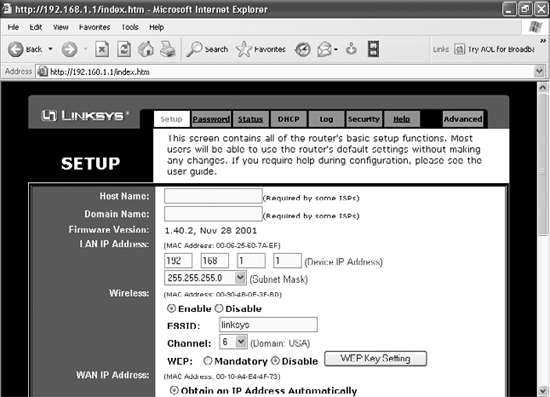
Stop broadcasting your SSID To stop broadcasting your SSID, on the same router setup screen, scroll down to SSID Broadcast and choose Disable. Make sure that you don't disable your wireless networkjust disable SSID broadcasting. If you choose Disable under the Wireless setting, you'll disable your wireless network. (On some Linksys routers, you'll find these options on the Wireless tab.)
Tip: Not all Linksys routers let you disable SSID broadcasting.
PROTECT YOUR HOME WIFI NETWORK The Annoyance: I've stopped SSID broadcasting, but occasional leeches still hop onto my WiFi network. Isn't there anything I can do to block these bandwidth bandits once and for all? The Fix: There's no single fix that will keep you protected, but if you follow these steps, you'll go a long way toward keeping out intruders. Before doing any of this, go to your wireless router vendor's web site and download and install any firmware updates for the router. The firmware may have newer security features built in. After you've installed the firmware, take these steps: Regularly change the channel your router transmits over. That way, people who have tapped into it before won't know which channel it's broadcasting over. This only works if you change your SSID (or stop broadcasting it, as described in "Stop Broadcasting Your Network Name"), though, because XP automatically connects to a WiFi network, no matter what channel it's on, if it knows the network's SSID. Log into your router's setup screen. With a Linksys router, for example, go to http://192.168.1.1 and log in by leaving the username blank and, assuming you haven't changed it from the default, entering admin as the password. Go to the Setup tab, choose a new channel from the Channels drop-down list, and click the Apply button. Then restart each of your computers. Since they all know your network name, they'll automatically connect on the new channel. Limit the number of IP addresses on your network to the number of computers on your network. That way, no one else will be able to get an IP address from your network's DHCP server, and so they won't be able to hop onto your network. Your router's built-in DHCP server hands out IP addresses whenever a computer needs to use the network. The router lets you set the maximum number of IP addresses it hands out. With a Linksys router, for example, go to the setup screen and click the DHCP tab. Enter the number of computers that will use your network in the "Number of DHCP Users" field (Figure 3-9), and click the Apply button. If you add another computer to your network, make sure you go back to the screen and increase the number of DHCP users by one. Figure 3-9. If you limit the number of IP addresses your DHCP server hands out, only PCs in your home will be able to connect to your network. 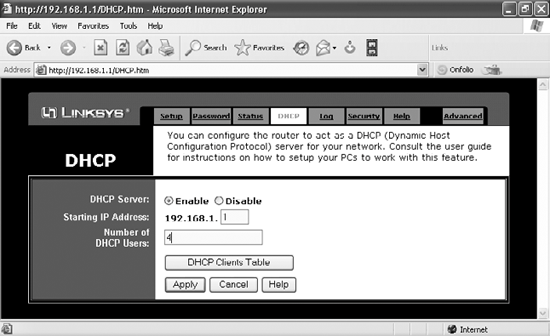
Filter out MAC addresses. You can tell your network to only allow access to network cards with specific MAC addresses. That way, only hardware that you specify can use your network. (Note that not all routers have this capability, although Linksys routers do.) To find the MAC address of a network adapter, see the sidebar "Find Your WiFi Adapter's MAC Address" earlier in this chapter. Write down the MAC addresses of all the network adapters to which you're granting network access. How you filter MAC addresses varies by router. With the Linksys WRT54G, go to the setup page and choose Advanced  Filters Filters  Advanced. In the Advanced Wireless section, set the Wireless MAC Filter option to "Enable." Set the option under Wireless MAC Filter to "Permit only," and then click the Edit MAC Filter List button. Then click the Wireless MAC List button and, in the list that appears, check the box under Enable MAC Filter for each of your PCs that are listed under Active PC. When youve done that, click the Update Filter List button. You'll be sent back to the MAC Address Filter List window. Click the Apply button. Advanced. In the Advanced Wireless section, set the Wireless MAC Filter option to "Enable." Set the option under Wireless MAC Filter to "Permit only," and then click the Edit MAC Filter List button. Then click the Wireless MAC List button and, in the list that appears, check the box under Enable MAC Filter for each of your PCs that are listed under Active PC. When youve done that, click the Update Filter List button. You'll be sent back to the MAC Address Filter List window. Click the Apply button. Use Normal Network Security, Too The advice given here should be used in addition to normal network security, such as using a firewall. For more information about firewalls and other ways to protect yourself against security annoyances, see Chapter 9. |
Use encryption. The WEP encryption standard is relatively weak, but it will keep out anyone except a determined expert. So turn on WEP. The WPA standard is stronger, but you can only use that if your hardware supports it. If it does, use WPA instead. For details, see "Easy Guide to Setting Up WEP Encryption" and "Not-So-Easy Guide to Setting Up WPA Encryption."
EASY GUIDE TO SETTING UP WEP ENCRYPTION The Annoyance: Help! It feels like I've spentyears of my life trying to set up WEP encryption on my home wireless network, but no matter what I do, I can't get it to work. I'm wondering if it's worth itWEP encryption isn't the end-all of security measures, after all. The Fix: It's true that a dedicated cracker can break through WEP encryption, but it will keep casual snoopers from getting into your network. WEP can be confusing to set up, and the process varies by make and model of wireless router. Following are the basic steps for setting up WEP on a typical Linksys wireless router. Check your documentation for details, but it should be similar to this: Go to the setup screen of your router. For a Linksys router, you typically fire up your browser, go to http://192.168.1.1, and type in your password (leaving the username blank). The default for a Linksys router is typically admin. In the WEP section, click Mandatory. Click WEP Key Setting. A screen will appear that will let you set your WEP preferences, as well as generate a required WEP key that will be used by the router and any PC that wants to use the network. Choose 128-bit encryption from the top drop-down menu, as shown in Figure 3-10it's the strongest encryption you can use with WEP. Figure 3-10. When setting up WEP, use the strongest encryption, 128-bit, and let the router generate the key for you. 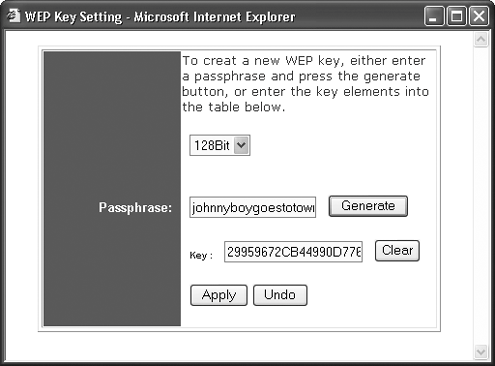
Generate your WEP key by typing words or a phrase in the Passphrase box and clicking the Generate button. A key will be created in the Key box (see Figure 3-11). You don't have to generate your key this wayyou can create one yourself and type it in manually. But chances are it will be far easier to crack than one randomly generated by the software. Figure 3-11. You're almost there: enable WEP encryption, type in your WEP key, and you should be set to go. 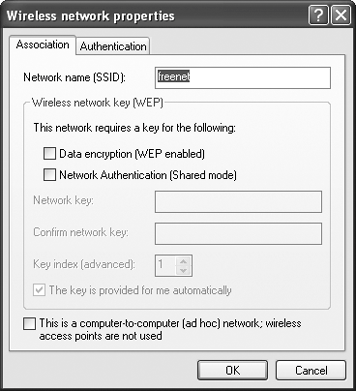
Write down the entire key that was just generated. Get yourself a lot of paperit's going to be a long one, filled with strange characters. You'll need to use the key for each PC that is going to access the network. Click the Apply button. That will apply the key to your network. Now only PCs that use WEP encryption and the key you just generated will be able to get onto your network. When you're sent back to the Setup screen, click Apply. Now you have to configure each wirelessly connected computer on your network to use WEP and the key you just generated. On each PC, double-click the wireless connection icon in the Windows System Tray and choose Properties Wireless Networks. (In Windows XP with Service Pack 2, click the wireless connection icon in the Windows System Tray, click View Wireless Networks, click Change Advanced Settings, then click the Wireless Networks tab.) In the "Wireless network properties" dialog box, check the "Data encryption (WEP enabled)" box. When you do that, the "The key is provided for me automatically" box is checked. Uncheck this box and check the "Network Authentication (Shared mode)" box. Enter your WEP key in the "Network key" box, and type it again in the "Confirm network key" box. Click OK, then OK again. The PC can now connect to your network using WEP encryption.
CHANGE YOUR WEP KEY REGULARLY The Annoyance: I thought that WEP encryption would be enough, but last week I found traces that an intruder had been sniffing around my hard drive. Clearly, WEP is the 98-pound weakling of the encryption world. What else can I do? The Fix: The problem is that you've used the same WEP key for too long. If a snooper monitors your network packets (each with the same WEP key) for long enough, he'll be able to crack the encryption. However, if you regularly change your key, it will be much harder to crack the encryption. You should change your encryption key regularlyi.e., every week. To set up a new key, see "Easy Guide to Setting Up WEP Encryption." WHEN IS 40-BIT WEP REALLY 64-BIT WEP? The Annoyance: My access point lets me generate a key for 64-bit WEP encryption, and I've done that. Now I want to connect my Palm Tungsten C handheld to my network, but there's no option for typing in a 64-bit keyit only accepts a 40-bit key. How can I connect my Palm to my network with maximum WEP protection? The Fix: Believe it or not, 40-bit WEP encryption and 64-bit WEP encryption are actually two terms for the same thing, so just go ahead and type in your 64-bit-encryption WEP key. WEP uses a 24-bit initialization vector, and you don't control that part of the key. That's why some manufacturers refer to the standard as 40-bit, and others call it 64-bit. In the same way, 128-bit WEP encryption is sometimes called 104-bit WEP encryption. And you thought programmers were good with numbers!
Tip: Changing your key regularly can be a pain, but there's a nifty little utility that can make life a bit easier for you. The WEP Key Generator utility will automatically generate WEP keys and print them out for you. You can then take that printout from PC to PC and type in the WEP key. The program is free from http://www.clariondeveloper.com/wepgen.
NOT-SO-EASY GUIDE TO SETTING UP WPA ENCRYPTION The Annoyance: Everything I've read says WEP security is a joke. I don't want a 98-pound weakling protecting my networkI want the Charles Atlas of encryption. I don't want every 15-year-old in the neighborhood breaking into my network and getting his virtual fingerprints on my files. I've heard WPA is far superiorhow can I use it? The Fix: If your network hardware is more than a year or two old, it may not support WPA. Check with your manufacturer and find out. If your manufacturer doesn't have details, you can also turn to the Wi-Fi Alliance's web site at http://www.wi-fi.org for information about what hardware can handle WPA. Just remember that all your network hardware has to support WPAyour router and your wireless network cards. So do the operating systems running on every networked PC. If you can use WPA, set some serious time aside for installing itit's not for the weak of heart. There's no room here to give you a comprehensive blow-by-blow description of how to use WPA, but here are the steps you'll take (for more detailed instructions, see the PC Magazine article "Wireless Security: WPA Step by Step" at www.pcmag.com/print_article/0,3048,a=107756,00.asp): Install the WPA software. WPA isn't built directly into many versions of Windows XP (although it is built into SP2), so you'll have to download it. Go to http://support.microsoft.com/default.aspx?kbid=826942 to download an update that will let XP use WPA. Then head on over to http://support.microsoft.com/default.aspx?scid=kb;en-us;815485 for information about how to install and configure WPA. Update your router's and network cards' firmware. Your hardware may not take advantage of WPA. Check with the relevant manufacturers and see if a firmware update will do the job. If so, download and install the firmware. Remember that you'll have to upgrade all your wireless networking hardware, not just a few components. Configure WPA on your router. This can be a fairly complex process, depending on your router, so check the manufacturer's documentation. It's similar to setting up WEP, but requires several extra steps. Configure WPA on your network cards. Using the key you generated on your router (see "Easy Guide to Setting Up WEP Encryption"), configure WPA on your network cards. You'll use the "Wireless network properties" dialog box, much as you did when you configured WEP.
CELTIC RUNES AND WIRELESS ACCESS? The Annoyance: I think I've been targeted by some kind of anti-WiFi cult. Ever since I installed my wireless network, odd, cryptic symbols that look like Celtic runes, or perhaps symbols of devil worshippers, have been appearing on the sidewalk outside my house. Should I contact an exorcist? The Fix: No need to call Father Damien, but you should strengthen the security of your WiFi network (see the annoyance "Protect Your Home WiFi Network"). What you've noticed are "war-chalking" symbols (see Figure 3-12) that tell passersby that there is a WiFi network nearby, and that it might unwittingly provide free Internet access. Anyone who recognizes the symbols will know you have a WiFi network and may try to connect. Look closely at the symbolsthere's information on how to connect to your network, such as your SSID. The symbols were inspired by the practice of hoboes, who during the Great Depression would make chalk marks near hobo-friendly homes that would hand out free food. For more information about war chalking, go to http://www.blackbeltjones.com/warchalking/index2.html. Figure 3-12. Some typical war-chalking symbols: the top one means the network is open and unencrypted, so anyone can connect to it (an SSID may be included as well), the middle one means that the network is private and closed, and the bottom one indicates a network using WEP encryption. 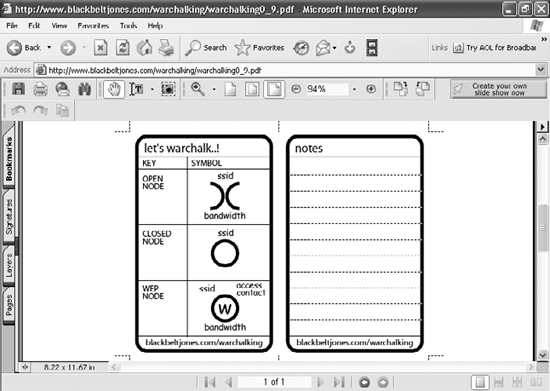
WAITING FOR THE WIRELESSMAN If a new standard ever gains widespread acceptance, you'll be able to hop onto the Internet wherever you are, without a need for wires, your home wireless network, or HotSpots. The WirelessMAN (Metropolitan Area Network) standard would allow you to get wireless high-speed access to the Internet no matter where you were in a city. But the standardofficially IEEE 802.16is nowhere near adoption, so don't expect to see it or use it anytime soon. What is WirelessMAN, and how would it work? No matter where you were in the metropolitan area, you would have high-speed wireless accessat home, on the street, in stores, in cafes, and so on. Think of it as a humongous HotSpot dozens of square miles in size. It's being pushed by a coalition of wireless companies and service providers. While it's still only in the talking phase, most likely you would sign up for one via an ISP in the same way that you now sign up for Internet access through an ISP. |
|
