| The remote control that shipped with your Media PC may have some cosmetic differences from the one shown in Figure 4.1, but it should be functionally identical. Even if your Media PC came with more than one remote control (at least one manufacturer's modelABS Systems' Media Center PC 8400actually ships with three remote controls: one for the speaker system, one for the 30-inch LCD display, and the Media Center remote control), you'll have no problem recognizing the Media Center control by its prominent green button. Think of this button as "home base" because it always brings you back to the Media Center home interface, allowing you to gain immediate access to the core Media Center applications: My TV, My Music, My Pictures, My Videos, Play DVD, and Settings. Figure 4.1. The remote control shown here is the classic hyperbolic -shaped model that comes with most Windows XP Media Center Editionbased PCs. 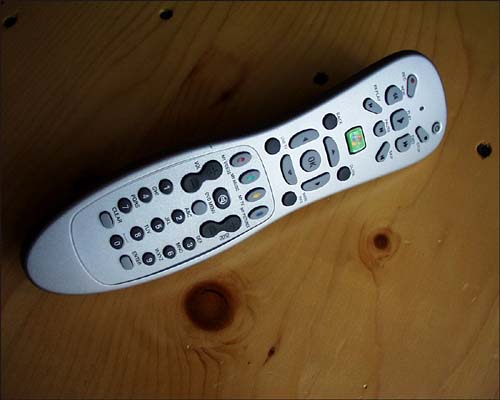 Before we dig into all the buttons on your remote control, it's important to have a general understanding of what your Media Center remote control can and can't do. What the Media Center Remote Control Can Do The Media Center remote control can do all the following: -
Navigate and control all primary Media Center features -
Control the video or live TV display, allowing you to change channels, adjust volume, pause, fast-forward and rewind, and so on -
Control DVD playback, allowing you to pause, fast-forward, and rewind, as well as navigate DVD menus to change settings for audio or captions, select scenes, and so on -
Enter numbers and characters to perform media searches, and so on -
Place the computer in standby mode, and revive it What the Media Center Remote Control Cannot Do The Media Center remote control cannot do any of the following: -
Allow you to navigate the Windows XP desktop or control other applications outside of Media Center -
Allow you to control an external DVD player, VCR, stereo, or the like -
Turn the Media PC on, or shut it down -
Control a TV that is connected to your Media PC (such as turn it on or off, or adjust its speaker volume) tip  | Although you may not be able to actually turn off your Media Center PC with the remote control, it does offer a "power" button that will put the machine into a suspended state. The machine is designed to operate in this fashion, rarely needing to be completely powered down. By the same token, the remote control won't let you fully navigate and control Windows XP applications, but it may allow you to do some limited text entry and related functions. |
The Media Center remote control contains four major functional areas, organized from top to bottom of the control: the power and transport section, the navigation section, the audio/video control section, and the data entry section. Power and Transport At the very top right of the remote control ( closest to the end that you point at the Media Center PC), you'll find the power button. As noted previously, this button triggers a stand-by mode. To actually shut down the machine, you'll need to use the mouse. Directly below the power button you'll find the transport buttons, used to control video and audio media, whether it's stored on the hard drive or a CD or DVD disc (see Figure 4.2). Specific buttons include Rec, Stop, Rew, Play, Fwd, Replay, Pause, and Skip. Figure 4.2. The power and transport controls are where you'll go to play DVDs and to enjoy the wonders of time-shifted television, which allows you to pause and rewind live TV programming. 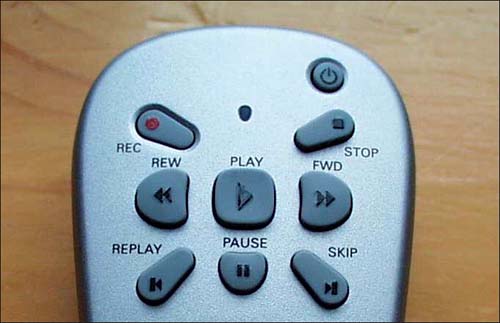 Table 4.1 details usage of the Media Center remote control's power and transport features. Table 4.1. Remote Control Power and Transport Features | To | Press | | Play the selected media (video, song, album, playlist, and so on) | Play  | | Skip to the next track or scene | Skip Forward  | | Skip to the previous track or scene | Skip Back  | | Fast forward the selected media |  | | Rewind the selected media |  | | Stop the track completely (press Play to start playing again from the beginning) | Stop  | | Pause the audio or video (press Pause again to resume) | Pause  | | Record the current live program or set record for a program guide item | Rec  | | Place the PC in standby mode (press again to revive the PC) | Pwr  | Navigation In addition to the green Media Center Start button, the remote is equipped with directional buttons (  , ,  , ,  , and , and  ), an OK button to choose and activate selections, and a Back button. Various shortcut buttons are also found on the remote's midsection, including Guide, Live TV, and More Info buttons (see Figure 4.3). Below these, you'll find an additional row of shortcut buttons that allow you to go directly to the following Media Center applications: ), an OK button to choose and activate selections, and a Back button. Various shortcut buttons are also found on the remote's midsection, including Guide, Live TV, and More Info buttons (see Figure 4.3). Below these, you'll find an additional row of shortcut buttons that allow you to go directly to the following Media Center applications: -
My TV -
My Music -
My Pictures -
My Videos Figure 4.3. The navigation portion of the Media Center remote control is a crucial tool for getting around inside the Media Center interface. 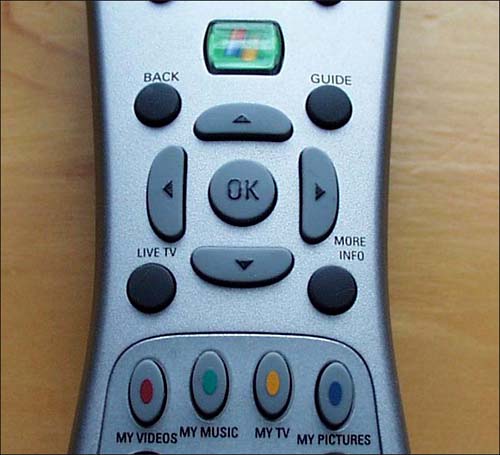  | This layout differs a bit on HP's version of the Media Center remote control, but the functions are essentially the same. The word "My" is missing on the shortcut buttons, and you'll find them located closer to the top of the remote, just below the power button. Also, the More Info button is labeled Details on the HP version, and is located directly below the green Start button. |
Table 4.2 details the major navigation features of the Media Center remote control. tip | | If some of the onscreen buttons for My TV, My Music, or My Videos are missing from the Start page of Media Center, you can restore them by using the following steps (warningyou're going to need your mouse for this): -
From the Start menu, choose Control Panel. -
Click Add or Remove Programs. -
Click Set Program Access and Defaults. -
Double-click Custom. -
Check the Enable Access to This Program box for the programs that you want to restore access to in Media Center. -
Click OK. |
Table 4.2. Remote Control Navigation Features | To | Press | | Start Media Center (or go to the Start menu if Media Center is already running) | Start ( embossed green button with Windows logo) | | Move to the selection above | Up ( ) | | Move to the selection below | Down ( ) | | Move to the selection on the left, or move to the menu | Left ( ) | | Move to the selection on the right, or move from the menu to the folder items | Right ( ) | | Select the active item | OK | | Go to the previous screen | Back | | Show information about the selected item | More Info | | Go to the Electronic Programming Guide | Guide | | Go to Live TV | Live TV | Audio/Video Control This section, shown in Figure 4.4, contains the remote control's Vol+ and Vol- buttons, as well as the corresponding Ch+ and Ch- buttons. You'll also find the Mute control here, as well as the DVD Menu button, which will give you access to DVD-specific options, such as onscreen controls for chapter and subtitle selections. Figure 4.4. The Media Center remote's A/V controls allow you to change channels (and page up or down when viewing the program guide), adjust the volume, and access a DVD menu. 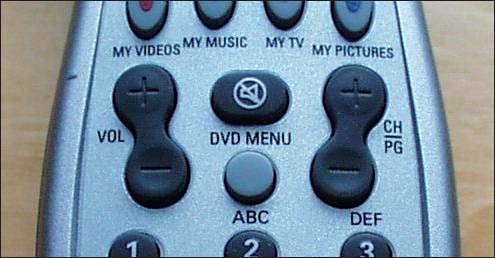 Table 4.3 describes the A/V functions available from the Media Center's remote control. Table 4.3. Remote Control A/V Features | To | Press | | Turn up or turn down the volume | Vol+/Vol- | | Mute the sound without stopping playback |  (Mute) (Mute) | | Change the channel | Ch/Pg+ / Ch/Pg- | | Access the DVD menu when a disc is inserted | DVD Menu | Data Entry This section of the remote control (shown in Figure 4.5) is where you'll find number buttons to input numerals 09, an Enter button, and a Clear button. Also note that, just as on a telephone keypad, the number buttons have alphabetical values as well. For instance, the 1 button can be used to input the letter A, B, and C (press once for A, twice for B, three times for C). These buttons can be used to fill in onscreen fields and forms, to input keywords for searching through the program guide or your media collections, and so on (see Figure 4.6 for an example). Figure 4.5. The data-entry portion of your Media Center remote control allows you to input alphanumeric characters without reaching for the keyboard, but for the most part it will work only within Media Center applications. 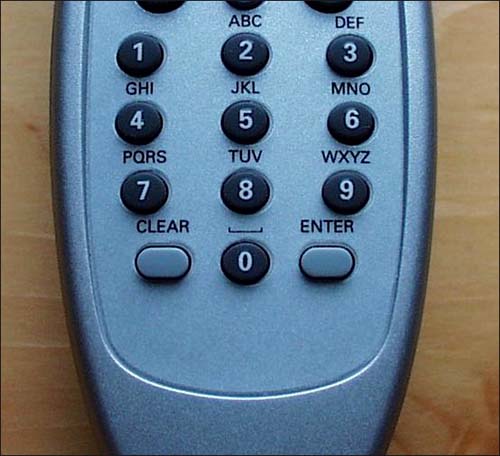 Figure 4.6. When you are presented with a data-entry screen inside the Media Center interface, such as when searching for programming, Media Center will display a graphic representation of the keypad for easy reference. 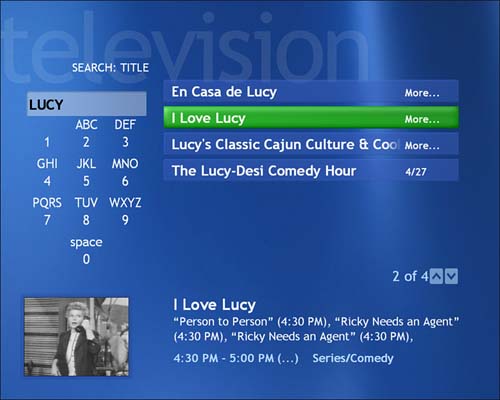 To input text with the Media Center remote, follow these steps: -
Press a number to scroll through the choices available for that button. With each repeated press of the button, a different character will appear. -
When you have entered the character you want to use, press Enter, or pause for a second. The cursor will advance to the next character position. -
To backspace , press Clear. -
Continue until the complete search term is entered, or until the search function has narrowed your choices sufficiently to select the item you are looking for. -
To select an item from the search list, press the right arrow to access the list and use the up/down arrows to highlight your choice. Then press OK. tip | | Most functions of your remote control are limited to applications within Media Center, but there are some exceptions. For instance, you can use your remote to log on to Windows. When you turn on the computer and see the log-in window, press the arrow buttons on the remote to select your username, and then press OK. Microsoft Windows will start. You can even use the remote to enter your password when you log inbut your password must use only numeric characters. If you have a mixed-character password, you'll need to use the keyboard to enter it. (Note that mixed-character passwords are significantly more secure than passwords that use only numeric characters.) |
 |
