Flylib.com

Books Software


WILL MORE RAM MAKE PHOTOSHOP RUN FASTER?

 < Day Day Up > 

WILL MORE RAM MAKE PHOTOSHOP RUN FASTER?

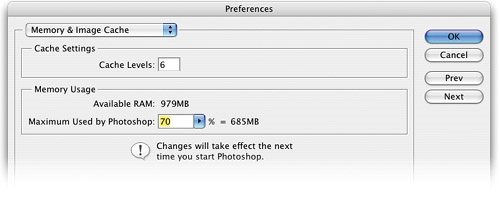
Problem: You added more RAM to your system and assigned more RAM to Photo-shop, but it doesn't seem to run any faster. Reason: Adding RAM doesn't always make Photoshop run faster. It only works if you didn't have enough RAM to begin with. Adding RAM will only help to make your computer run as fast as it can, but it won't make your 800-MHz computer run at 801 MHz. For example, if you work on Web images and the average image you work on is 3 MB, you only need about 15 or 20 MB assigned to Photoshop to have it run at full speed. If you've got that, and add another 256 MB of RAM, Photoshop won't run any faster, because Photoshop only needs that 15 or 20 MB that you already had. Freaky. To check your RAM usage, go under the Photoshop menu, under Preferences, and choose Memory & Image Cache (on a Windows PC, Preferences are under the Edit menu).
 < Day Day Up > 
 < Day Day Up > 

DON'T USE CROP TO FIX BARREL DISTORTION

Problem: You're trying to fix barrel distortion that appears on a photo you're editing, but using the Crop tool's Perspective feature is a guessing game. You try the crop and it doesn't look right; you have to undo it, and guess again. Solution: Don't use the Crop tool's Perspective feature (found in the Options Bar), even though it was specifically designed to address barrel distortion. Use the standard Free Transform command instead by pressing Command-T (PC: Control-T) and then pressing-and-holding the Command (PC: Control) key while you drag the corner handles to create your perspective. Doing this gives you a live onscreen preview as you work, so fixing the distortion takes just a few seconds—unlike Crop's Perspective.

ISTOCKPHOTO/BRUCE LIVINGSTONE

 < Day Day Up > 
 < Day Day Up > 

GETTING SMALLER PHOTOSHOP FILES

Do your Photoshop PSD file sizes seem a little large? It may be because of a Preferences setting that makes Photoshop save a flattened version of your Photoshop image, along with your layered Photoshop file. Why does Photoshop do this? Because there's a slight possibility you might share this file with someone using Photoshop 2.5 (just like there's a slight possibility that Congress will vote to cut their own salaries), and Photoshop 2.5 didn't support layers , so it can't read your layered document. But because, by default, that flattened version is included in your layered file, guess what—2.5 can open the flattened image. What luck! Who cares? I'd rather have smaller file sizes all year long, and if you would too, go under the Photoshop menu (the Edit menu in Windows), under Preferences, under File Handling, then in the File Compatibility section, for Maximize PSD and PSB File Compatibility, change Ask to Never. Think about this one for a minute and you'll wonder why this is turned on by default. Think about it for two minutes and you'll wonder why it's in Photoshop at all. Don't spend too much time on it, or you'll start to wonder who's the poor soul that's stuck on version 2.5.

 < Day Day Up > 
 < Day Day Up > 

Speed Freak: killer web tips

The reason I call this chapter "Killer Web Tips" is that most of the tips in this chapter came from a buddy of mine who's now serving time in Raiford State Penitentiary for manslaughter. Technically, he's not really a killer, and technically this chapter should have been called "Web Tips from a Killer" rather than "Killer Web Tips," but really, would you have bought this book if that was the name of this chapter? You would have? Wow! You're my kind of person (or trusty, as my friend likes to call them). Seriously though, in this chapter we're going to look at some tips to make optimizing your graphics easier and faster, while making your file sizes as small as possible. If you incorporate these tips into your Web work, before you know it, you'll be earning more money, and then when you have enough money, you can buy cartons of cigarettes to bribe the guards . See, it all works out in the end.


 < Day Day Up >