5.3 Running X11
X11 can be run in two modes:
full
screen
or
rootless
(the default). Both of
these modes run side-by-side with Aqua, although full-screen mode
hides the Finder and Mac OS X's desktop (to hide X11 and return to
the Finder, press Option-
To launch the X server, double-click the X11 application (in
/Applications/Utilities
). An
Figure 5-1. A Terminal and an xterm sporting the Aqua look
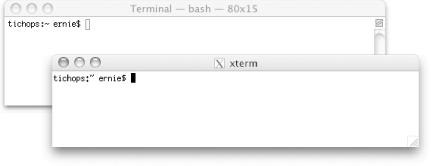
If you're using the default configuration, you'll also notice three obvious differences from a Terminal window. In particular:
A less obvious difference between a Terminal window and an X11
xterm
window is that Control-clicking (or
right-clicking) in an
xterm
window does not invoke the
same contextual menu that it does in a Terminal window.
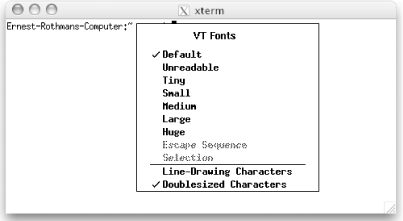
Control-clicking, Control-Option-clicking, and Control-
You can use Fink to install an xterm replacement such as rxvt or eterm . See Chapter 11 for more information on Fink. Figure 5-2. Control-click (or Control-left-click) in an xterm window
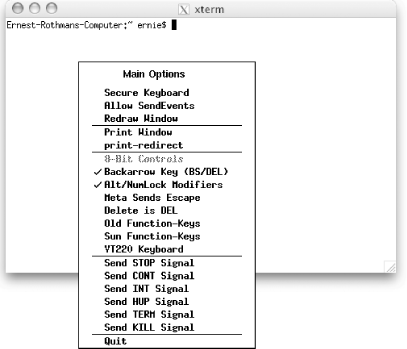
Figure 5-3. Control-Option-click (or Control-middle-click) in an xterm window
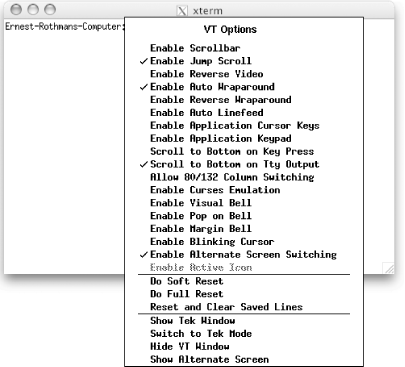
Figure 5-4. Control-
|
|
In rootless mode, X11 applications take up their own window on your Mac OS X desktop. In full-screen mode, X11 takes over the entire screen and is suitable for running an X11 desktop environment (DTE) like GNOME, KDE, or Xfce. If you want to run X11 in full-screen mode, you'll have to enable this mode in the X11 Preferences by clicking the Output tab and selecting the full-screen mode checkbox.
|
5.4 Customizing X11
There are a number of things you can customize in X11. For example, you can customize your
5.4.1 Dot-files, Desktops, and Window ManagersTo customize X11, you can create an .xinitrc script in your Home directory. A sample .xinitrc script is provided in /etc/X11/xinit/xinitrc . Using the script as a starting point, you can specify which X11-based applications to start when X11 is launched, including which window manager you'd like to use as your default. The default window manager for X11 is the Quartz window manager (or quartz-wm ). The tab window manager (or twm ) is also bundled with X11, but many other window managers are available. You can visit the following web sites to get instructions and binaries for a wide variety of window managers and DTEs.
If you're going to use your own .xinitrc file and want to use the Quartz window manager, make sure you start the Quartz window manager with the command: exec /usr/X11R6/bin/quartz-wm &
Once you've installed X11, you will probably want to install additional X11 applications, window managers, and perhaps other DTEs (even if you are using Apple's window manager, you can still run most binaries from other DTEs such as GNOME and KDE even without using that DTE as your desktop). One of the
Table 5-1. Window managers available for Fink
Fink has entire sections (http://fink.sourceforge.net/pdb/sections.php) devoted to GNOME and KDE, where you will find an
Fink
You can customize the xterm window in Apple's X11 in the same way you would customize xterm on any other system running X11. You can, for example, set resources in an .Xdefaults file in your home directory or use escape sequences to set the title bar (see Section 1.4.1 in Chapter 1). 5.4.2 X11 Preferences, Application Menu, and Dock Menu
You can also customize your X11 environment by setting X11's preferences via the X11
5.4.2.1 Input
The following options are used for controlling how X11
By default, all three of these options are enabled. 5.4.2.2 OutputThe following options are used for configuring X11's look and feel:
5.4.2.3 SecurityThe following options are used to configure X11's security features:
Both of these settings are checked by default. If you make any changes to these settings, you must quit and restart X11 for the change to take effect. 5.4.2.4 Customizing X11's Applications menu
X11's Applications menu can be used to quickly launch X11 applications, so you don't have to enter their command path. You can add other X11 applications to this menu and assign keyboard shortcuts by selecting Applications
Figure 5-5. X11 Application Menu customization window
The same X11 Application Menu customization window can be opened by Control-clicking on X11's Dock icon and selecting Customize from the contextual menu. When you Control-click on X11's Dock icon, you will see that the applications shown in Figure 5-5 are listed there as well. X11's context menu allows you to quickly launch other X11 applications and to switch between windows of currently running X11 applications. |