Flylib.com

Books Software


1.7 A Word About Project Management


1.7 A Word About Project Management

As you create more projects like Ch01_01 , you'll find Eclipse getting more and more crowded, since all your projects are displayed in the Java perspective's Package Explorer view, as well as the Navigator view (recall that the Navigator view is there to let you navigate between projects). If you have 30 projects, there will be 30 entries there. There are various ways to deal with this clutter (such as creating working sets, as we'll see in Chapter 2), but we'll take a look at the simplest one here.

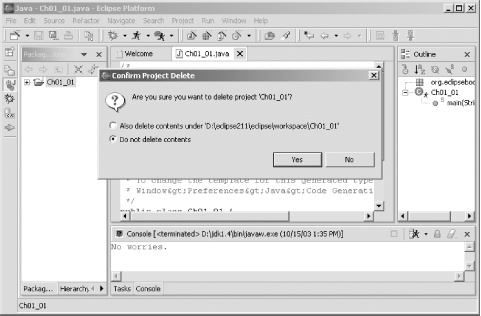
To remove a project from the Package Explorer and Navigator views, you can simply delete it. This does not necessarily delete the actual files used for the project, and, whenever you want, you can add the project back to these views. For example, to remove the Ch01_01 project, just right-click its icon and select the Delete item. Eclipse will display the Confirm Project Delete dialog box, as you see in Figure 1-20.

Figure 1-20. Deleting a project
figs/ecps_0120.gif

In this case, make sure that the "Do not delete contents" radio button is selected and click Yes to remove the project from Eclipse. The project will disappear from the Package Explorer and Navigator views. Clicking the other radio button will make Eclipse delete all the files and their contents in the project, so don't do that if you want to use the project again later.

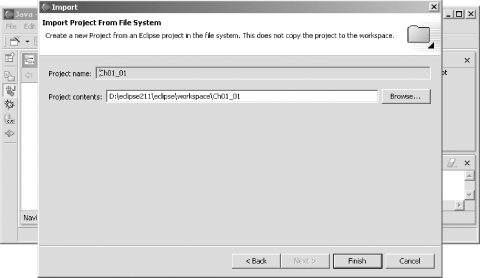
When you want to work with the project again, you just import it. To do that, right-click the Package Explorer or Navigator and select the Import context menu item, or select the File Import menu item. This opens the Import dialog; select the "Existing Project into Workspace" item and click Next. In the next pane, click the Browse button, select the Ch01_01 folder, and click OK, giving you results like those shown in Figure 1-21.

Figure 1-21. Importing a project
figs/ecps_0121.gif

Click Finish to import the Ch01_01 project again. Now the project is back and ready for use. To run it, select the project in the Package Explorer and select the Run Run As Java Application menu item. That's all you need; this is a crude but effective way of doing project management, and we'll see others as we progress.

You can also close projects if you right-click them and select the Close Project menu item. However, that doesn't remove them from the Package Explorer and Navigator viewsit just closes the project folder and changes its icon. The only real benefit of closing projects is that it will allow Eclipse to start up a little faster later because it doesn't have to initialize closed projects.


That's it for this chapter. We got our start working with Eclipse here, and we're coming up to speed. In the next chapter, we're going to get into more depth on Java development and the JDT.


Chapter 2. Java Development

This chapter is where we get down to the business of developing Java using Eclipse. We're going to take a look at using Eclipse for Java development as well as project management, going from the basics to the fairly serious. Nearly everything in this chapter is essential knowledge for the Java developer using Eclipse, so let's jump in.


2.1 Developing Java Code

If there's anything that takes more time than it seems to be worth in Java, it's creating code from scratch. While the logic inside a method, interface, or class is unique, the modifiers of a method, the imports for a class, and the syntax involved with new packages is the same over and over again. This often results in a lot of repetitive typing, wasted time, and in many cases, annoying little typo- related bugs . Eclipse can help with all this and more.

2.1.1 Creating New Methods

Eclipsethrough code assistmakes it easy to create new methods. As an example, we're going to create and call a new method named printer , which displays the message "No worries.", as you can see in Example 2-1.

Example 2-1. The Ch02_01.java example
public class Ch02_01

{

    public static void main(String[] args)

    {

        printer( );

    }


    private static void printer( )

    {

        System.out.println("No worries.");

    }

}

How do you create new methods? Start Eclipse now and create a new project named Ch02_01 . Then create a new Java class named Ch02_01 , making it part of the org.eclipsebook.ch02 package. Leave the checkbox for the creation of a stub for the main method checked when you create this new class. This gives you the code:

public class Ch02_01 {


        public static void main(String[] args) {

        }

}

You could simply type in the printer method, of course, but Eclipse can also be of assistance here. Move the cursor below the body of the main method and type private to make this new method a private method, and then type Ctrl+Space to open code assist, as you see in Figure 2-1.

Figure 2-1. Creating a private method
figs/ecps_0201.gif

Code assist lets you select the type of private method you want to create private , private static , and so on. Here, select the private static method, creating the new method template you see in Figure 2-2. The placeholder return_type is highlighted, ready for you to enter in a type; use void . Next , replace the name placeholder with the name printer and delete the arguments placeholder.

Figure 2-2. Setting the new method's return type
figs/ecps_0202.gif

This creates the new method in outline; all that's left is to add the code that will display the message (as before, you can take advantage of code assist to pause after you type each dot for suggestions):

public static void main(String[] args) {

}


private static void printer( )

{

System.out.println("No worries.");

}

Then just add the call to printer from main :

public static void main(String[] args) {

printer( );

}


private static void printer( )

{

    System.out.println("No worries.");

}

That's all you need; now you can run the example with the Run As Java Application menu item. You should see "No worries." appear in the Console viewjust as before. But this time, we're using a new custom method.

2.1.2 Creating New Classes

We've created a new method and given it a name, but what if you want that new method to be in a different class? For example, say that your main method is in a class named Ch02_02 , but the printer method is in a class named Ch02_02Helper :

Ch02_02


+--------main


Ch02_02Helper


+--------printer

In this case, you could create a new object of the Ch02_02Helper class in the main method, and then you could call that object's printer method, as you see in Example 2-2.

Example 2-2. The Ch02_02.java example
public class Ch02_02 {

        public static void main(String[] args) {

Ch02_02Helper helper = new Ch02_02Helper( );

                helper.printer( );

}

The Ch02_02Helper class, with the printer method in it, appears in Example 2-3.

Example 2-3. The Ch02_02Helper.java example
public class Ch02_02Helper {

        public void printer( ) {

                System.out.println("No worries.");

        }

}

To implement this example with its two classes in Eclipse, create a new project named Ch02_02 and add the new class Ch02_02Helper to the project. Make this class public and put it into the org.eclipsebook.ch02 package (and make sure that you don't create a main method stub in this class). Next, add the printer method to this class, as in Example 2-2.

Then save the file . This is an important step because if you don't save the file, the printer method won't be available to the rest of your project's code. This is essential to knowwhenever you want to work with items from file A in file B, you have to save file A first because Eclipse compiles from the files, not what's in its editors.

Having created the new Ch02_02Helper class, the next step is to create the class containing code that will make use of it, the Ch02_02 class. Create that new class in the project and add a stub for the main method to it. Now all you need to do in the main method is add the code to create an object of the Ch02_02Helper class and call that object's printer method:

public class Ch02_02 {

        public static void main(String[] args) {

Ch02_02Helper helper = new Ch02_02Helper( );


helper.printer( );

}

Then save all your work and run the application; Eclipse's compiler handles locating both classes in the same package for you. You should see the "No worries." message as shown in Figure 2-3. As you can see in the Package Explorer, we're using multiple classes in the same project.

Figure 2-3. Using multiple classes
figs/ecps_0203.gif

And there's more you can do with multiple classes here as well. Say you want to override the printer method and change the text it displays. You can do that by deriving a new class based on the Ch02_02Helper class and overriding printer in this new class. To do this, right-click the org.eclipsebook.ch02 package inside the Ch02_02 project and select the New Class item, opening the New Java Class dialog you see in Figure 2-4.

Figure 2-4. Creating a derived class
figs/ecps_0204.gif

Name the new class Ch02_02HelperHelper , enter the package name, and deselect the main stub checkbox. To derive this class from Ch02_02Helper , type Ch02_02Helper in the Superclass box (you can also implement interfaces by entering them into the Interfaces box), and click Finish to create the new class. Here's what you getthis new class automatically extends the Ch02_02Helper class:

public class Ch02_02HelperHelper extends Ch02_02Helper {


}

Notice the "Enclosing type" box in the New Java Class dialog. If you want to enclose one class within another, you can enter the name of the enclosing class here. Note also that if you right-click the enclosing class in the Package Explorer and select New Class, the enclosing class's name will appear in the Enclosing type text box when this dialog opens, although it won't be used unless you select its checkbox.


We want to override the printer method from the base class's version here, so open the new class, Ch02_02HelperHelper , and select the Source Override/Implement Methods menu item, opening the Override/Implement Methods dialog box you see in Figure 2-5 (if you're implementing an interface, you can also find the methods you have to implement here).

Figure 2-5. Overriding a method
figs/ecps_0205.gif

This dialog shows a list of possible overrides ; all you have to do is pick one. In this case, select the printer method and click OK. When you do, you'll see a stub for the new version of the printer method in the Ch02_02HelperHelper class:

public class Ch02_02HelperHelper extends Ch02_02Helper {


        /* (non-Javadoc)

         * @see org.eclipsebook.ch02.Ch02_02Helper#printer( )

         */

public void printer( ) {


// TODO Auto-generated method stub


super.printer( );


}

}

In this overriding version, use this code to display a new message, "No problems.":

public void printer( ) {

System.out.println("No problems.");

}

And that's ityou've overridden a method in a derived class. As the final step here, change the code in the main method to use your new class:

public class Ch02_02 {


        public static void main(String[] args) {

Ch02_02HelperHelper helper = new Ch02_02HelperHelper( );

helper.printer( );

        }

}

When you run this example, you should see the new message, "No problems.", as in Figure 2-6.

Figure 2-6. Using our derived class
figs/ecps_0206.gif

As you can see, automatic code generation can be a timesaver. In this case, you used it to override a method, but there are other options available in the Source menu:

  • Source Comment lets you comment out a section of code. This is great for anyone who's ever had to comment out a long set of lines. All you have to do is select the lines to comment out and choose this menu item. A single-line comment, //, will appear in front of all the lines. Want to uncomment them? Just choose Source Uncomment.

  • Source Generate Getter and Setter lets you generate standard Java getter and setter methods for a field in a class. For example, if the field is named temperature , the suggested getter and setter methods will be getTemperature and setTemperature .

  • Source Generate Delegate Methods lets you create delegate methods for other methods automatically.

  • Source Add Constructor from Superclass lets you create a constructor that will include code to call the superclass's constructor. (You can also create this constructor automatically when you create a class.)

  • Source Surround with try/catch Block is a great one, and it will surround selected text with a try/catch block for you. This option checks for any uncaught exceptions automatically and adds code to catch them.

For example, say you've stored the message that the printer method displays in a class field named message :

public class Ch02_02HelperHelper extends Ch02_02Helper {


        /* (non-Javadoc)

         * @see org.eclipsebook.ch02.Ch02_02Helper#printer( )

         */

String message = "No problems.";

public void printer( ) {

                System.out.println(message);

        }

Instead of simply storing this data in a class field, you can use getter and setter methods to access it (these methods are of the standard form used in JavaBeans to support properties). In this case, you can create getter and setter methods for the value in message by selecting the Source Generate Getter and Setter menu item, which opens the Generate Getter and Setter dialog box you see in Figure 2-7. Just select the checkbox next to message and click OK.

Figure 2-7. Creating Getter and Setter methods
figs/ecps_0207.gif

Eclipse will create the new getter and setter methods getMessage and setMessage ; we can use getMessage when we want to display the message in the printer method this way:

public class Ch02_02HelperHelper extends Ch02_02Helper {


        /* (non-Javadoc)

         * @see org.eclipsebook.ch02.Ch02_02Helper#printer( )

         */


        String message = "No problems.";


        public void printer( ) {

                System.out.println(getMessage( ));

        }


        /**

         * @return

         */

        public String getMessage( ) {

                return message;

        }


        /**

         * @param string

         */

        public void setMessage(String string) {

                message = string;

        }

Another good timesaver is the Source Surround with try/catch Block menu item. This one checks the code you've selected for uncaught exceptions and writes a try/catch block for any that it findsanother great Eclipse feature worth the price of admission.

2.1.3 Creating New Packages

Besides using multiple classes in the same project, it's also easy to distribute your code over multiple packages in the same project. For example, you can break up your code into two packages, org.eclipse.ch02 and org.eclipse.ch02_2 , as you can see in the Package Explorer at left in Figure 2-8. Here, we're putting the Ch02_03Helper class, which contains the printer method, into an entirely new package, org.eclipse.ch02_2 .

Figure 2-8. Using multiple packages
figs/ecps_0208.gif

If you want to access a class in another package, just remember to import itin this case, that means using the fully qualified name of the class you want access to, which is org.eclipsebook.ch02_2.Ch02_03Helper . After you've imported the class, you can create objects using it, like this:


import org.eclipsebook.ch02_2.Ch02_03Helper;

/**

 * @author Steven Holzner

 *

 * To change the template for this generated type comment go to

 * Window>Preferences>Java>Code Generation>Code and Comments

 */

public class Ch02_03 {


        public static void main(String[] args){

                Ch02_03Helper helper = new Ch02_03Helper( );

                helper.printer( );

        }

}

And that's all it takes; as you can see, multiple packages in the same project are no problem at all.

What if the code you want to use is not only in a different package, it's also in another project? When you create a project, you have the option of adding other projects to the build path . For example, if you want to create a new project that works with the code in the org.eclipsebook.ch02_2 package from a new project, Ch02_03 , just click the Projects tab in the second pane of the New Java Project dialog and add the Ch02_03 project to the build path, as you see in Figure 2-9.

Figure 2-9. Adding a project to the build path
figs/ecps_0209.gif

Now the code in Ch02_03 , including the org.eclipsebook.ch02_2 package, is accessible to your new project. You can also add other projects to the build path after a project has been created by selecting the project in the Package Explorer, right-clicking it, and selecting the Properties context menu item. In the Properties dialog that opens, select Java Build Path and click the Projects tab, giving you the same display as in Figure 2-9.