4.5.2 Setting fonts
Setting fonts
Fonts in Word are controlled by the Font dialog on the Format menu (shown in Figure 4). That dialog controls the font name, size, style (such as bold, italic, underline, and so forth), color, and effects (like strikethrough, superscripts and subscripts, and much more). It also controls more esoteric options such as kerning, animation of or around text, the vertical position of text with respect to the baseline, spacing between characters, and more. The Font object, which is similar to (though not quite the same as) Font objects in the other Office servers, manages these options.
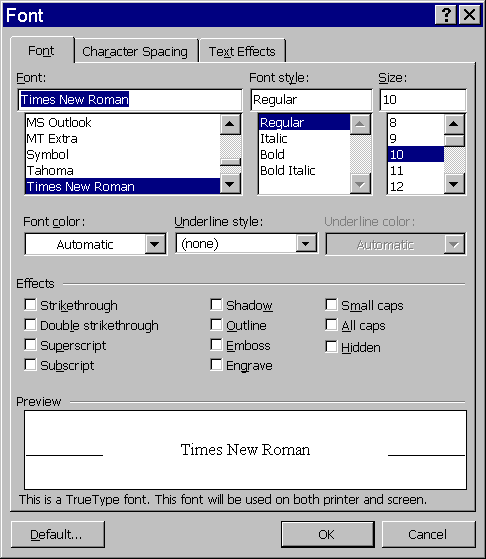
Figure 4
. Specifying fonts. The Font dialog controls font, size, style, and color, as well as unusual options like kerning and spacing between characters. In Automation, the Font object manages all of these features.Range, Selection, and Style (discussed in the section "Working with styles" later in this chapter), as well as many other objects, each have a Font property that points to a Font object. Changing the properties of the Font object modifies the font of that portion of the document. For example, to change all the customer information shown in Figure 2 to 12-point Arial, you can use this code:
oRange = oDocument.Range()
oRange.Font.Name = "Arial"
oRange.Font.Size = 12
To simplify matters, just set the desired font before sending the text to the document. Here s another version of the program to send the customer address. This one uses 12-point Arial from the start:
#DEFINE CR CHR(13)
USE _SAMPLES + "TasTrade\Data\Customer"
LOCAL oDocument, oRange
oDocument = oWord.Documents.Add() && Use the Normal template
oRange = oDocument.Range()
oRange.Font.Name = "Arial"
oRange.Font.Size = 12
LOCAL cText
cText = ""
cText = Customer_ID + ": " + Company_Name + CR
cText = cText + "Attn: " + TRIM(Contact_Name) + " - " + Contact_Title + CR
cText = cText + Address + CR
cText = cText + TRIM(City) + " " + TRIM(Region) + Postal_Code + CR
cText = cText + UPPER(Country) + CR
oRange.Text = ""
oRange.InsertAfter(cText)
In fact, this isn t the best way to set the font for a whole document. It s better to use a template where the font of the Normal style has been set as needed. (For more information, see the section "Working with styles" later in this chapter.)
Table 3 lists Font properties you re likely to want to work with, along with Word constants for them, where appropriate.
Table 3
. Font properties. The Font object controls the appearance of the font, from the font face to its size, style, and much more. This table shows the more common properties. Check Help for more unusual settings.| Property | Type | Description |
| Name | Character | The name of the font. |
| Size | Numeric | The size of the font, in points. |
| Bold | Numeric or Logical | Indicates whether the text is bold. |
| Italic | Numeric or Logical | Indicates whether the text is italic. |
| Underline | Numeric | The type of underline. wdUnderlineNone 0 wdUnderlineDouble 3 wdUnderlineSingle 1 wdUnderlineDotted 4 wdUnderlineWords 2 wdUnderlineThick 6
|
| Superscript, Subscript | Numeric or Logical | Indicates whether the text is superscript or subscript. |
It s possible for the text in a range (or whatever area the Font object covers) to have more than one font setting. When that happens, the various numeric properties get the value wdUndefined (9999999). (That s also why properties that you d expect to be logical are listed as numeric or logical.) Font.Name is the empty string in that situation.
The next example demonstrates a related complication of working with VBA objects in Visual FoxPro. Although these logical properties (like Bold and Italic) can be set by assigning VFP s logical values .T. and .F., they can t be compared to logical values. Code like this fails with the error "Operator/operand type mismatch":
IF oFont.Bold
That s because of Bold s dual numeric/logical capabilities. When you assign logical values, Word translates them somewhere along the way, but for comparison, you have to use the numeric values. The next example (SetUserFont.PRG) defines constants TRUE and FALSE rather than using the VFP logical values. That way, the code is readable but avoids the type mismatch problem.
You can allow the user to choose the font by calling VFP s GetFont() function first. Here s a function that lets the user specify a font, prompting with the font currently in use, and changes it to the specified font. Run this code with the following syntax, making sure there s an active document with a range specified (for example, run any of the code examples in the previous sections).
SetUserFont(oRange.Font)
Listing 1
shows the code for SetUserFont (it s also included in the Developer Download files available at www.hentzenwerke.com).
Listing 1
. This function lets the user choose a font, prompting with the name, size, and style of the font object it receives as a parameter.* SetUserFont.PRG
* Let the user specify a font, then set
* a passed font object to use it.
#DEFINE TRUE -1
#DEFINE FALSE 0
LPARAMETERS oFont
* oFont = Reference to a font object
LOCAL cName, nSize, cStyle
LOCAL cFontString, aFontInfo[3]
* Did we get a font object to work with?
IF VarType(oFont) <> "O"
RETURN .F.
ENDIF
* Get current settings of font object.
WITH oFont
cName = .Name
nSize = .Size
cStyle = ""
IF .Bold = TRUE && Can't use VFP .T. here
cStyle = cStyle + "B"
ENDIF
IF .Italic = TRUE && or here
cStyle = cStyle + "I"
ENDIF
ENDWITH
* Ask the user for a font
cFontString = GetFont(cName, nSize, cStyle)
IF EMPTY(cFontString)
* User cancelled
RETURN .F.
ELSE
* Parse the chosen into its components
cFontString = CHRTRAN(cFontString, ",", CHR(13))
ALINES(aFontInfo,cFontString)
* Apply them to the font object
WITH oFont
.Name = aFontInfo[1]
.Size = VAL(aFontInfo[2])
IF "B"$aFontInfo[3]
.Bold = .T. && .T. works here
ENDIF
IF "I"$aFontInfo[3]
.Italic = .T.
ENDIF
ENDWITH
ENDIF
RETURN .T.
Copyright 2000 by Tamar E. Granor and Della Martin All Rights Reserved

EAN: 2147483647
Pages: 128