Chapter 4. Report Manager
| Report Manager is a browser-based tool used to access and manage Reporting Services objects over the Web. You launch Report Manager by entering the Report Manager URL into the browser address bar. By default, the URL is: /reports">http://<Server Name>/reports. You can change the Report Manager URL in the Report Manager Virtual Directory tab of Reporting Services Configuration Manager. You can access Report Manager on your local machine using the URL: http://localhost/reports. The following figure shows the Report Manager Home folder page (simply called Home Page in subsequent references) after the AdventureWorks sample reports are published (which you did in the preceding section). Figure 4-1. Report Manager: Home Page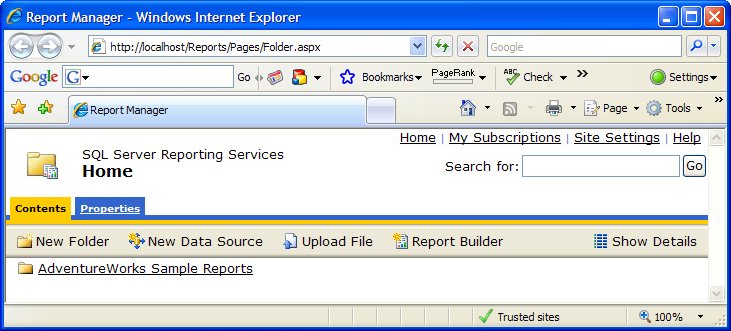 Report Manager lets you view reports, manage reports, manage the hierarchy of reports, configure role-based security, subscribe to reports, manage report subscriptions, create schedules, configure site properties, create report models, create shared data sources, and launch Report Buildera report design tool that lets users design and deploy reports over the Web. Report Builder is discussed later in this book. Report Manager organizes Report Services objects into a folder hierarchy. The link for each object has an icon next to it identifying the object type. For example, the AdventureWorks Sample Reports link is a Folder that contains other Report Services objects. A complete list of object link types are: Report, Report model, Linked report, Folder, Subscription, Data-driven subscription, Resource, Shared data source, and Property page. Position the mouse pointer over an icon to display a tooltip describing the object link type. Click the AdventureWorks Sample Reports link to display the contents of the folder. The contents are two shared data sources (AdventureWorks and AdventureWorksAS) and seven reports as shown in the following figure. Figure 4-2. Report Manager: AdventureWorks Sample Reports Folder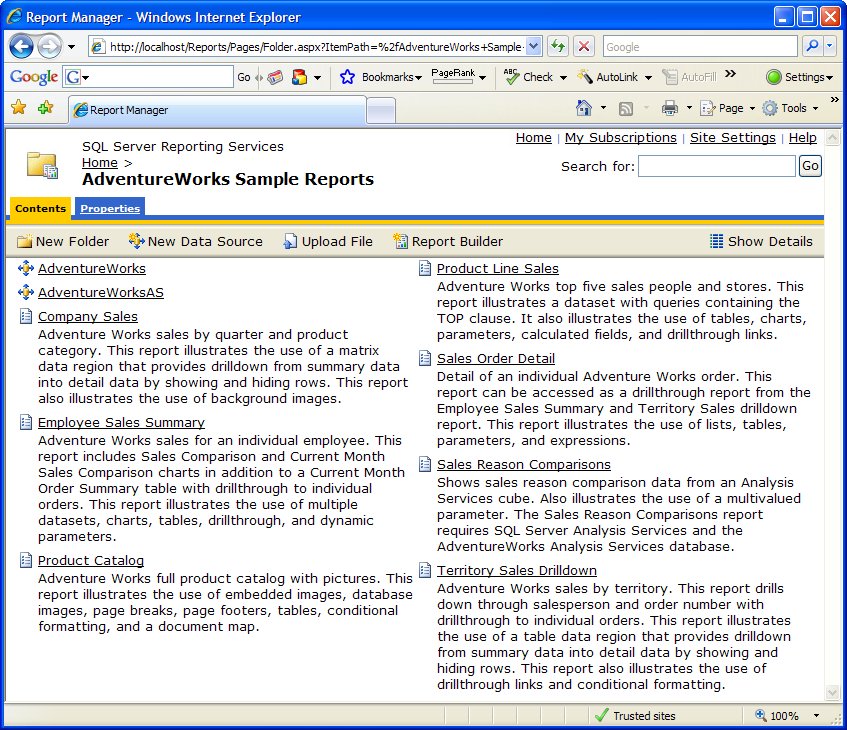 Click on a report to render and view it and to access report management options. For example, click on the Product Line Sales sample report to display the report in the following figure. 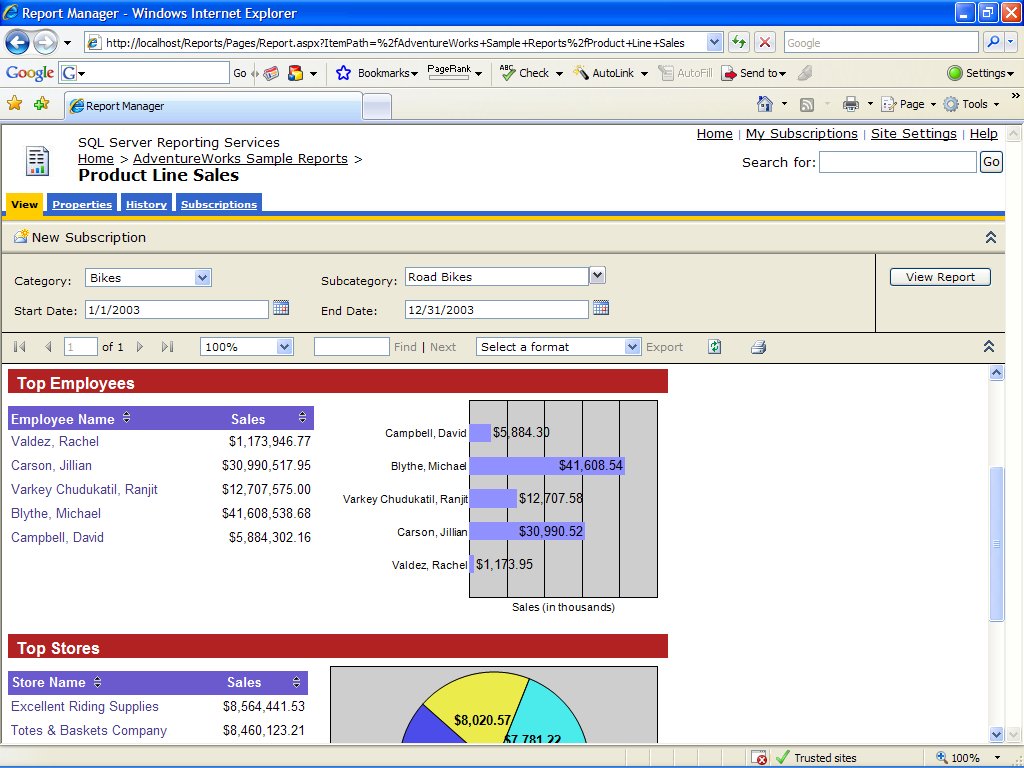 In addition to the View tab which displays the report, notice the Properties, History, and Subscriptions tabs used to manage different aspects of the report. These three tabs are discussed in the Report Builder section later in this book. Report Manager can create data sources and report models as mentioned in the Key Concepts section at the beginning of this book. Creating these items is described as part of the example in the Report Builder section of this book. |
